Three options of how to connect mobile internet to PC, laptop or netbook

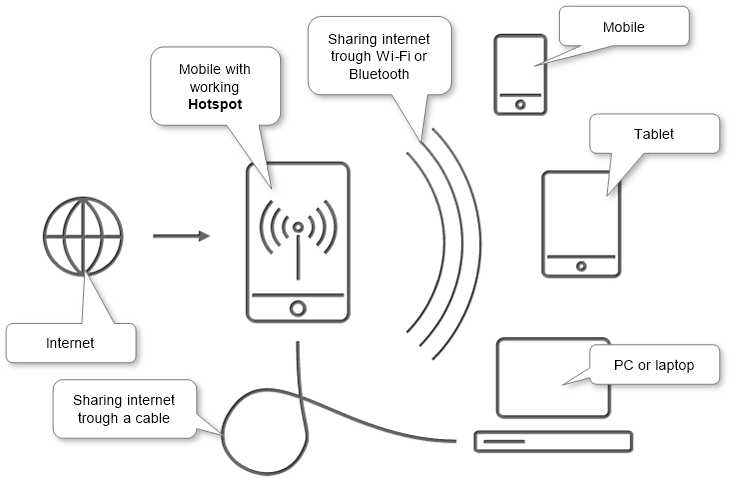
Sometimes we face a situation when we have an only mobile data connection available but we need to use the Internet on our laptop, netbook or PC as well. So, we may share mobile internet to our computer.

We can share mobile device connection to a computer via

  • USB

    It’s the most stable and most economy way.

    • We will have wired connection with PC and don’t depend on any other radio interference. But if the phone is needed by someone else or should be placed in our pocket it’s better to use the below methods.
    • We won’t lose power on mobile.
    • A USB cable is required, and it should be included with our mobile device.
  • Wi-Fi

    It’s the easiest and common way that gives the ability to connect other mobiles, Xbox’s, laptops to our mobile Internet.

    • It increases the usage of battery power.
    • It requires having a Wi-Fi adapter on the computer. Most modern laptops and netbooks have preinstalled adapters instead of PCs. We can find such separate adapters in any computer shops at a low price. We recommend using USB adapter that gives the option to use it with many devices. But there are PCMCIA (for laptops) and PCI (for PCs) adapters. So we may choose the appropriate type.
  • Bluetooth

    It’s used when both above options are unavailable.

    • It increases the usage of battery power.
    • It requires having Bluetooth adapter on the computer (as in the situation with Wi-Fi adapter).
    • Remind that do not place we mobile so far from the computer due to the average distance of this type of connection in the real environment should be less than 10 meters.

INTERESTING!Did you know that you can use familiar MS Word or Google Docs to create site’s content via WordPress’s plugin for importing from .DOCX just by one click?Read More

Below we will find technical descriptions on how to share mobile internet with PC of above 3 options on

Phone or tablet as Internet modem in Android

This three types of Android sharing are grouped in a feature named “Tethering & portable hotspot”. The settings may be found in the “Settings\More\Tethering & portable hotspot\Portable Wi-Fi hotspot” or similar place that depends on different versions of Android.
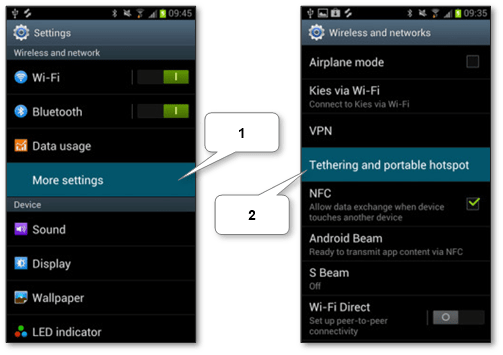
android-hotspot-settings-location

Share the Internet via Wi-Fi

  1. Ensure that Wi-Fi hotspot (tethering) is enabled.
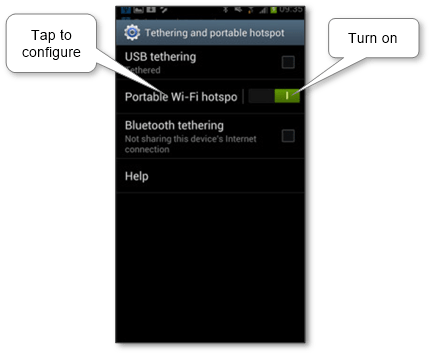
    android-hotspot-settings-wifi

  2. Setup Wi-Fi password and name for using it to connect our Mac or Windows computer to this Wi-Fi network. In later versions of Android, the name is given from the device name.
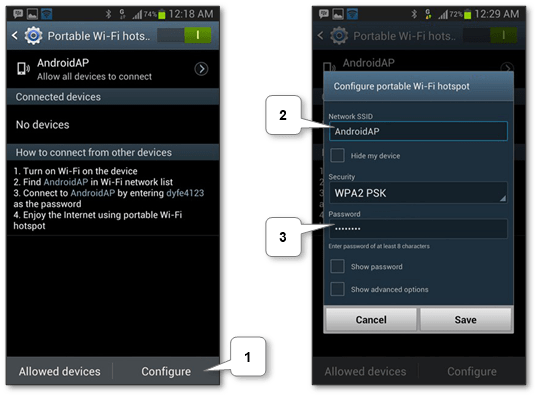
    android-hotspot-settings-wifi-password

Share the Internet via USB

  1. Ensure that the Android USB tethering is enabled.
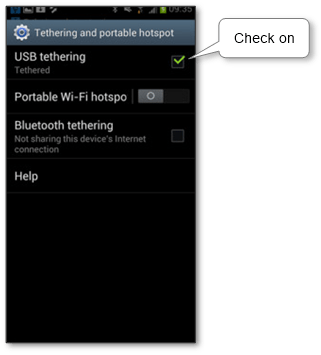
    android-hotspot-settings-usb

  2. Connect the Android device via USB cable to the computer.
    • Windows operating system should automatically install necessary software drivers and mobile will appear as the separated network connection.
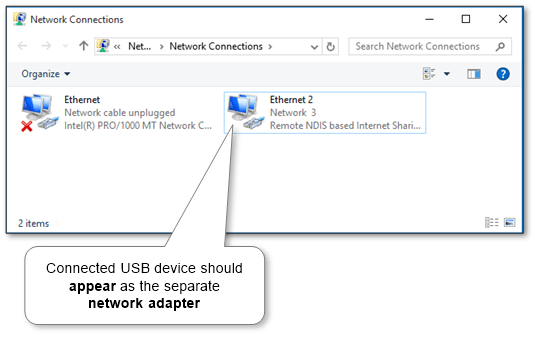
      windows-10-connected-usb-device-as-network-adapter

    • Mac will connect to our mobile. We can check this by click on the Wi-Fi icon in the menu bar and choose “Open Network Preferences” and see that network is connected via our android. Notice that the HoRNDIS driver should be installed before for visibility of our android device.
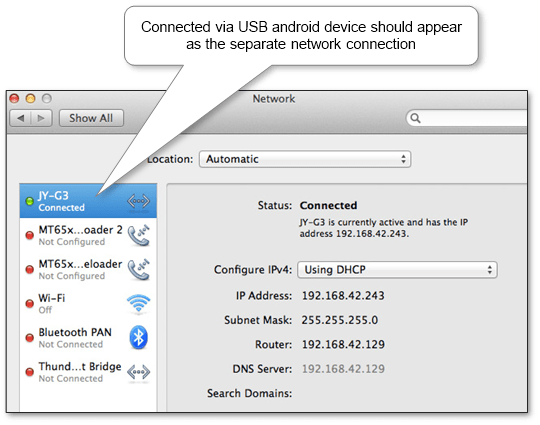
      mac-network-connected-android-usb-device

Share the Internet via Bluetooth

  1. Ensure that the Bluetooth tethering is enabled.
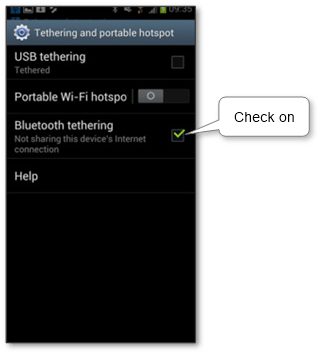
    android-hotspot-settings-bluetooth

  2. Pair the android mobile and computer via Bluetooth and select this connection as a network on the Mac or Windows according to our operating system.

Eventually, now we able to use our phone or tablet as a modem in Android.

iPad or iPhone as an Internet gateway

There is a special feature on Apple mobile devices named “Personal Hotspot” covers all three types of connection. The corresponding settings are located in “Settings\Cellular Data\Personal Hotspot”. Note that if this setting can’t be found the device is unable to detect cellular connection or SIM card isn’t inserted or doesn’t work.
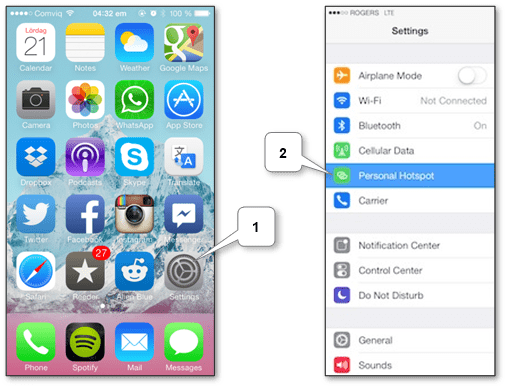
iphone-ipad-hotspot-settings-location

Share the Internet via Wi-Fi

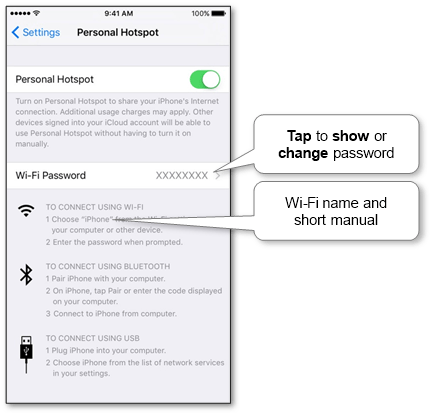
  1. Check external name for the connection trough device name.
  2. Ensure that Personal Hotspot is enabled. If request appears while enabling, we may choose “Turn on Wi-Fi and Bluetooth”. But we always can turn Wi-Fi separately.
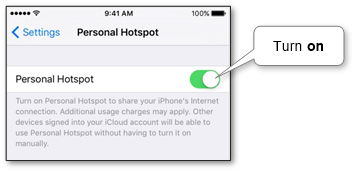
    iphone-ipad-hotspot-settings-wifi

  3. Check the Wi-Fi password and use it to connect the Windows or Mac computer to this Wi-Fi network.

    iphone-ipad-hotspot-settings-wifi-password

Share the Internet via USB

  1. Ensure that Personal Hotspot is enabled. If request appears while enabling choose “USB only”.
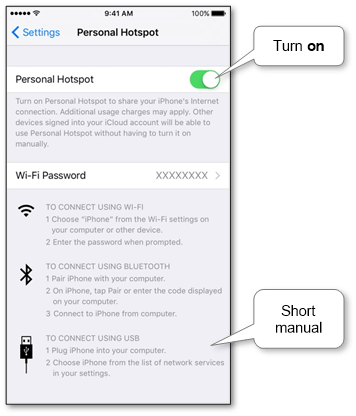
    iphone-ipad-hotspot-settings-usb

  2. Connect the mobile device via USB cable to the computer.
    • Windows operating system should automatically install necessary software drivers and mobile will appear as separated network connection as same as on Android.

      windows-10-connected-usb-device-as-network-adapter

    • Mac will do all automatically. We can check this by click on the Wi-Fi icon in the menu bar and choose “Open Network Preferences” and see that network is connected via USB mobile.
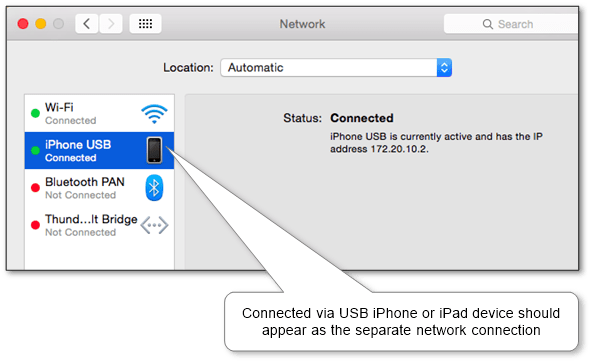
      mac-network-connected-iphone-usb-device

Share the Internet via Bluetooth

  1. Ensure that Personal Hotspot is enabled. If request appears while enabling, we may choose “Turn on Wi-Fi and Bluetooth”. But we always can turn Bluetooth separately.
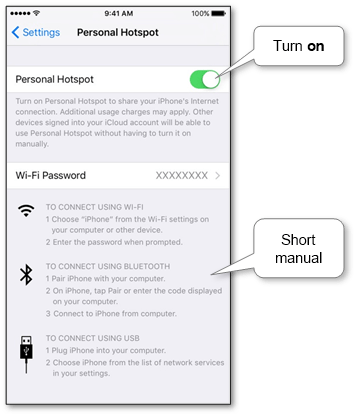
    iphone-ipad-hotspot-settings-bluetooth

  2. Pair the mobile and particular computer type via Bluetooth:

Now we can use our iPad or iPhone as a gateway to browse the Internet on our computer.

Windows Phone tethering

This feature is named “internet sharing” and located in “App list\Settings\internet sharing”.
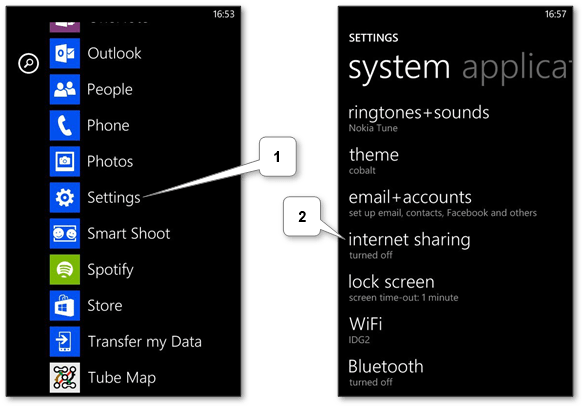
windows-phone-hotspot-settings-location

Share the Internet via Wi-Fi

  1. Ensure that “internet sharing” is enabled. Notice that if our mobile data provider doesn’t support tethering usage the error message will be shown.
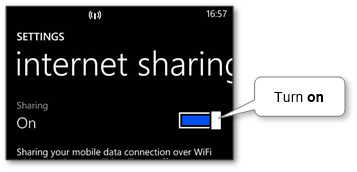
    windows-phone-hotspot-settings-wifi

  2. Check the name and password for the Wi-Fi network by click on the Setup button. In later versions of phone models, the name is given from the device name.
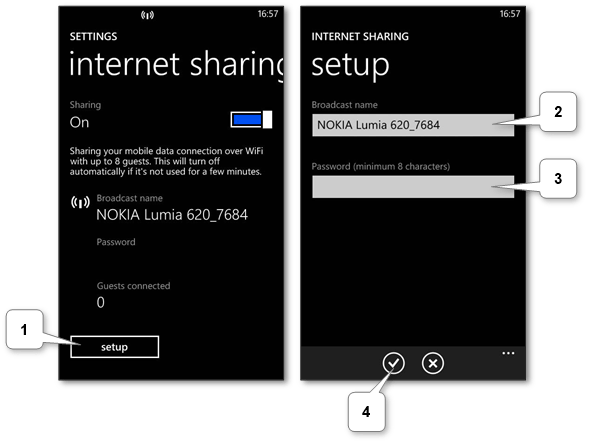
    windows-phone-hotspot-settings-wifi-password

  3. Use this network name and its password to connect Windows or Mac computer.

There is a little trick for a case that the mobile data provider doesn’t support tethering.

  1. Install any proxy software (e.g. Tether-X) on our phone.
  2. Establish own Wi-Fi network on the computer.
  3. Connect Windows Phone to created network and check that proxy is started (in the Tether-X app select “Start Proxy Engine”).
  4. On the computer setup proxy with IP address of our phone (we may find out it by clicking on connected Wi-Fi network) and 8080 as a port. Do not forget to return proxy settings back after finish work.

Now our PC is able to browse the Internet via the mobile connection.

Share the Internet via USB

Unfortunately, there isn’t a standard way to do this. But there are some tricks like this that might be helpful for us.

Share the Internet via Bluetooth

Note that this feature is available starting with Windows Phone 8.1 Update 1.

  1. Ensure that “internet sharing” is enabled and choose “Bluetooth” in “Share over” section.
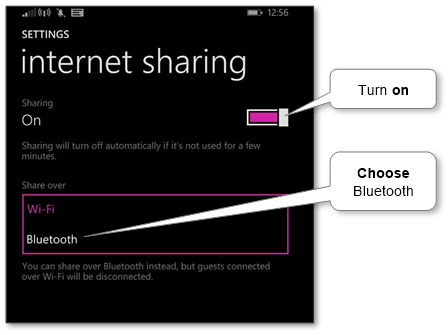
    windows-phone-hotspot-settings-bluetooth

  2. Make sure that the mobile and the Mac or Windows computer are paired via Bluetooth.

Now we can use our Windows phone as a modem to browse the Internet.

More information can be discovered in the original post about Three options of how to connect mobile internet to PC, laptop or netbook and on the main site.

Change PC name on desktops, laptops or netbooks

Currently, we can’t imagine our reality without computer communications. We can connect it via wires, Bluetooth, Wi-Fi, etc. We connect our PC through Wi-Fi and able to exchange files and multimedia with others in the network, share our laptop internet with other mobiles, pair additional devices via Bluetooth with it, etc.

What is our computer name? Each one has to have own name to be recognizable in this digital world as each person has it too. So we should know how to change our computer name and where it can be found for the most popular types such as

Rename computer name on Mac

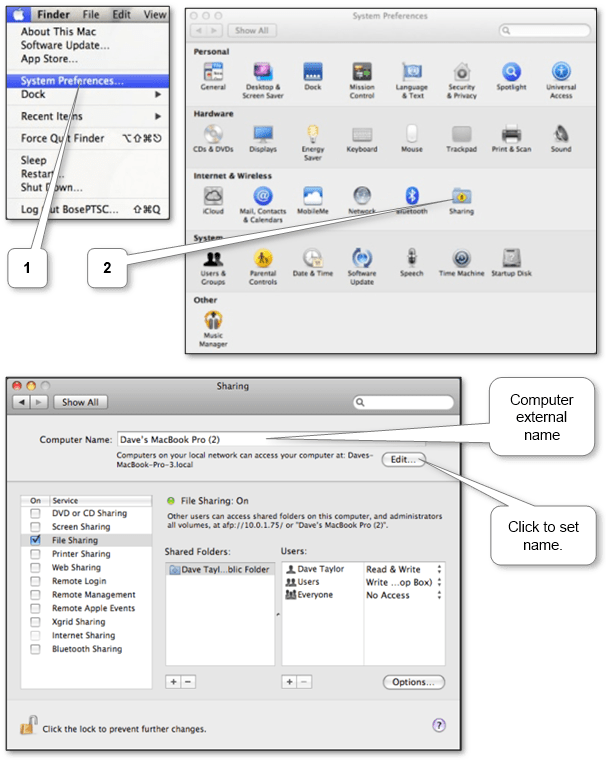
We can change Mac recognizable external name in “System Preferences\Sharing”.

mac_computer_name

How to change computer name in Windows

A number of ways to change computer name are as many as versions of Windows:

Windows 10 (Server 2016)

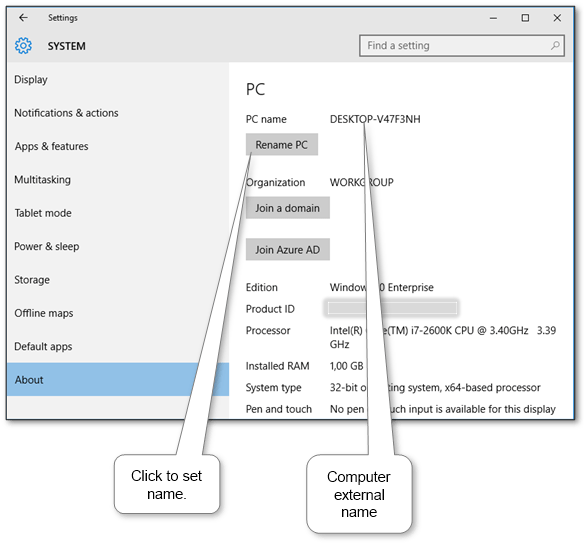
We can see our PC external name in “Start Menu\Settings\About. Click “Rename PC” to set a recognizable name.

windows_10_computer_name

Windows 8\8.1 (Server 2012)

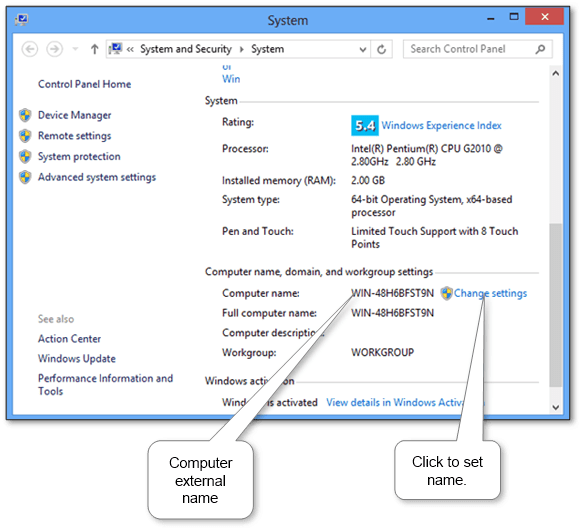
Check name via open Windows Explorer (press Win+E), right-click on Computer item and choose “Properties” then do as described on the next bullet.

windows_8_computer_name

Windows Vista\7 (Server 2008)

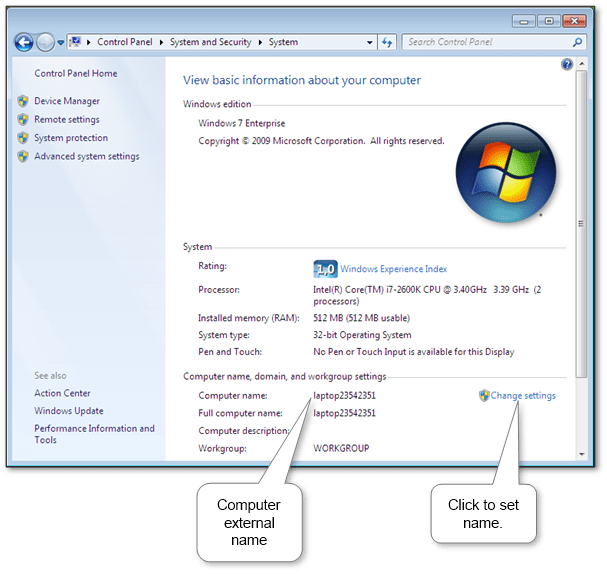
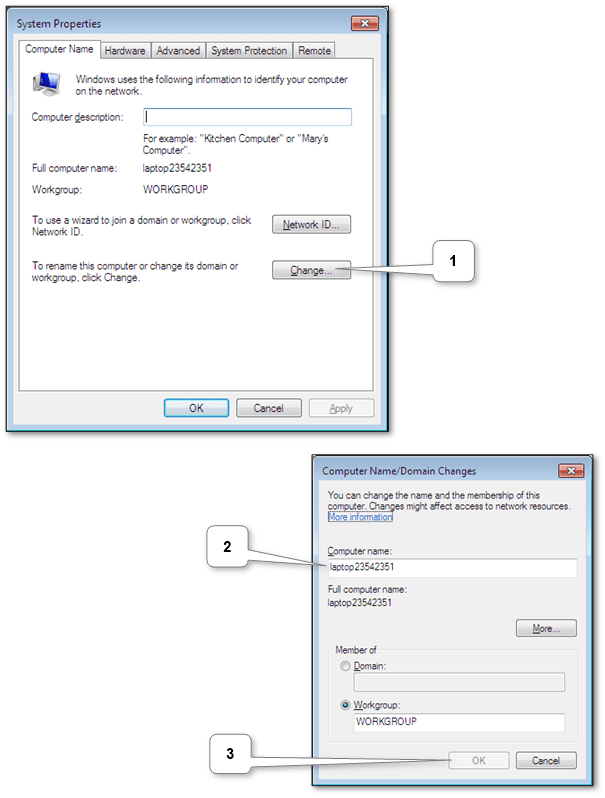
View our system external name under “Start Menu\Control Panel\System and Security\System”. Click “Change settings” and in the “Computer Name” tab click “Change” if necessary.

windows_7_computer_name
windows_7_computer_name_change

Windows XP (Server 2003)

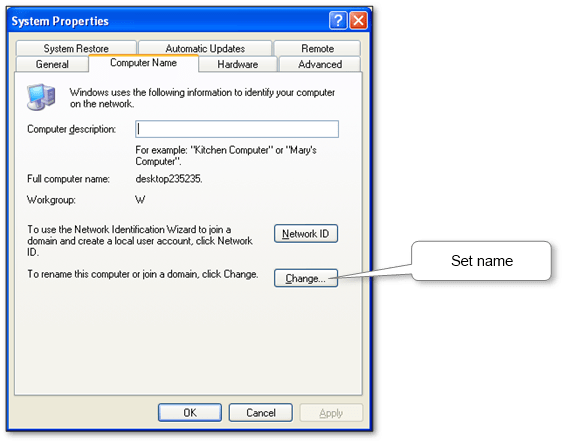
We can find the name in “Start Menu\Control Panel\System\Computer Name”. Use “Change” to set appropriate name like in case of the Windows 7.

windows_xp_computer_name_change

Conclusion

As a result, we can set the name of our PC to be well recognizable by other ones. Note that all devices have non-personed or model names by default e.g. “DESKTOP-V47F3NH” or “MacBook Pro”. So we recommend to change it e.g. “Paul’s laptop” to avoid any type of misunderstanding in the future.

More information can be discovered in the original post about Change PC name on desktops, laptops or netbooks and on the main site.
Changing the device name of mobiles by a few taps

We leave in an environment where we often face with necessary to connect devices to each other. Sometimes we connect one mobile to another for files and multimedia exchange, connect mobiles to a computer for download taken photos, use our mobile internet in PC, pair useful gadgets via Bluetooth, etc. In all mentored cases, we use device names to recognize it while connecting.

So, we should know how to change device name on popular unit types such as

How to change the name of iPhone or iPad

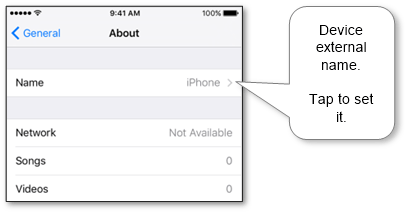
Make sure that the mobile has a recognizable name to be found if needed. Tap on “Name” to change it. It located in “Settings\General\About”.

ios_device_name

Change Android device name

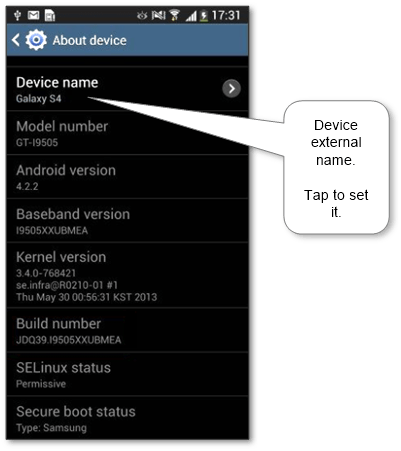
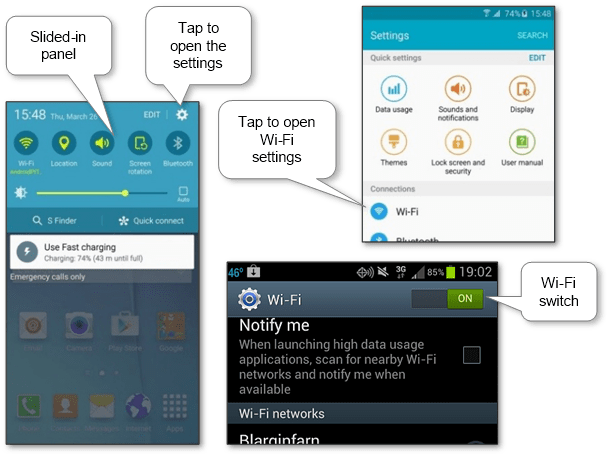
Tap on “Device name” in “Settings\About device” to change it. This setting is quite like other Android versions.

android_device_name

How to change the Windows phone name

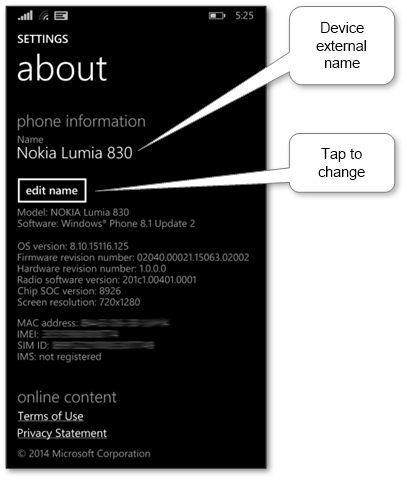
Change it via “edit name” if necessary.

windows_phone_device_name

Conclusion

As a result, we can set the name of our mobile phone or tablet to be well recognizable by other ones. Note that all devices have names according to their model by default e.g. “GT9300” or “iPad”. So, we recommend to change it e.g. “Paul’s tablet” to avoid any type of misunderstanding in the future.

More information can be discovered in the original post about Changing the device name of mobiles by a few taps and on the main site.
How to setup Wi-Fi on a tablet or mobile phone in 3 steps

Currently, this wireless technology is one of the most popular connection types. It’s available at home and public places such as airports, planes, buses, trains, pubs, cafes, shops, gyms, works, etc. Furthermore, data usage trough this type of wireless connection is cheaper than a mobile one. Today staying connected is important so we need to know how to configure Wi-Fi on our mobile devices.

Below are connecting Wi-Fi instructions for the most popular platforms such as

The main steps are

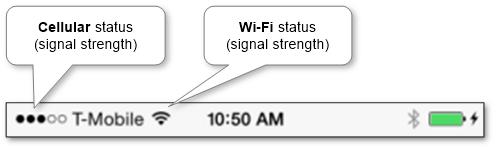
  1. Ensure that the Wi-Fi mode is enabled. There should be a little indicator in the status panel where other icons are located such as battery charge status, cellular signal level, current time and some notifications.

    mobile_common_connection_status

    If it isn’t shown, we need to look at the settings.

  2. Choose the particular network from available ones at the exact place. In most cases, their names are similar to their owners. It’s a good idea to look for the name that includes words according to the place that we are in. In the case of hidden networks, we should manually enter its name. Sometimes Wi-Fi is provided via special Ad-Hoc networks so not all devices can connect to it. All Apple devices support it but many Android and Windows Phones don’t. Some patches enable this support but they can make the device unusable. So, if we hardly need it we will do it at our own risk.
  3. Type the password that may be asked if the circuit is protected. We should ask it from its service people, owner or administrator. Notice that if we enter the password incorrectly there may not be any messages about it, and we will just unable to connect. Additionally, some networks don’t ask the password here and do it before first access to the Internet via a special login page. It’s a common situation when the internet is distributed per account (e.g. in a hotels) and if we need to use it on other devices we will need to share such a connection in special way.

If we do all correctly the connected one will be shown as connected and marked. If we still have connection problems the reason might be in pure Wi-Fi signal or particular network troubles.

In the future, the device will remember this network and if we return to this place the connection will be restored without our action until we use “forget” option.

How to setup Wi-Fi on Apple devices (iPhone and iPad)

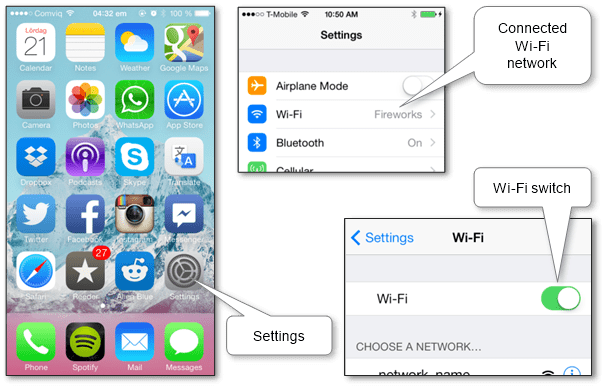
  1. Check on our phone or tablet that the Wi-Fi mode is on. The settings are available via pressing “Settings” icon on one of the main screens and going to “Wi-Fi” section. The section shows the connected network name or disconnected status.

    iphone_ipad_wifi_switch

    This way may be used to turn it off at any time to save battery power.

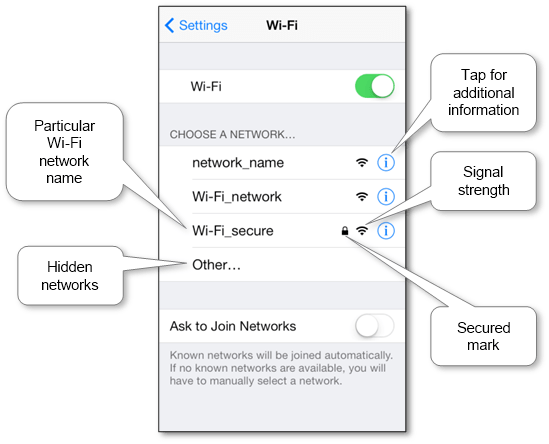
  2. Choose the network from the list by tapping on the needed name.

    iphone_ipad_wifi_networks_list

    Note that Ad-Hoc ones will be shown in a separate list.

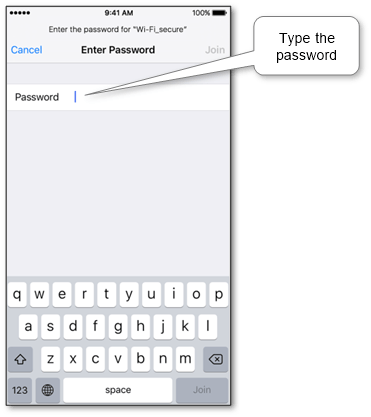
  3. Type the password and choose “Join”.

    iphone_ipad_wifi_password

Now we have a connection to the circuit.

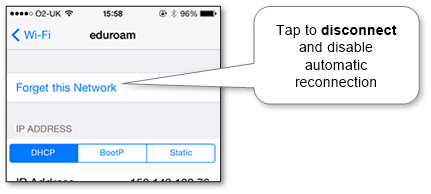
We can also forget a particular connection in case of no need by tapping on it and choose “Forget this network”. So, the device won’t automatically connect to it again.

iphone_ipad_wifi_disconnect

How to connect Wi-Fi on Android devices

Currently, the number of Android types is very huge so here are provided screens from different versions.

  1. Make sure that the Wi-Fi mode is enabled. Slide-in status panel (press on it and move to screen center) and additional options will be shown. The optional Wi-Fi icon shows its status trough active or gray state. By pressing on this icon, we able to enable or disable this wireless mode. If you push this icon and wait, the detailed options will be opened including status and available networks. Also, settings may be opened pressing Apps icon on the main screen, next pressing Settings icon inside other apps icons and going to the Wi-Fi section.

    android_wifi_switch

    This way may be used to turn it off at any time for decreasing battery load.

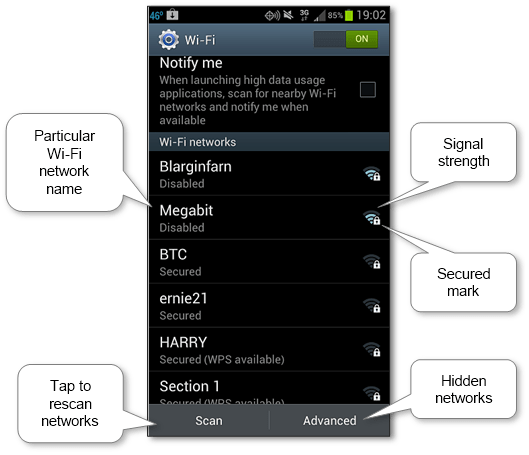
  2. Choose the network from existing ones. Press ‘Advanced’ to connect to hidden ones.

    android_wifi_networks_list

    Note that Ad-Hoc networks won’t be probably shown on the list due to the limits of this platform. There are patches that enable this support but they can make the device unusable. So, if we hardly need it we will do it at our own risk.

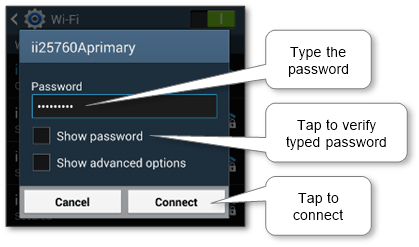
  3. Type the password.

    android_wifi_password

Now we are connected to the chosen circuit.

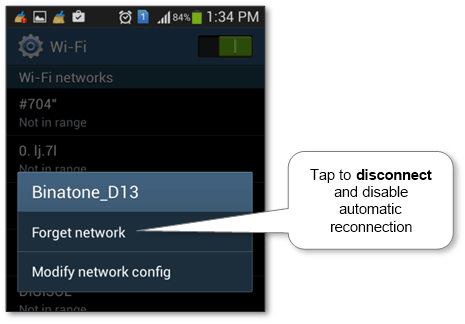
We can also stop reconnecting to it automatically in the future by tap and choose “Forget network”.

android_wifi_disconnect

How to configure Wi-Fi on Windows Phone

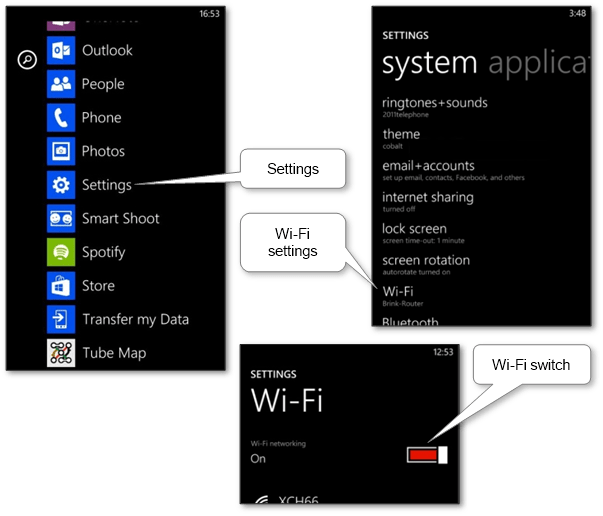
  1. Ensure that the Wi-Fi is switched on. In the App list, go to “Settings”, then “Wi-Fi” section.

    windows_phone_wifi_switch

    We can use this switch to turn it off at any time to reduce battery usage.

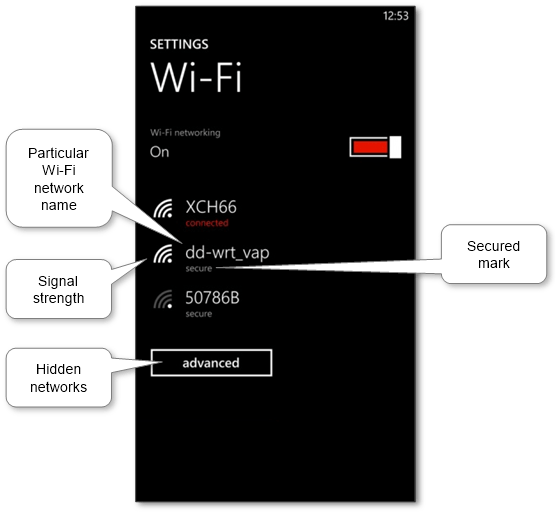
  2. Choose the network from accessible ones to connect with. Hidden ones may be found in “advanced” option.

    windows_phone_wifi_networks_list

    Note that Ad-Hoc ones won’t be probably shown due to the limits of this platform.

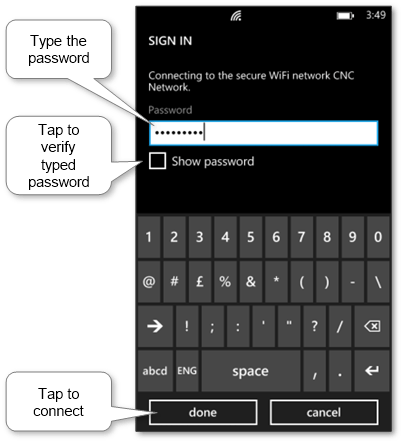
  3. Type the password and tap “done”.

    windows_phone_wifi_password

Now we are connected to the chosen item.

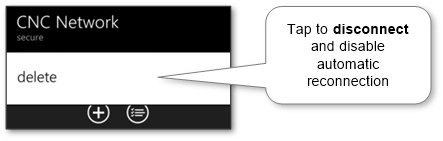
Delete it in case of no need by tap and choose “Delete” to prevent automatically connecting later.

windows_phone_wifi_disconnect

More information can be discovered in the original post about How to setup Wi-Fi on a tablet or mobile phone in 3 steps and on the main site.
How to connect Xbox to the Internet

Today online gaming is very popular so we should know how to connect to Xbox Live and to the Internet. That allows us to play with real peoples around the world.

Ensure that we have the Internet source to connect with. If we don’t have it we may discover possible ways how to stay online. There are two following options to have Xbox the Internet connection via

  • Cable
    It’s the fastest and the stablest way to get the Internet. We don’t care about wireless signal loss, don’t loose FPS and focus our attention on a game.
  • Wi-Fi
    Use this option if we don’t have any wired hi-speed connection or it will be not convenient. E.g. we are in a hotel and able to connect Xbox to hotel Wi-Fi only. In other cases, we recommend to use a wired connection.

Connect Xbox via cable

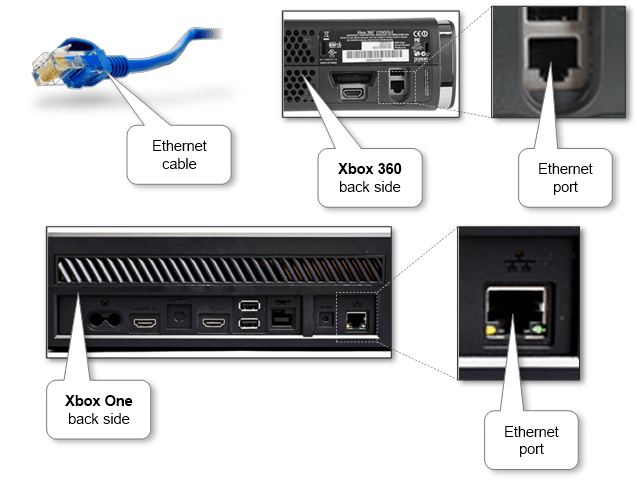
This game console supports wired connection only by Ethernet. The Xbox Ethernet port is located on the backside of the game console. Make sure that our Internet equipment (modem or router) supports it too and appropriate connection holes are available. There also may be an Ethernet jack in a wall. If we don’t have a router we might plug a cable in laptop or PC and share its Internet connection with the game console.

  1. Plug cable to it and to our Internet source. Short cable in most cases included in the set but we might need to obtain the longer one.

xbox_ethernet_port

  1. If the console was turned off just turn it on and the connection should be established.

How to Connect Xbox via Wi-Fi

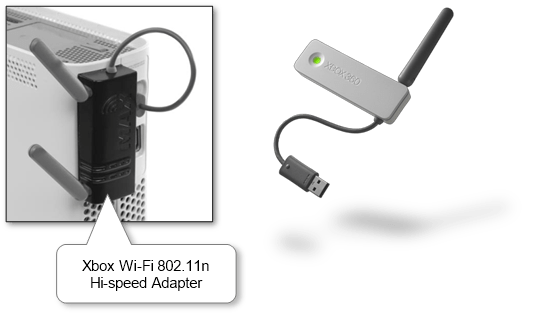
  1. If our Xbox does not have a built-in Wi-Fi adapter we should use a special branded Xbox Wireless Networking Adapter. Sometimes using an external wireless adapter is preferable instead of a built-in adapter because it may improve our signal strength and bandwidth. Other 3rd party adapters are incompatible due to vendor limitations or cost similar price. But we can try to save money and use the Wi-Fi router by configuring it as a receiver and plug into the Ethernet port.

    xbox_usb_wifi_adapter

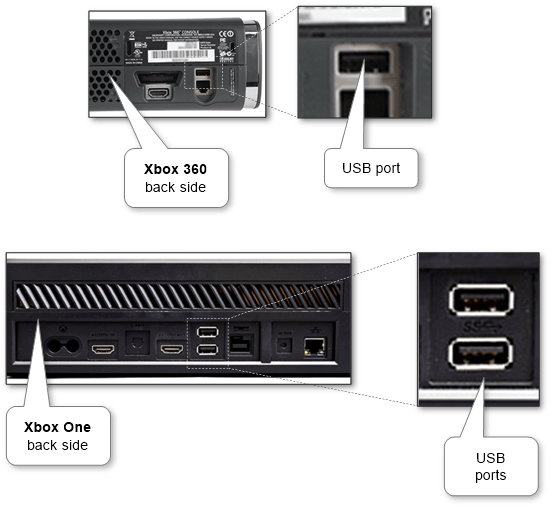
  2. Plugin the adapter to the USB hole on the backside of the console and orient the radio antenna(s). Notice that in some cases we will need to install drivers for adapter using CD that comes with the equipment.

    xbox_usb_port

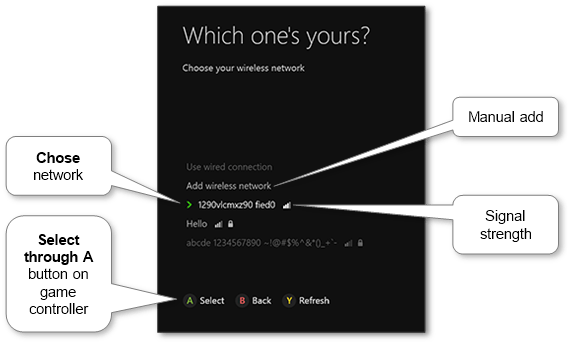
  3. Then turn on the console if necessary, open Settings and begin wireless network setup. This process is quite similar when we connect our tablet or mobile to Wi-Fi where we can find some additional information about connecting to different types of wireless networks. Select the appropriate network from the provided list of available ones in our location.

    xbox_wifi_list

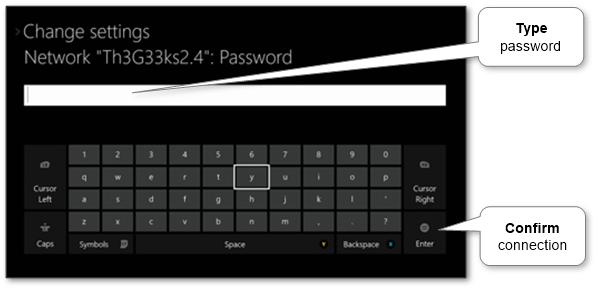
  4. Type the password and select Enter.

    xbox_wifi_password

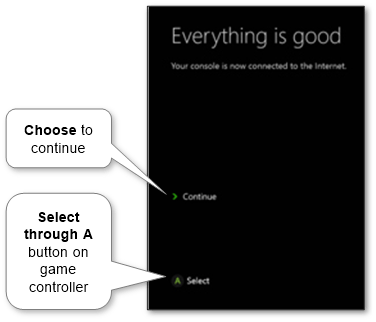
  5. The game console should connect to the network and show the status. Select Continue to return back to the settings.

    xbox_connection_finish

Check status

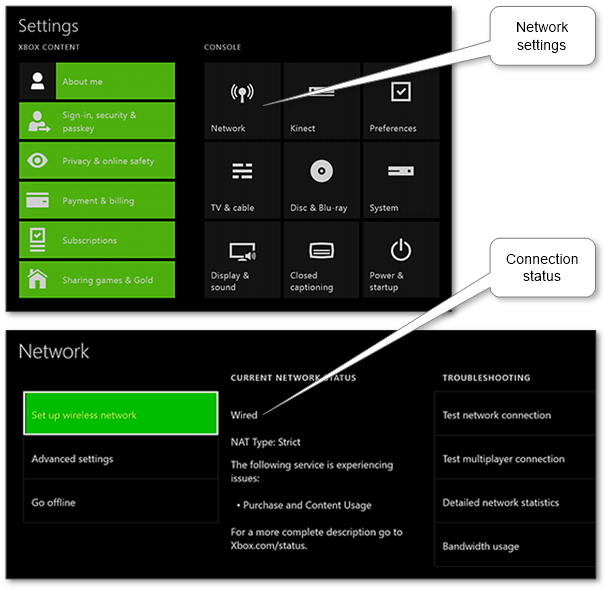
We always can check the status of the connection. Go to the Settings menu, then choose Network menu.

xbox_network_status

And here we always can switch between different types of connection and setup it’s configuration.

If we do all as described and Xbox still won’t connect to the Internet, the reason probably is on the Internet equipment side. We may double-check existing Wi-Fi networks by connecting to them from mobile, tablet or laptop.

It also is very handy to use wireless gadgets such as Bluetooth headset and game controller for Xbox to communicate with other players and enjoy the game.

More information can be discovered in the original post about How to connect Xbox to the Internet and on the main site.
Pairing Bluetooth mobile devices in 3 steps

Nowadays this wireless technology is a common standard that allows us to connect different types of units without any cables or cords. What is Bluetooth used for? It may be used to join a mobile to a car, to join headset to our phone, to use wireless keyboard and mouse with tablet or phone, to act our phone as a modem, to connect mobile to mobile, etc. The average working distance for this technology is not more than about 10 meters so we shouldn’t move connected ones too far from each other.

Today the mobiles are very popular. The total count of them is more that people in the world. So we should know how to connect Bluetooth to the phone to stay modern.

The second device type is varied. One of the most popular wireless gadgets for mobile is a headset. Here is a manual on how to connect the Bluetooth headset unit in 4 steps. Another popular option is pairing a phone with car.

The generic main steps are

  1. Verify that the wireless mode is turned on of the mobile and on the second unit.
  2. Choose the second one in the list to connect with.
  3. Enter or check provided Bluetooth passkey that is required for authorization.

We don’t need to connect the units again in further. They automatically connect when they are in the range of each other with wireless mode turned on. Note that using modern technology can increase the level of battery utilization, so we should check the charge level on both units regularly.

Turn off the wireless mode just in case of stop usage. Remove each one from a paired list of other one to completely unpair Bluetooth devices if needed.

The most mobiles released after 2007 have this technology onboard. We may always check it through finding an appropriate setting on the one. Below are detailed pairing instructions for different types such as

How to connect Bluetooth on iPhone and iPad

  1. Make sure that the mobile has a recognizable external name to be found if needed.
  2. Ensure that wireless mode is on, do the same on the second unit and tap on its name in the list of available equipment. The user interface is quite the same for iPad by thanks to Apple.

    ios_bluetooth_devices_list

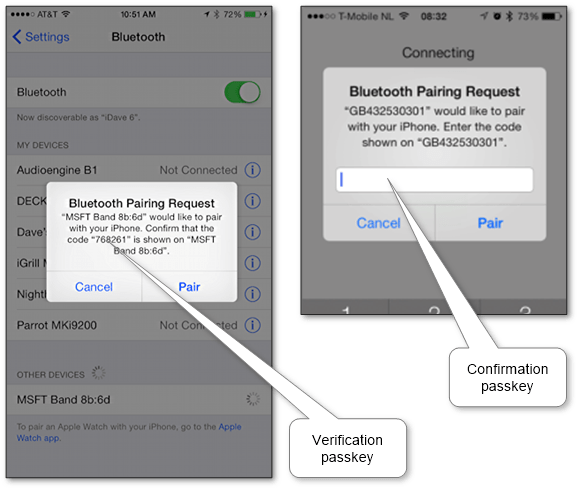
  3. Check Bluetooth passkey (or enter it if necessary) and choose “Pair” to accept the connection.

    ios_bluetooth_passkey_validation

Now the mobile and the other unit are paired.

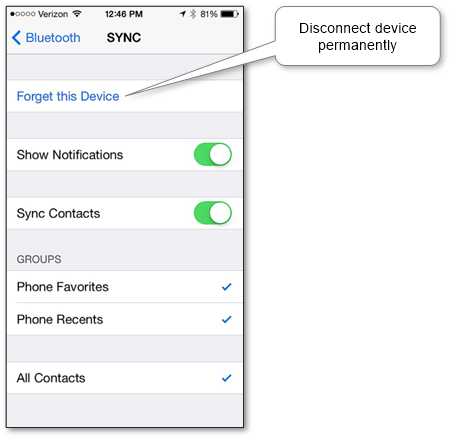
Open it details via information icon and choose “Forget this Device” to unpair the device if necessary.

ios_bluetooth_disconnect_device

Attach Bluetooth on Android phone and tablet

  1. Make sure that the device has a recognizable name if required.
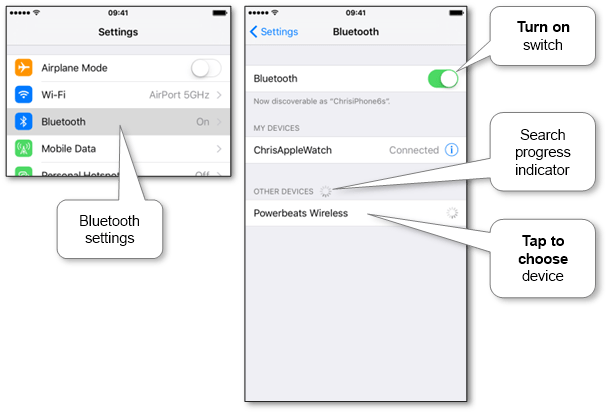
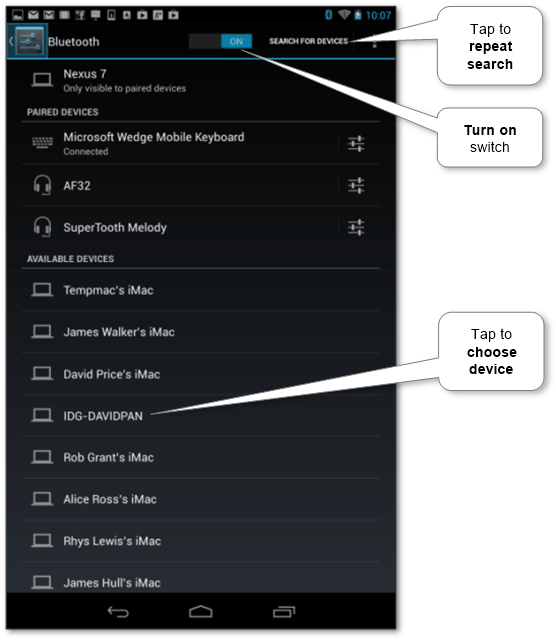
  2. Ensure that wireless technology is on in “Settings\Bluetooth” and tap on the particular available device that must be wirelessly activated too. Repeat search by “Search for devices” or similar if we can’t find a particular unit in the list.

    android_bluetooth_devices_list

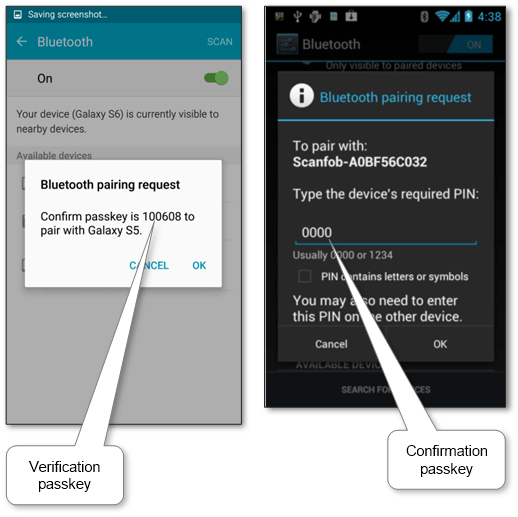
  3. Check passkey for Bluetooth (or enter it if necessary) and confirm the connection.

    android_bluetooth_passkey_validation

Now our units are paired.

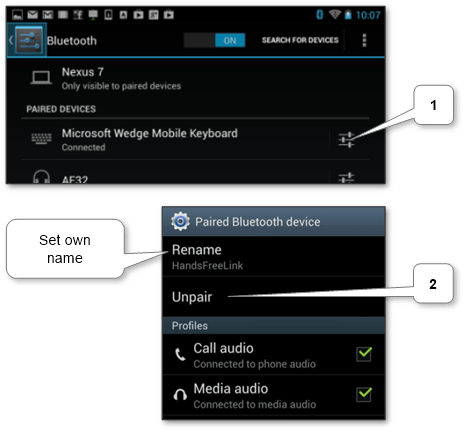
Open it details via configuration icon and choose “Unpair” to disconnect the unit. Also, we can set own local name of paired one via “Rename”.

android_bluetooth_disconnect_device

How to connect Bluetooth on Windows Phone

  1. Check discoverable name and change it via “edit name” if necessary.
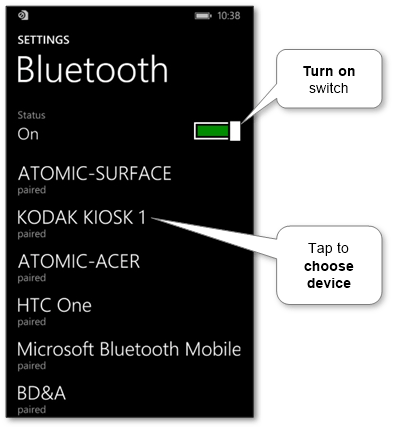
  2. Make sure that the mode is on (look at the below picture) and get the list of available ones. The second one should be enabled too. Then find and tap on the second unit name.

    windows_phone_bluetooth_devices_list

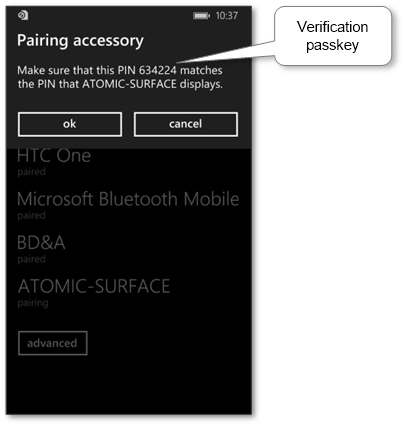
  3. Check the pairing PIN and confirm the connection.

    windows_phone_bluetooth_passkey_validation

Now the mobile and the other unit are paired.

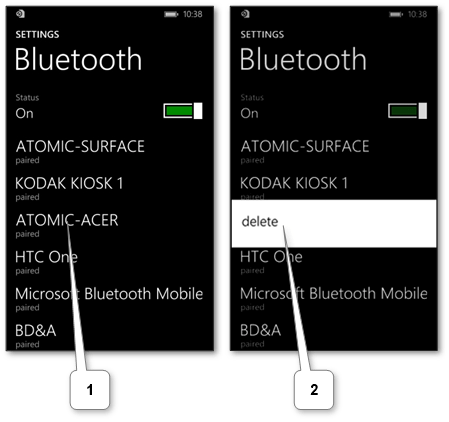
Tap on device in the list and confirm deletion to unpair it in case of no need.

windows_phone_bluetooth_disconnect_device

More information can be discovered in the original post about Pairing Bluetooth mobile devices in 3 steps and on the main site.
How to add Bluetooth to PC in Mac desktop or laptop

What is Bluetooth technology? It allows us to connect different types of equipment without any cables or wires. It might be used when we want to join headphones or microphones to our computer, to use a wireless mouse or keyboard with it, to use our mobile phone as a modem, etc. The working distance covered by this technology is about 10 meters.

So, it will be better for us to know the main principles of how to set up Bluetooth with different units. The special associated process is called pairing. The basic main steps for Bluetooth connect are as follow

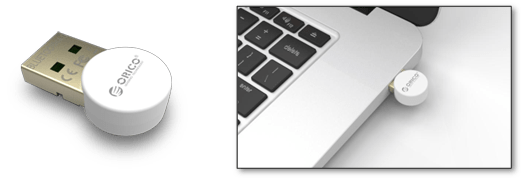
  1. Check that the wireless technology is really enabled on the computer. Most Mac computers have this technology built-in. Otherwise, we can obtain external adapters or use special USB dongle that often comes with the equipment.

    mac_bluetooth_usb_dongle

  2. Activate wireless mode on the second unit e.g. gadget, mobile or another computer.
  3. Ensure that the wireless mode is enabled in our Mac and initiate another equipment searching.
  4. Choose the second unit to pair with.
  5. Type or compare provided Bluetooth passkey that is required for authorization and finish procedure.

There is no need to connect the Mac and second unit again in the future because they automatically connect when they are in the range of each other with the wireless mode turned on.

Unpair Bluetooth device from the computer by removing the first one from the linked units list in case no need.

Modern versions of Mac operating systems are quite similar, so below steps are provided without separation to particular versions.

  1. Change Mac recognizable external name in “System Preferences\Sharing” if needed.
  2. Check that the wireless mode is enabled on the second unit. Look at how to connect to Bluetooth for iPhone, iPad and other mobiles. Also, there are device pairing descriptions for gadgets like a mouse, keyboard, headphones, etc.
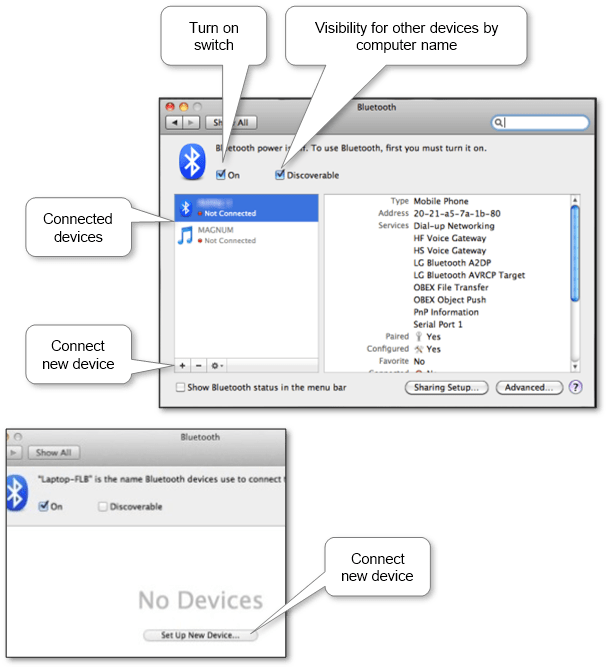
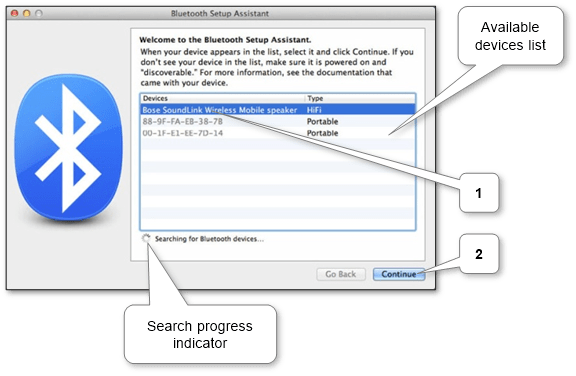
  3. Ensure that the wireless mode is on in “System Preferences\Bluetooth” and launch setup assistant to connect the new unit via bottom or central button. Enable Bluetooth discovery mode trough check “Discoverable” if we want to be visible by other units.

    mac_bluetooth_devices_list

  4. Choose the needed device from the list and continue.

    mac_bluetooth_connect_device

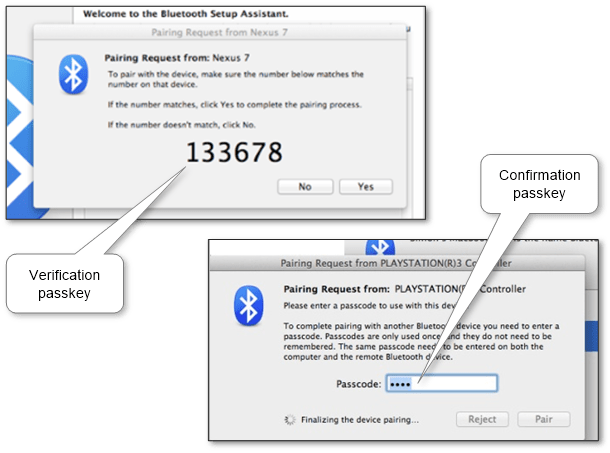
  5. Validate Bluetooth pairing PIN (or enter it if necessary) to accept pairing and finish the adding process.

    mac_bluetooth_passkey_validation

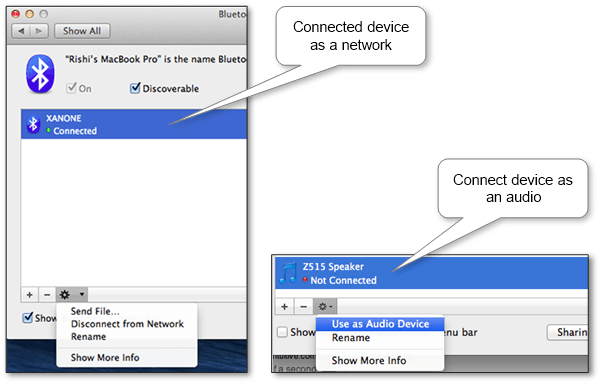
Now the computer and the device are paired. And now we should assign the function to the second one depends on the purpose. If it’s a mobile phone we can use the device as the Internet connection for the computer by connecting it to a network by the popup menu command. If it’s a speaker system, we should activate it as an audio device via the corresponding command in the same popup menu. In other cases, look at appropriate commands in this menu. Also, we can change the local name of the paired device.

mac_bluetooth_device_as_purpose

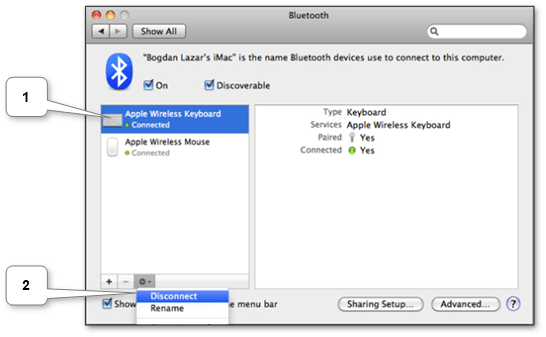
Use the bottom “Disconnect” menu command to unpair the device. After that, we’ll have to repeat the pairing process if you want to use it again.

mac_bluetooth_disconnect_device

Notice that some devices such as mouse or keyboard might disconnect after some time of inactivity to save their battery power. So, we might need to press any button or control to activate the device again.

More information can be discovered in the original post about How to add Bluetooth to PC in Mac desktop or laptop and on the main site.
Connect Bluetooth on PC, laptop or netbook in Windows

What is Bluetooth used for? Today it is a modern common wireless standard. It might be used when we want to use a wireless keyboard and mouse with our computer, to use our phone as a modem, etc. Generally, it allows us to connect different types of equipment without any cables or wires.

So we should know how to set up Bluetooth with different units. The generic main steps for Bluetooth connection on a computer are

  1. Make sure that the wireless hardware component is turned on our computer according to the User’s Guide. E.g. on many laptops there is a particular function key to do that like Wi-Fi and special software might be installed that allows it switching on or off.
  2. Activate this technology and searching for the second unit. In other articles, we can find pairing instructions for mobiles, various gadgets, etc.
  3. Start searching for other ones on the computer and choose the second one to connect with.
  4. Type or compare provided Bluetooth passkey required for authorization and finish connection if required.

Further, they automatically connect when they are in the range of each other with turned on the wireless technology.

Unpair they via remove each one from paired list of another one in case of no need if applicable.

Here are detailed steps for each version of Windows that is used nowadays:

Windows 10 (Server 2016)

  1. Check that our computer has a recognizable external name.
  2. Activate Bluetooth on the second unit. Particular descriptions are available for computer gadgets and mobiles.
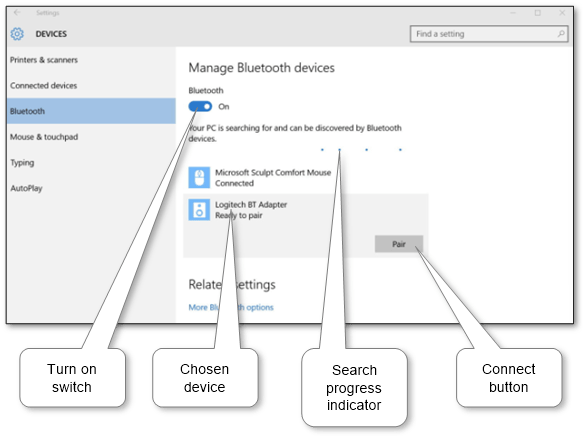
  3. Ensure that the technology is on under “Start Menu\Settings\Devices\Bluetooth”. The system will start searching. Choose the second one to connect with and use the “Pair” button. Or accept incoming connection attempt by click on the balloon.

    windows_10_bluetooth_devices_list

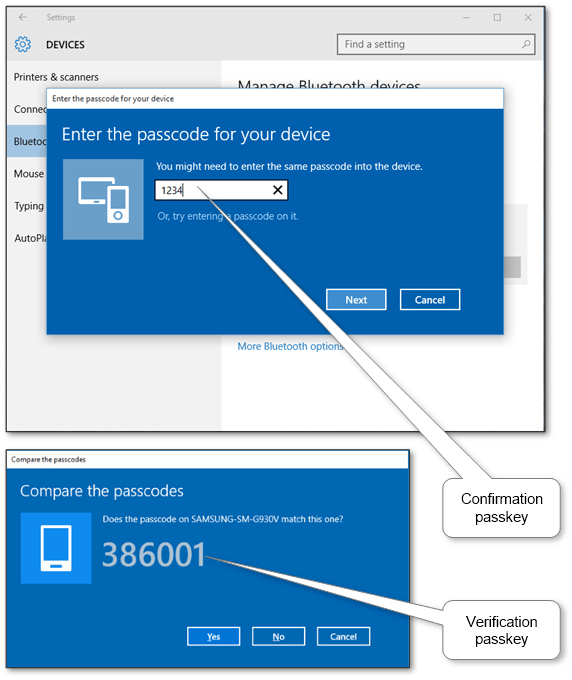
  4. Validate Bluetooth pairing code (or enter it if necessary) to accept pairing and continue.

    windows_10_bluetooth_passkey_validation

Now the second one is connected. Choose “Unpair” in the list item to disconnect it if it no needed anymore.

Windows 8\8.1 (Server 2012)

  1. Check that our computer has a recognizable external name.
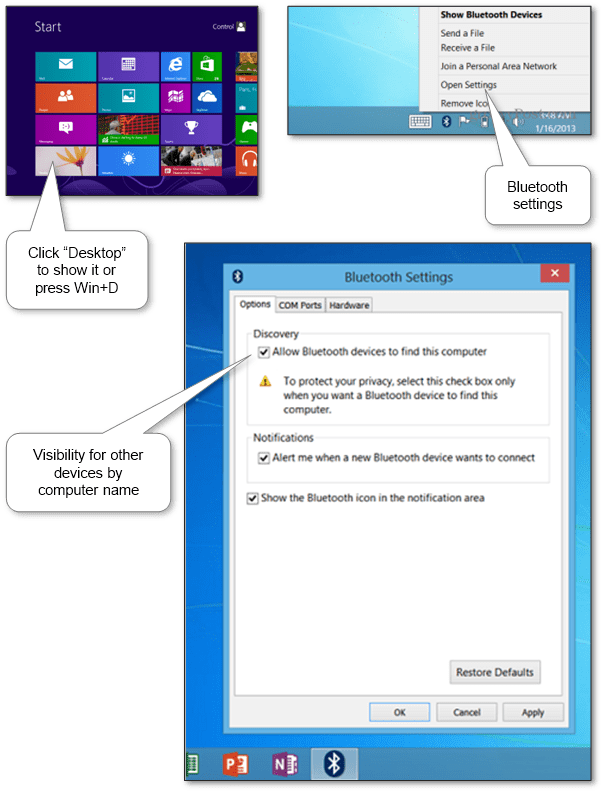
  2. Enable discoverable state for others via “Desktop\Bluetooth Tray icon\Open Settings\Options” in case of initiate connecting from the second one.

    windows_8_bluetooth_discoverable_settings

  3. Check that the pairing mode is enabled on the second unit. E.g. there are pairing instructions for keyboard, mouse, headphones, and mobiles.
  4. Ensure that wireless technology is on and choose the second one to connect with.
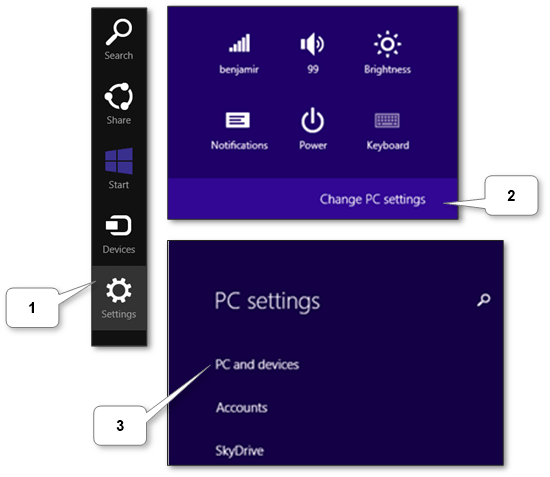
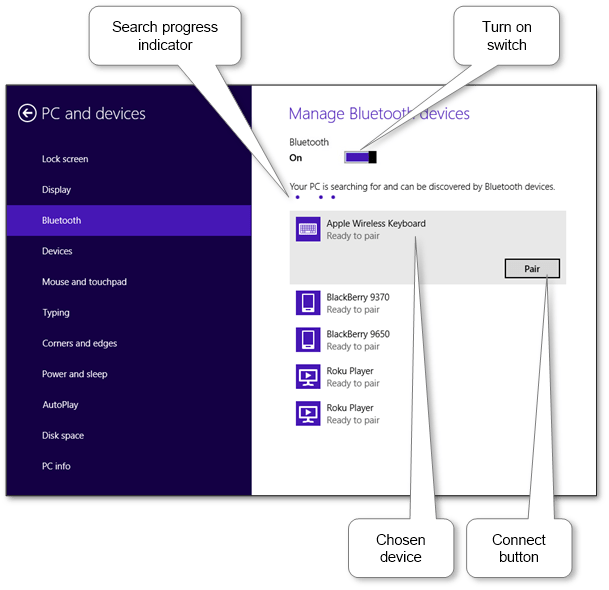
    • In 8.1 version the settings are located in “Charms Bar(Win + C)\Settings\Change PC Settings\PC and devices\Bluetooth.

      windows_8_1_pc_devices_settings_location
      windows_8_1_bluetooth_devices_list

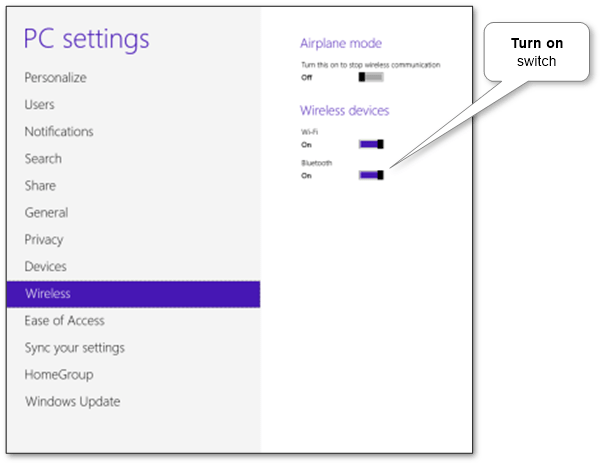
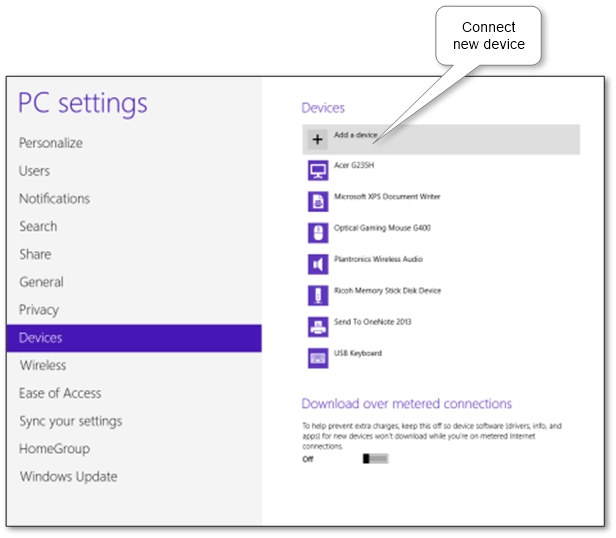
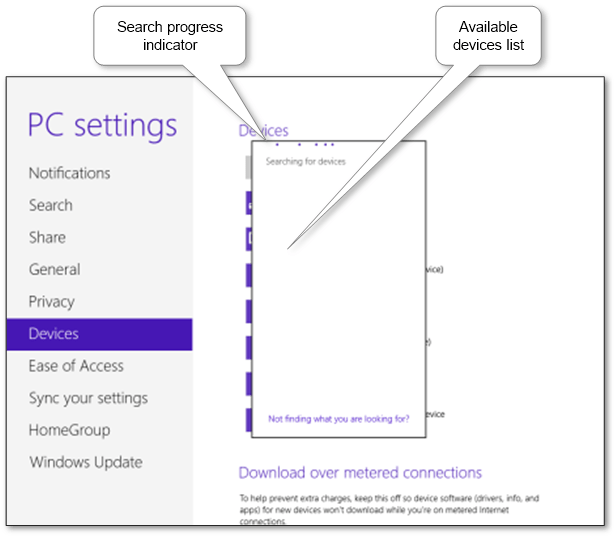
    • In 8.0 version go to “Charms Bar(Win + C)\Settings\Change PC Settings\Wireless”. The list of the connected equipment is in the “Devices” section. Choose “Add a device” to begin connecting procedure.

      windows_8_0_bluetooth_switch
      windows_8_0_bluetooth_devices_list
      windows_8_0_bluetooth_connect_device

  5. Validate pairing pin (or enter it if necessary) to accept pairing and continue.

    windows_8_bluetooth_passkey_validation

Now the unit is connected.

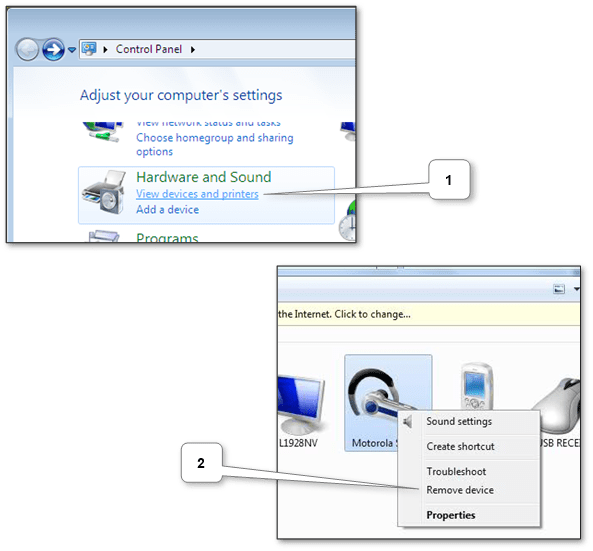
Choose “Remove device” to disconnect the unit in “All apps\Control Panel\Devices and Printers”.

windows_8_bluetooth_disconnect_device

Windows Vista\7 (Server 2008)

  1. Check that our computer has a recognizable external name.
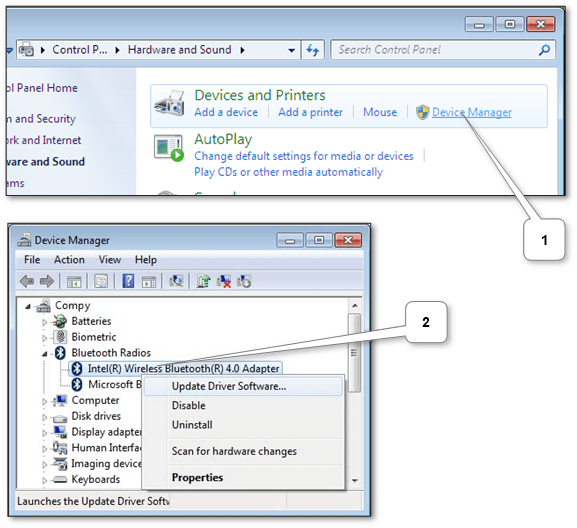
  2. Ensure that a particular hardware component is enabled in “Start Menu\Control Panel\Hardware and Sound \Device Manager\Bluetooth Radios”.

    windows_7_bluetooth_hardware_check

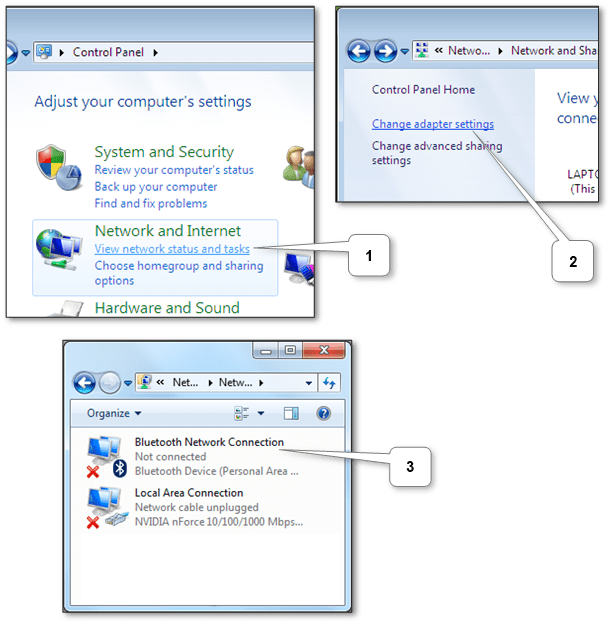
  3. Check that associated network connection is enabled via “Start Menu\Control Panel\View network status and tasks\Change adapter settings”.

    windows_7_bluetooth_network_connection

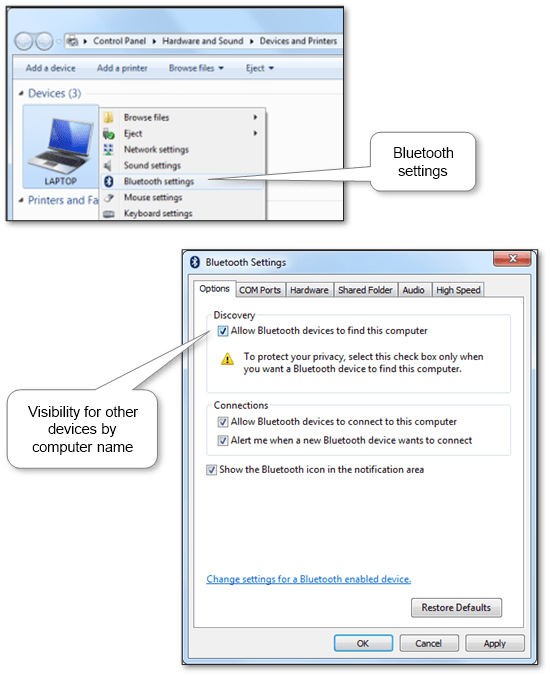
  4. Check visibility for other equipment if needed.

    windows_7_bluetooth_discoverable_settings

  5. Activate pairing mode on the second unit. Particular descriptions are available for computer gadgets and mobiles.
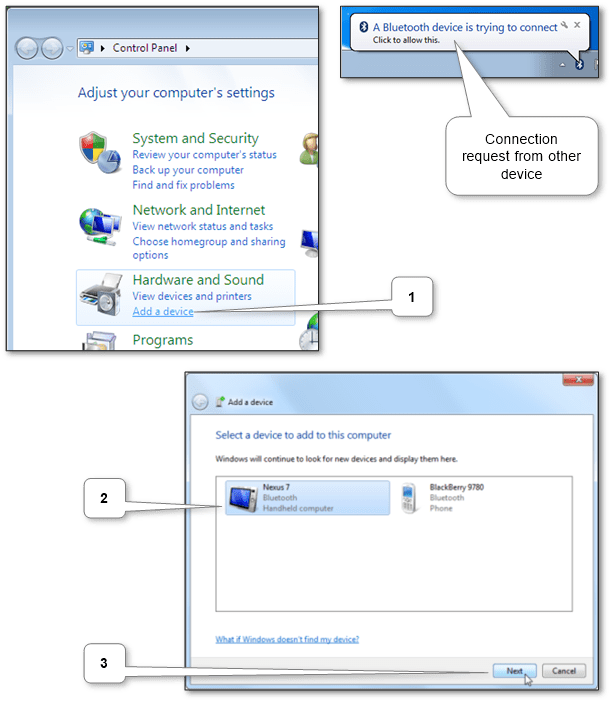
  6. Add the second unit or open incoming connection attempt.

    windows_7_bluetooth_connect_device

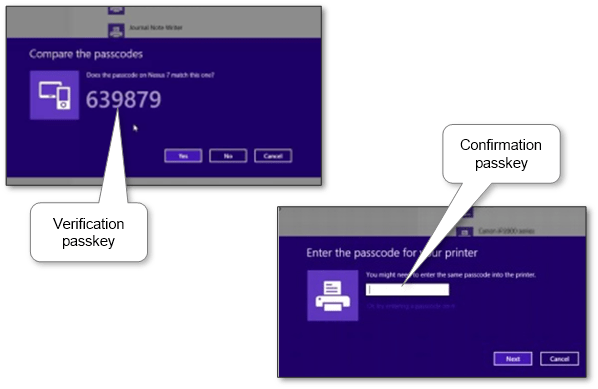
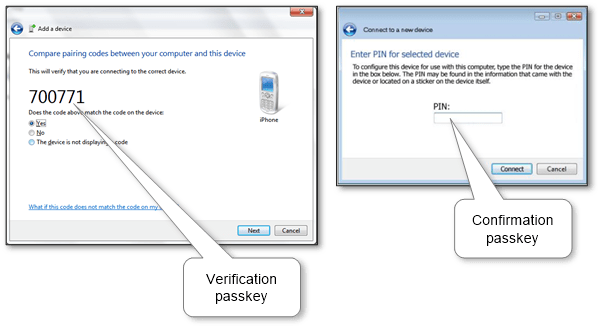
  7. Validate Bluetooth passkey (or type the same on the second unit if necessary) and finish the process.

    windows_7_bluetooth_passkey_validation

Now the unit is connected.

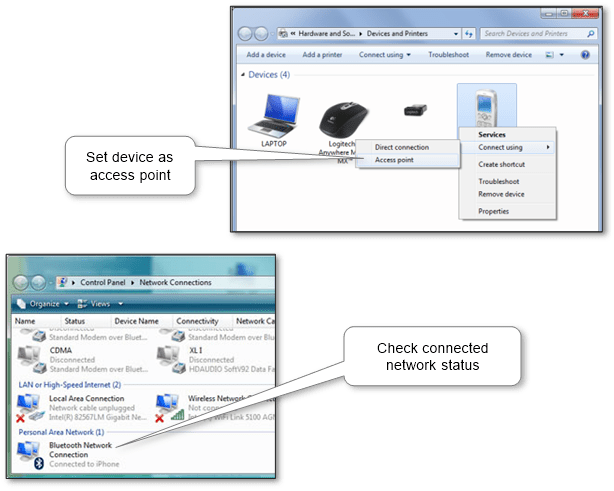
To act device as the Internet connection to computer set it as “Access point”, Bluetooth network connection will be activated and we will be able to connect to the Internet.

windows_7_bluetooth_device_as_access_point

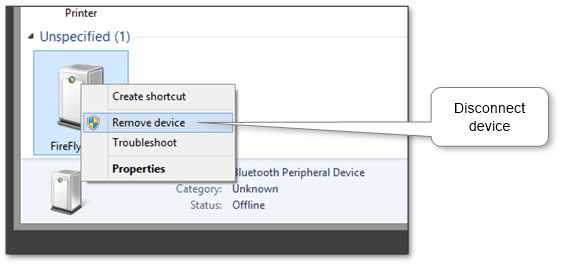
To unpair them go to “Start Menu\Control Panel\Hardware and Sound\Device and Printers” and choose “Remove device” from the popup menu.

windows_7_bluetooth_disconnect_device

Windows XP (Server 2003)

  1. Check that our computer has a recognizable external name.
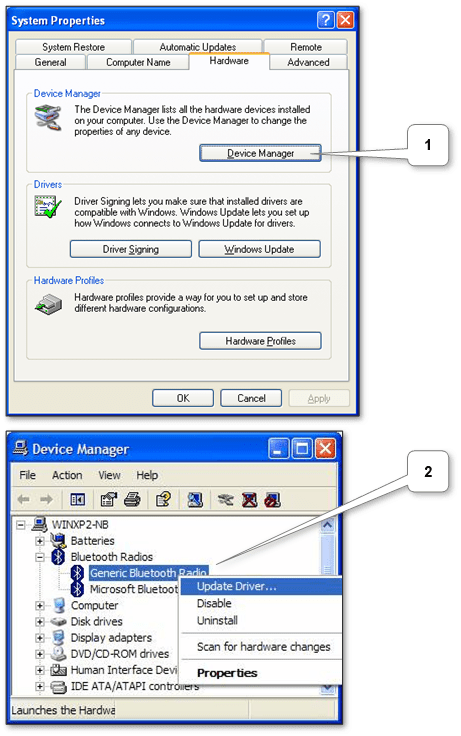
  2. Ensure that the wireless equipment is enabled in “Start Menu\Control Panel\System\Hardware\Device Manager\Bluetooth Radios”.

    windows_xp_bluetooth_hardware_check

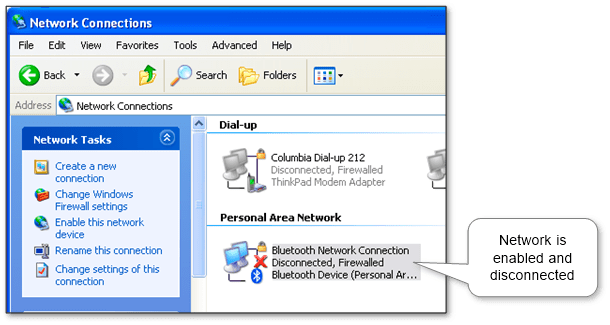
  3. Make sure that “Bluetooth Network Connection” isn’t disabled in “Start Menu\Control Panel\Network Connections”. E.g. it allows using a connected mobile unit to act as an Internet modem.

    windows_xp_bluetooth_network_connection

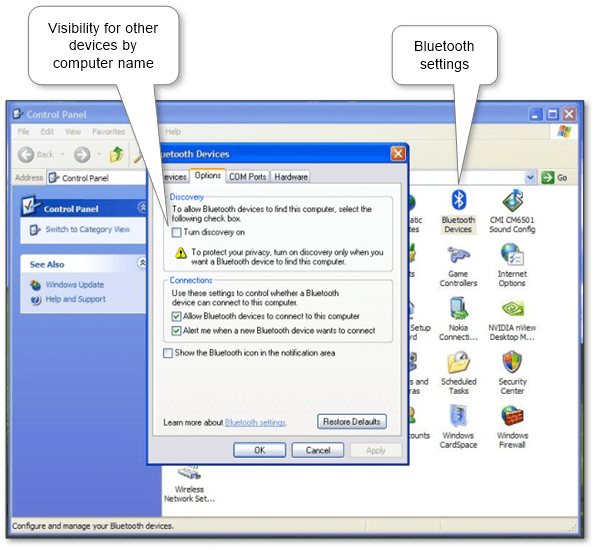
  4. Check for visibility for other equipment if necessary in “Start Menu\Control Panel\Bluetooth Devices\Options” by enabling “Turn discovery on”.

    windows_xp_bluetooth_discoverable_settings

  5. Enable pairing mode on the second thing. Particular instructions are available for computer gadgets and phone pairing.
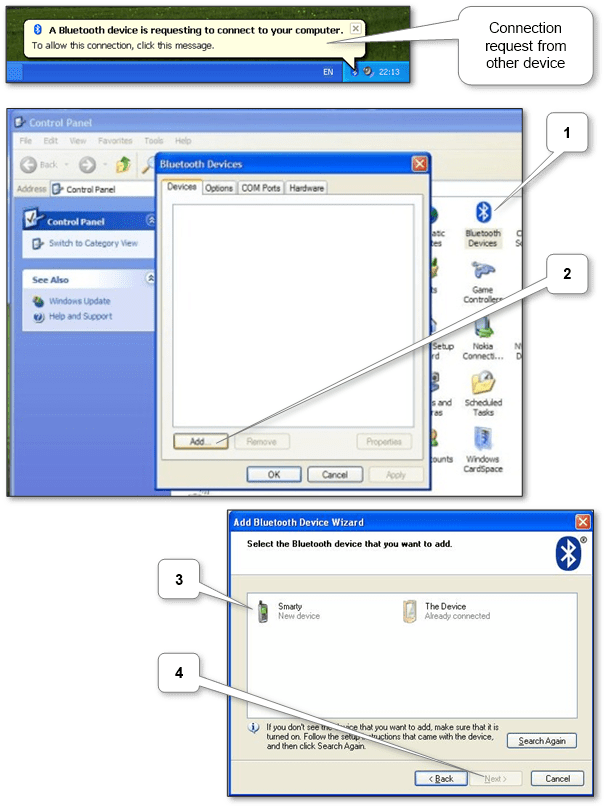
  6. Use add wizard via “Start Menu\Control Panel\Bluetooth Devices\Devices\Add” or accept the incoming connection by click on the balloon.

    windows_xp_bluetooth_connect_device

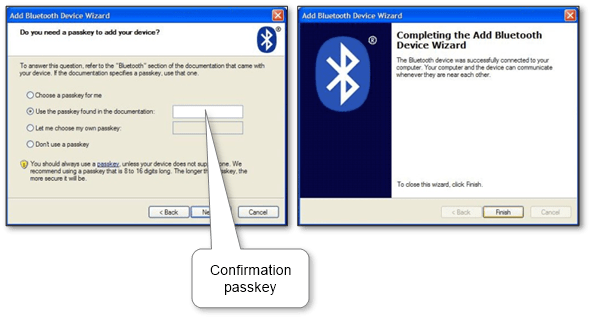
  7. Validate the pairing pin (or enter it if necessary) to accept the pairing and finish the wizard process.

    windows_xp_bluetooth_passkey_validation

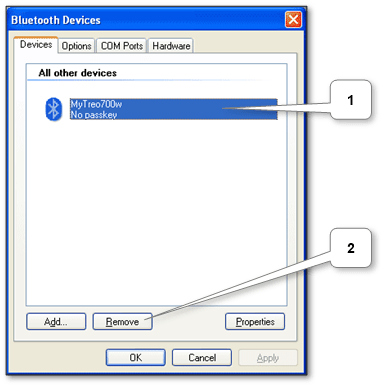
To unpair the second unit choose “Remove”.

windows_xp_bluetooth_disconnect_device

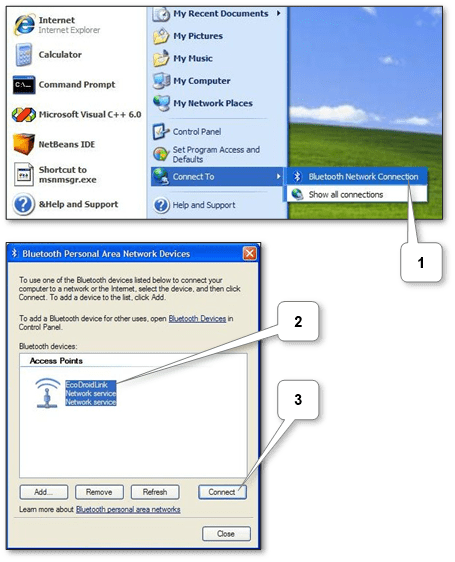
To use the unit as the Internet connection press “Connect”. E.g. we can share the Internet from our mobiles such as Android, iPhone, iPad, Windows phone to PC.

windows_xp_bluetooth_device_as_access_point

Notice that sometimes Windows might unable to connect our unit e.g. long driver installation. In such case try to reconnect or repeat connection procedure.

More information can be discovered in the original post about Connect Bluetooth on PC, laptop or netbook in Windows and on the main site.
Pairing Bluetooth end devices is easy

Today this technology is a modern common wireless standard. What is Bluetooth used for? It might be used when we want to connect a mobile phone to our car, to join a headset to our phone, to use a wireless keyboard and mouse, to use our phone as a modem, to connect phone to phone, etc. Generally, it allows us to connect different types of devices without any cables.

So we should know the principles of how to set up Bluetooth with different units. The main steps are as follows

  1. Turn on the Bluetooth mode and start waiting for the connection in the first unit.
  2. Meanwhile, choose the first unit in the second device for making the connection.
  3. If needed enter provided Bluetooth passkey for authorization and confirm the connection.

Further on there is no need to connect them again as they usually stay automatically connected in close range of each other and turned on Bluetooth.

Disconnect the paired units in case no need.

Find instructions below how to pair different end units such as

Pair up Keyboard

A wireless keyboard is very useful with a mobile phone or tablet for typing a lot of messages or texts. Also, such keyboard works well with a desktop that is used as a home theater.

  1. Check that the keyboard is switched on.
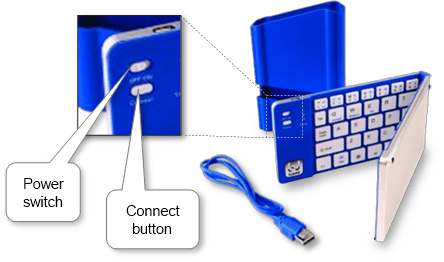
  2. Find and press Connect button on the keyboard. If it isn’t found on the front side look on the back one.

    keyboard_buttons

  3. Launch Bluetooth searching on the other unit, choose the keyboard and start connecting. Here are detailed instructions of how to connect with Android, iPad and iPhone, Windows Phone, Mac and Windows.
  4. Type the Bluetooth passkey on the keyboard shown on the other unit, press Enter key and finish pairing if needed.

Notice in case of the keyboard battery is low the connection might not be established. Then replace it or charge the battery if it is in-build.

Pair up Mouse

A wireless mobile mouse is a very useful laptop tool. Also, it works well together with a desktop that is used as a home theater.

Notice when our second device doesn’t support this wireless technology (e.g. desktop PC) or we don’t want to use the integrated one we can use a small USB adapter included in some mouse models’ sets. It automatically pairs the connection.

  1. Switch on the mouse.
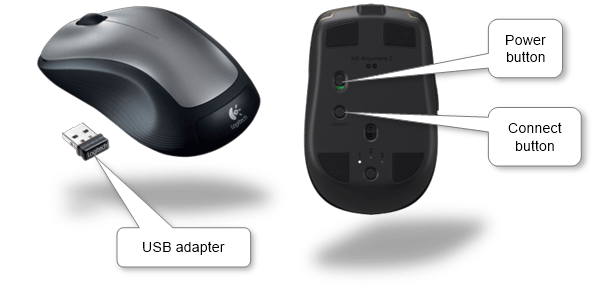
  2. Find and press the mouse Connect button on the backside.

    mouse_buttons

  3. Launch searching on the second unit, choose the mouse and start connecting. There are Bluetooth pairing instructions for Android phones, iPad and iPhone mobiles, Windows Phones, Maс computers, and Windows PCs.
  4. Type the Bluetooth passkey on the second device and finish connecting if required. The passkey may be found in the mouse User Manual. Generally, it’s a 4-digit code such as 0000, 0001, 1234, 9999, etc.

Notice that if mouse battery is low the connection might not be established.

How to connect Bluetooth headset in 4 steps

A wireless headset is the most popular Bluetooth device for mobile. It is quickly becoming a new trend for both business and consumer communication. Keeping the phone in our pocket while receiving calls via pressing the headset button is very handy.

Notice when our second unit doesn’t support this wireless technology (e.g. desktop PC) or we don’t want to use the integrated one we can use USB adapter included in some headset models’ set. It automatically pairs the connection.

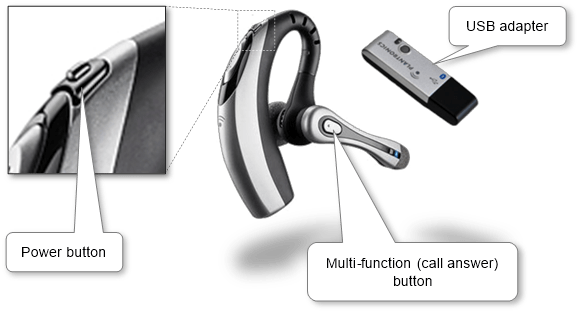
  1. If the headset has a sliding switch button, turn it ON. Switch OFF the headset via the power button in other cases.

    headset_buttons

  2. Find, press and hold the headset multi-function (call answer) button until the light starts flushing.
  3. Establish Bluetooth searching on the second unit, choose the headset and start connecting. Here are manuals of how to set up Bluetooth for mobiles such as Android, iPad and iPhone, Windows Phone and for Mac and Windows computers.
  4. Type the pairing code and finish it on the second unit if required. It may be found in the headset User Manual. Generally, it’s a digital code such as 0000, 0001, 1234, 9999, etc.

Now we can make and receive phone calls. Notice the headset functionality almost depends on other equipment software.

Pairing Bluetooth headphones in 3 steps

It’s great to use headphones without any cord getting in our way while working on the computer or resting on the sofa and listening to music.

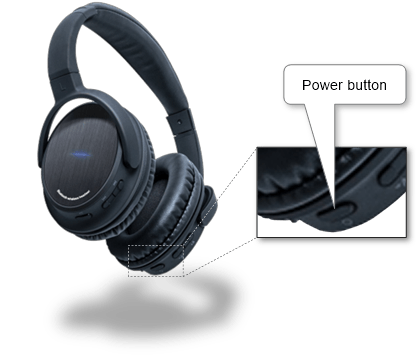
  1. Ensure that the headphones are turned ON. Press or switch the power button.

    headphones_buttons

  2. Establish Bluetooth searching on the second unit (following the description for pairing up for mobiles, Mac and Windows computers), choose the headset and start connecting. If we can’t find the headphones, try to press and hold the headphones power button and search device again.
  3. Type the Bluetooth passkey on the second unit and finish it if required. It may be found in the headset User Manual. Generally, it’s a digital code such as 0000, 0001, 1234, 9999, etc.

Now we are ready to use Bluetooth headphones.

How to setup Bluetooth in our car for a mobile phone in 3 steps

What is Bluetooth in a car? It’s an ability to use gadgets via wireless connection and hands-free car mode designed especially for driving. It’s handy and safe.

Setting up Bluetooth in a car is similar to most car models.

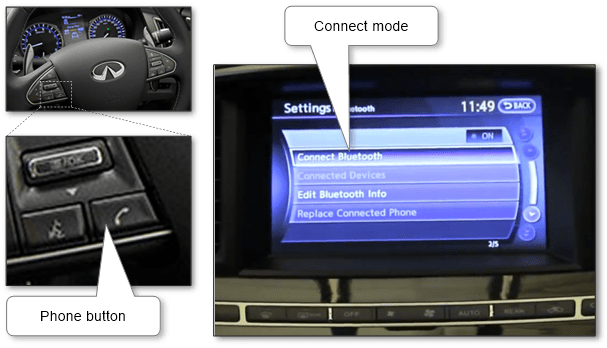
  1. Select phone mode in our car. Generally, we can press Phone button on the steering wheel then choose connect a new phone.

    car_buttons

  2. On our phone enable Bluetooth (connect phone procedure is described for Android phone, iPhone and Windows Phone) and find and choose our car in the devices list.
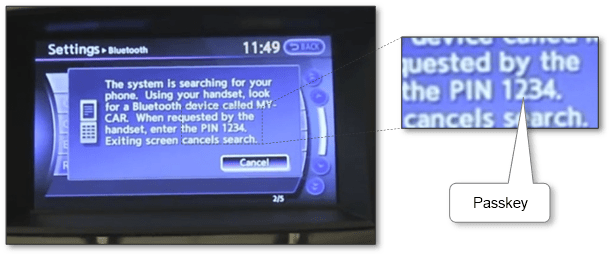
  3. Enter the passkey on the mobile that displayed on the car console screen if required. If the car doesn’t provide passkey try to use generic 1234 code. Or find it out in the car User’s Manual.

    car_wait_conn_passkey

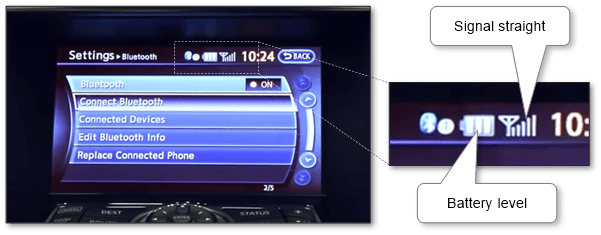
Pairing phone to the car will be finished, the connection should be established and the car multimedia system should display battery level and signal straight.

car_connect_result

Pair up gadgets with Xbox

Wireless technology gives us more freedom when we are playing. Moreover, a wireless connection is safer than wires causing an accident.

We only can connect Xbox compatible gadgets such as handset, game controller, etc. We might have to get a software update to support this equipment. The easiest way to get the update is through Xbox Live. Ensure that there is the Internet connection on Xbox.

There will be no need to use Bluetooth pairing code because of the following simplified connection procedure

  1. Make sure that the wireless gadget is enough charged.
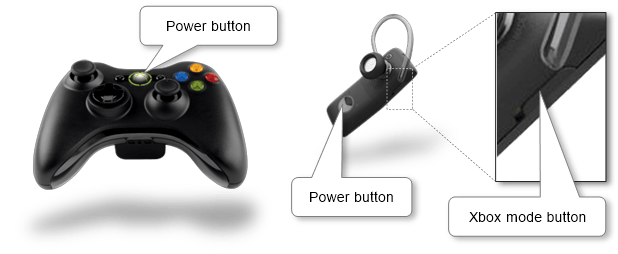
  2. Turn on the gadget by pressing and holding the power button (“Guide” button on the game controller) until it turns on. Make sure that the headset is switched on to the Xbox mode if applicable.

    xbox_gadgets_power_buttons

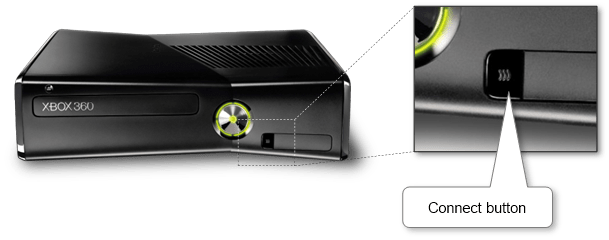
  3. Power on Xbox if it is switched off then press and release the connect button on the console.

    xbox_360_connect_button

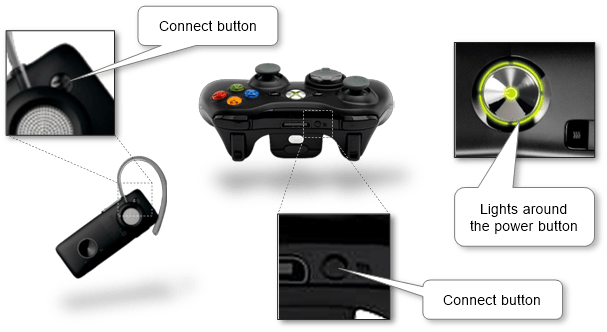
  4. Press and release the connect button within 20 seconds on the gadget. The Xbox and the gadget start Bluetooth connecting and the lights around the power button of Xbox stop flashing once the connection is finished.

    xbox_gadgets_connect_buttons

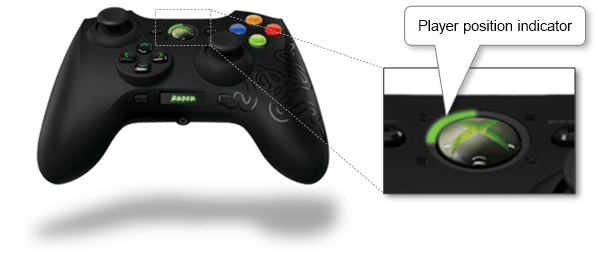
Note that we can connect not more than 4 game controllers or headsets. There might be an indicator that shows one of the four-player positions. And if a game controller is assigned to position 1, then the headset is also assigned to position 1. If another headset is already assigned to position 1, our headset is assigned to position 2.

xbox_360_gadgets_light_sectors

More information can be discovered in the original post about Pairing Bluetooth end devices is easy and on the main site.
Stay always connected without extra payment

Problem

Being always online is very important today. Many of us have a set of devices that should be connected. Sometimes we use our devices or share connection with family, friends and colleagues. We face it everywhere while traveling, flying, resting, partying and working.

It happens when we can’t connect all devices to the Internet simultaneously or need to pay extra money for that. Money is paid per device when mobiles are connected via SIM-card. There are cases when Wi-Fi is available only per device e.g. in a hotel room or on an airplane. We obtain USB-modems to connect PC and laptop but it’s incompatible with mobiles and tablets. For satellite or the Internet landline cable we can plug them only into PC or laptop. And additional equipment is needed such as routers if it is not in the connection set.

Solution

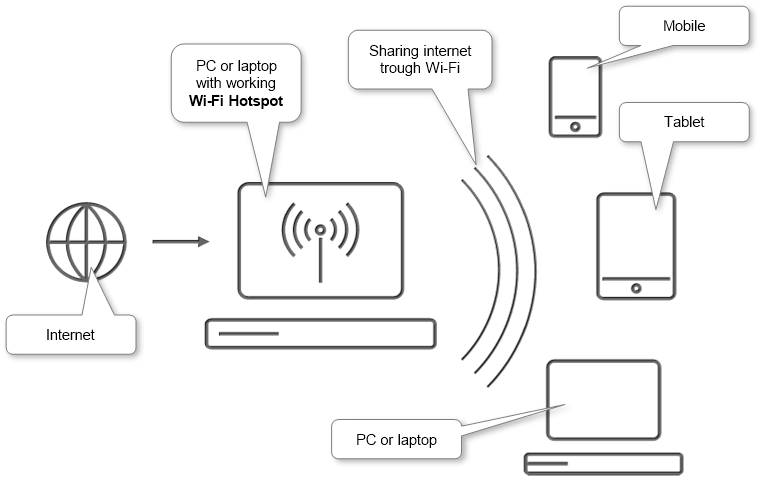
What if we were able to connect to the Internet only one device and share it through Wi-Fi with all the rest for free? Fortunately, there is a solution that allows to do that by enabling special Wi-Fi hotspot mode.

There are two options:

  • Sharing via mobile or tablet

    mobile-hotspot-scheme

    Putting SIM-card into mobile or tablet we share the Internet via using Wi-Fi hotspot and tethering. The switch is available in network settings on the most of mobile models. Notice that while this mode is working we lose connection to other Wi-Fi networks. So this option won’t work for the Internet available via Wi-Fi per device.

  • Sharing via laptop, netbook or PC

    pc-wifi-hotspot-scheme

    This method is used for laptop, netbook or PC supporting Wi-Fi. In this case we should turn Wi-Fi hotspot mode on for sharing the connection. There are many manuals in the Internet how to do that. It looks a bit complicated but it works and some people like that. It requires opening system console, inputting particular commands and setting sharing options in operation system network control panel. Why don’t we look at the easier way? So, there are many special programs that can help us. Most of them cost about $30. Apparently, it is not enough. We still don’t want to pay extra money. There is a number of programs which do it for free. That might be an option. But as we know the most of free programs include advertisements, annoying messages and notifications or limited functionality. Some people can stop here but it’s better to find the best solution. Covering such a long route will bring us a choice of free programs without commercial input. Luckily, one of such programs is on this site. Such friendly, small size, secured and free application is called Wi-Fi Hotspot.

Eventually, we connect one device to the Internet, run the mode and start share the connection via Wi-Fi. In most cases we just enable Wi-Fi hotspot mode and it will be enough. Rarely it needs to configure some settings e.g. when we have more than one network adapter on device. Other devices are connected to net via entering Wi-Fi name and key that usually are available on the screen.

Enjoy our connection to Internet for free with all other devices.

More information can be discovered in the original post about Stay always connected without extra payment and on the main site.

Design a site like this with WordPress.com
Get started