New version 2.8 released – Post .DOCX Source for WordPress

Added basic support for PDF as a set of page images. See the details below. And you can always see full change log of Post .DOCX Source for WordPress.

Last changes

New features

  • Basic PDF support (as paged images).

Fixes

  • Post binding ID can be copied.

Download for free About product… 

More information can be discovered in the original post about New version 2.8 released – Post .DOCX Source for WordPress and on the main site.

New version 2.7.1 released – Post .DOCX Source for WordPress

Minor corrections and changes to the operating mode. See the details below. And you can always see full change log of Post .DOCX Source for WordPress.

Last changes

Behavior changes

  • Featured image from body choosing is moved to premium version.
  • Properties from n-th line of document choosing is moved to premium version.

Fixes

  • Date’s time zone is shown incorrectly in the settings.

Download for free About product… 

More information can be discovered in the original post about New version 2.7.1 released – Post .DOCX Source for WordPress and on the main site.

New version 2.7 released – Post .DOCX Source for WordPress

New features and stability improvements. See the details below. And you can always see full change log of Post .DOCX Source for WordPress.

Last changes

New features

  • Featured image from 1st body’s image.
  • Published date.
  • Title from N-th line.

Improvements

  • Document binding: Always assign GUID to post to bind document later.
  • Items naming corrected in style’s combo.
  • Log window max vertical size increased.
  • Separate attributes’ localization.

Fixes

  • Featured image isn’t assigned if filename contains spaces.
  • Link existence is checking only 5 seconds.
  • Raw attributes stick together.
  • Single formula is left aligned.

Download for free About product… 

More information can be discovered in the original post about New version 2.7 released – Post .DOCX Source for WordPress and on the main site.

How to connect laptop, netbook or PC to Wi-Fi on Mac

Currently, Wi-Fi is a very common method of communication. It can be found anywhere: cafes, airports, shops, our homes. In our life we must know how to connect to Wi-Fi on your Mac®.

Note. First, make sure that the Wi-Fi is enabled on the laptop.

On your Mac, you can use the icon of the Wi-Fi menu to quickly connect to the nearest wireless network. If you don’t see that the Wi-Fi menu, you can connect using the network settings.

By the menu

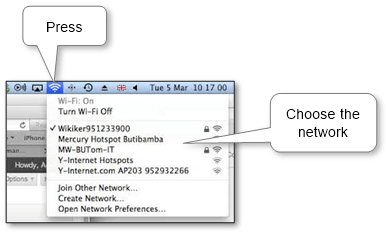
Click the Wi-Fi icon in the menu. If Wi-Fi is off, select “Turn Wi-Fi on”. Then select from the list the name (SSID) of the Wi-Fi network to which you want to connect.

mac-wifi-icon-menu

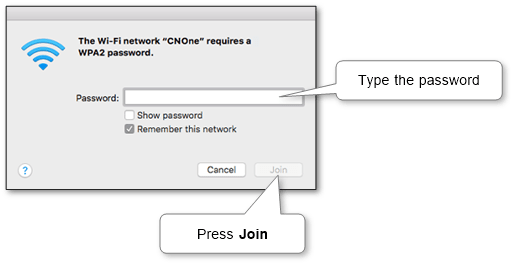
If necessary, enter the password from Wi-Fi and click “Join“.

mac-wifi-ask-password

Note. Check the box “Remember this network” if you want your Mac computer to connect to this Wi-Fi network automatically when the computer is in the visibility range of it.

By network settings

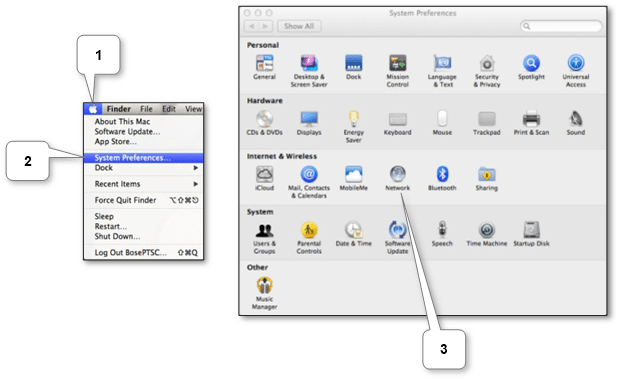
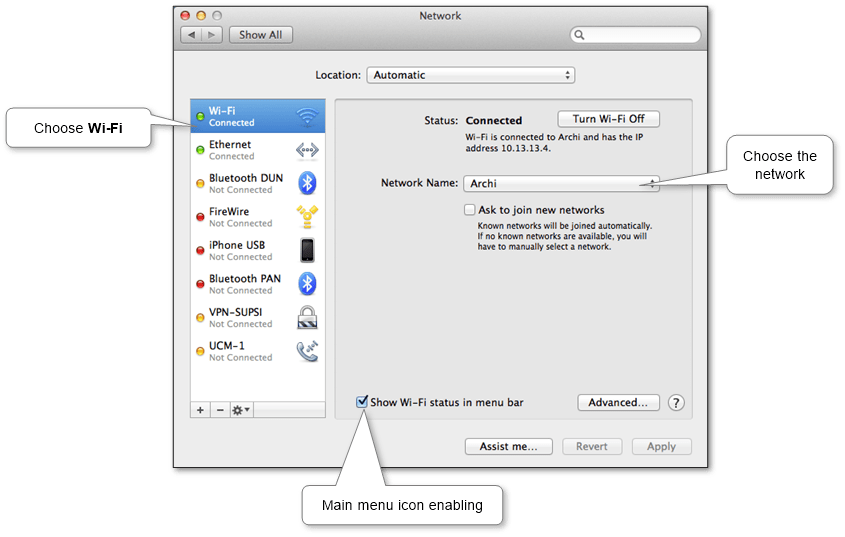
If you don’t see that in the menu there is an icon Wi-Fi, you can connect using the “Network” panel of system settings.

mac-system-network-location

Select Wi-Fi from the left pane, click “Network Name” and from the drop-down list, select the name of the Wi-Fi network to which you want to connect. Also, here you can enable and disable the Wi-Fi menu icon.

mac-settings-network

If necessary, enter the password from Wi-Fi and click “Join“.

mac-wifi-ask-password

If something is wrong, you can try to find the answer on the official support website of Apple.

More information can be discovered in the original post about How to connect laptop, netbook or PC to Wi-Fi on Mac and on the main site.

How to connect laptop, netbook or PC to Wi-Fi in Windows

Currently, Wi-Fi is a very common method of communication. It can be found anywhere: cafes, airports, shops, our homes. In our life must know how to connect to Wi-Fi.

Note. First, make sure Wi-Fi is enabled on the device.

The method is slightly different from the version of Windows®:

Windows 10

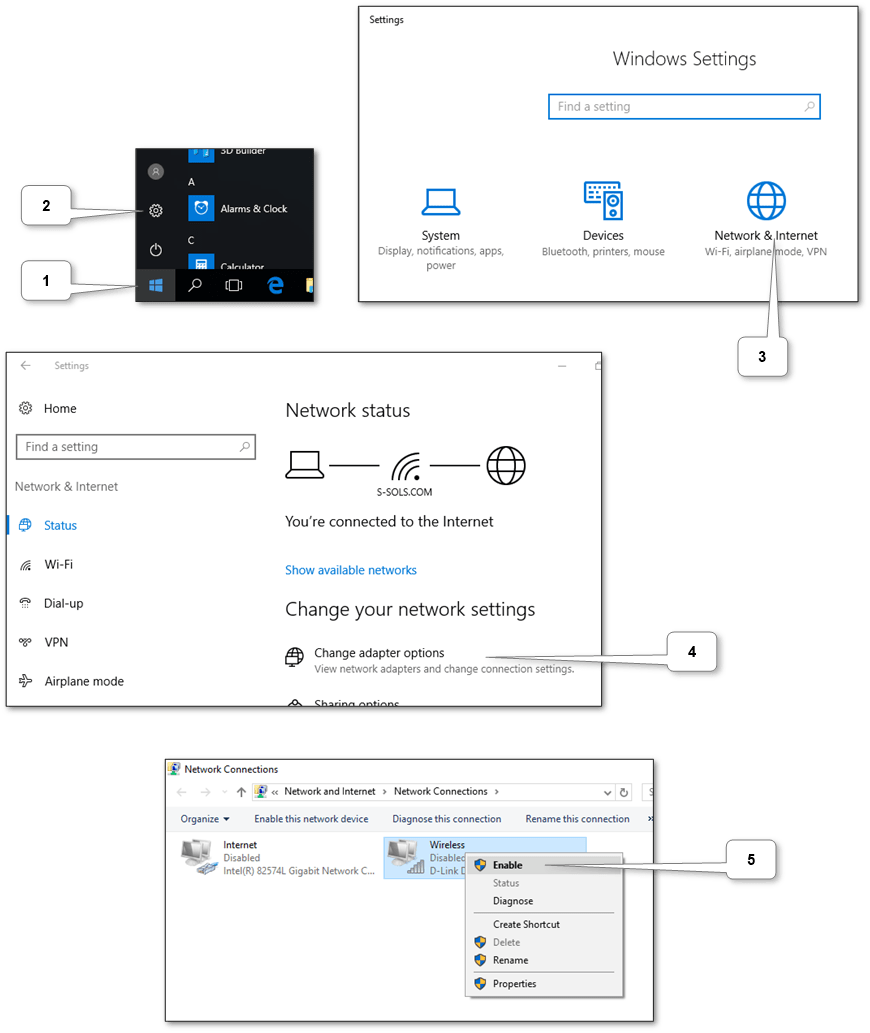
Make sure the adapter is enabled in the system. The adapter icon should not be grayed out. If not, click the right mouse button on the adapter and select “Enable”. If there is no adapter icon, then you need to enable Wi-Fi on the device itself.

A screenshot of a cell phoneDescription automatically generated

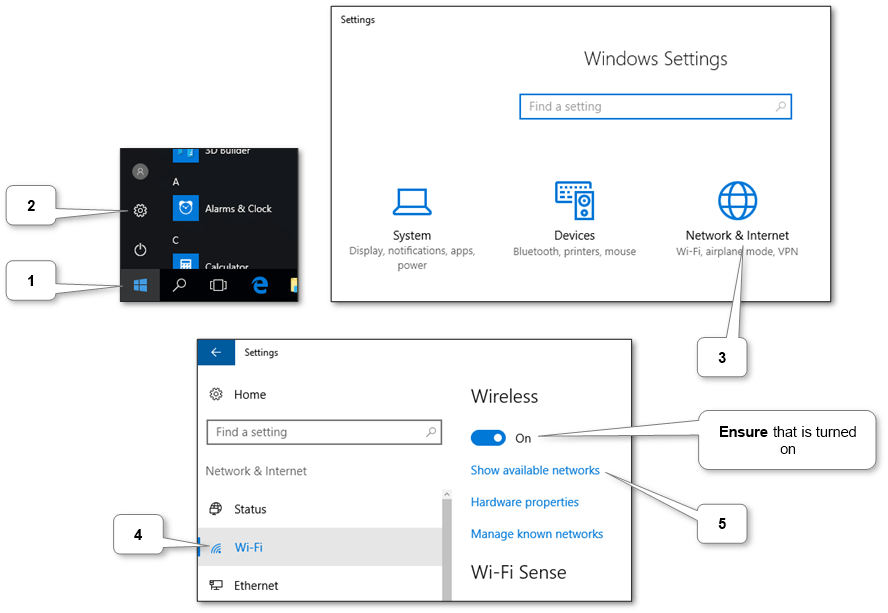
Next, go to Wi-Fi settings and open the list of available networks.

A screenshot of a cell phoneDescription automatically generated

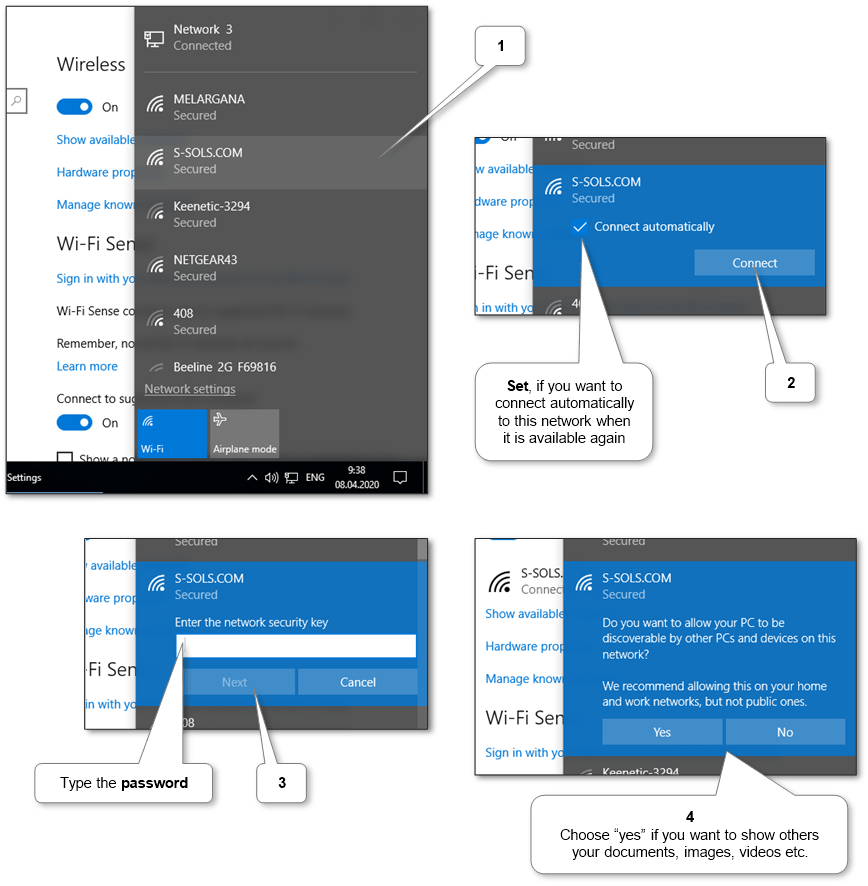
In the list select the Wi-Fi network you wish to connect to and enter the password if necessary.

A screenshot of a social media postDescription automatically generated

Windows 8.1

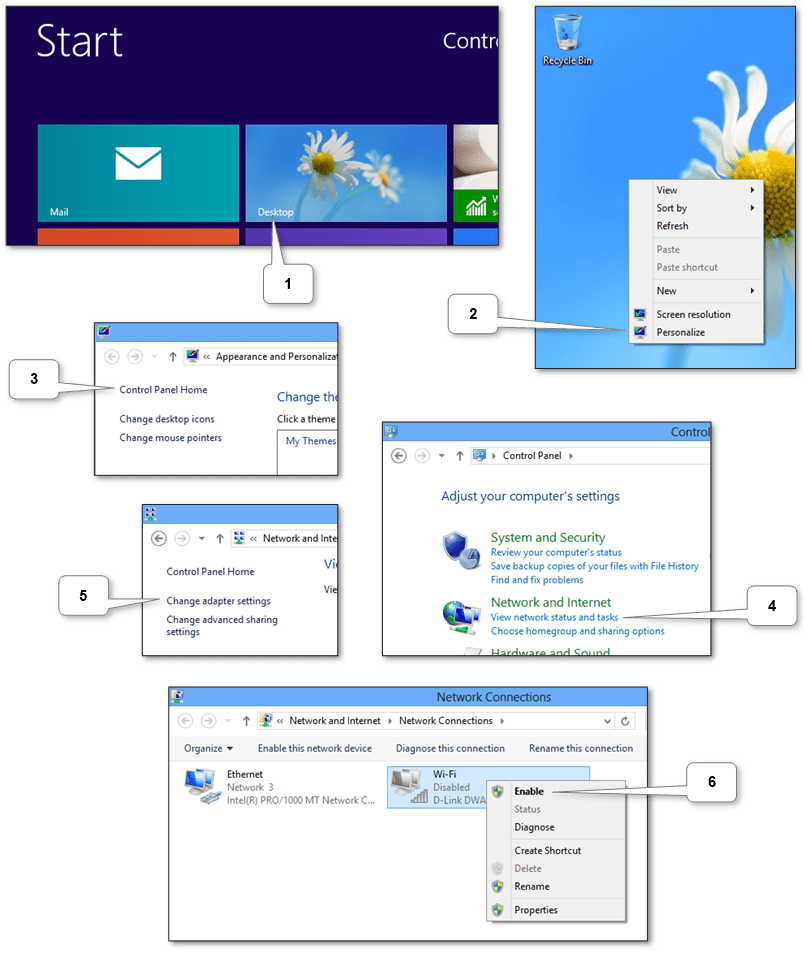
Make sure the adapter is enabled in the system. The adapter icon should not be grayed out. If not, click the right mouse button on the adapter and select “Enable”. If there is no adapter icon, then you need to turn Wi-Fi on the device itself.

A screenshot of a social media postDescription automatically generated

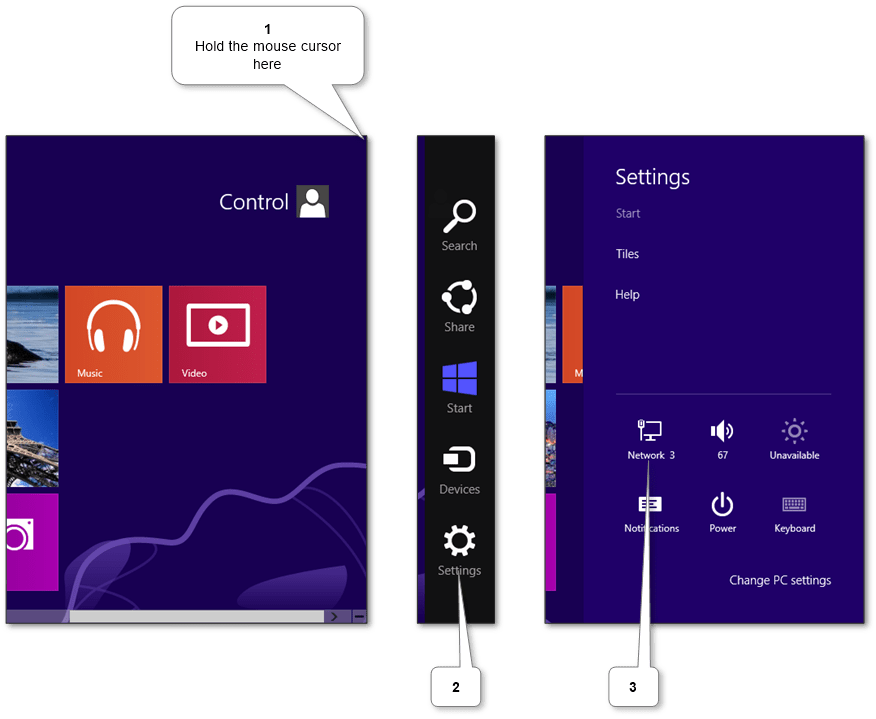
Next, go to settings by pressing Win + C or hold the mouse cursor in the upper-right corner of the screen and open a list of available networks.

A screen shot of a computerDescription automatically generated

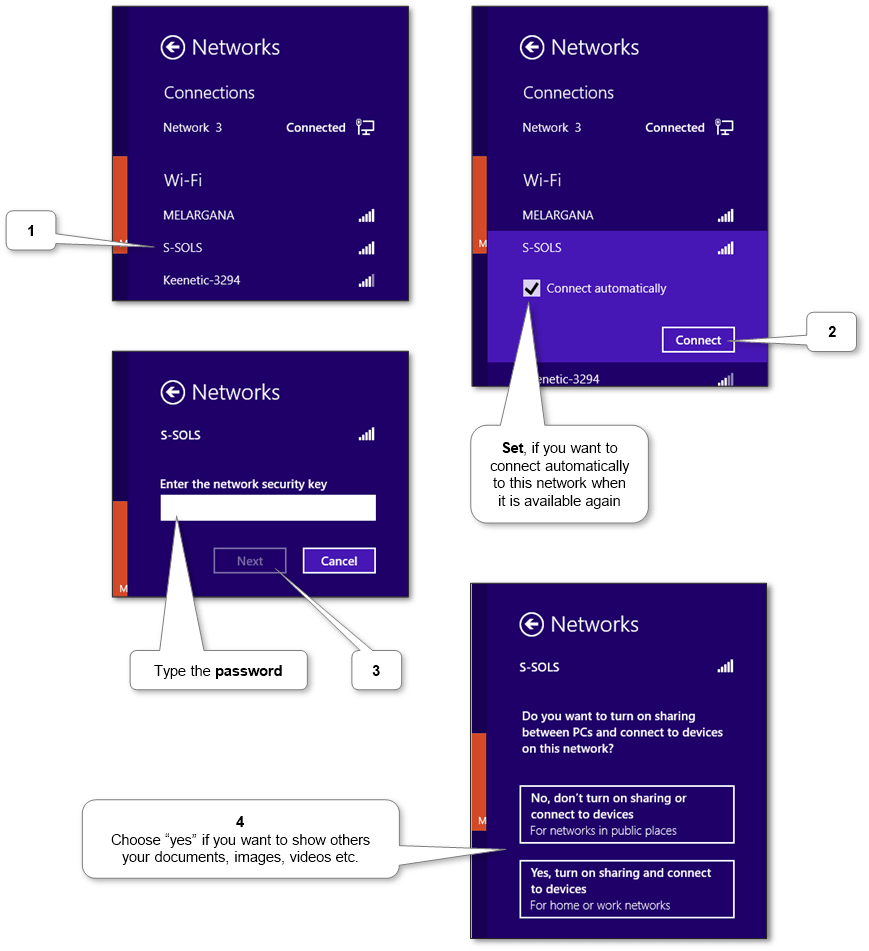
In the list select the Wi-Fi network you wish to connect to and enter the password if necessary.

A screenshot of a video gameDescription automatically generated

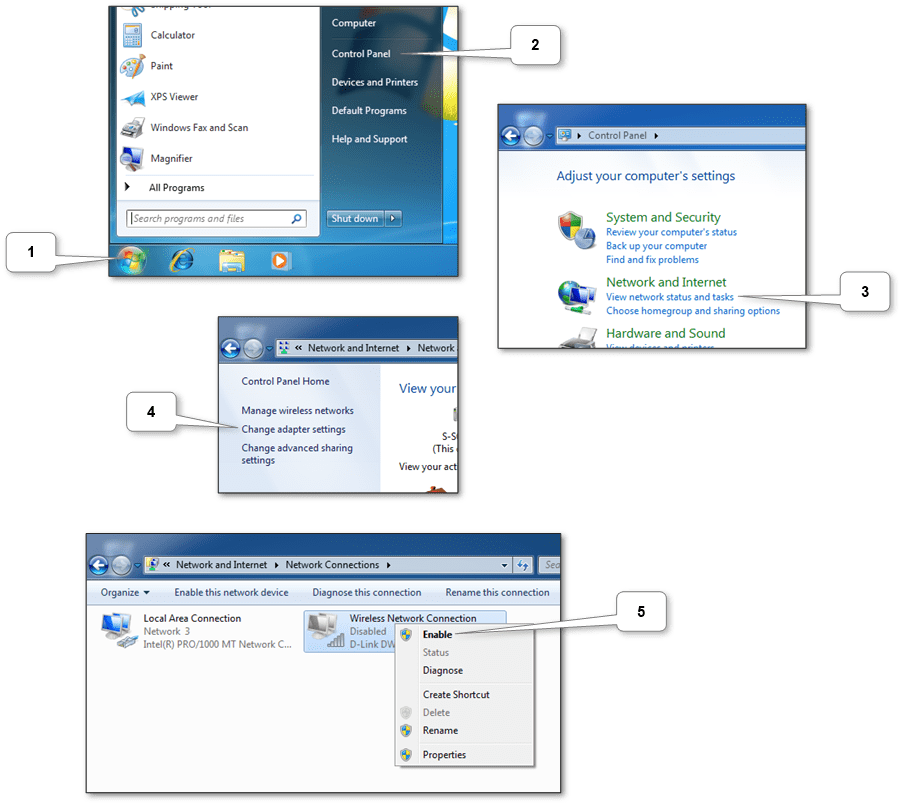
Windows 7

Make sure the adapter is enabled in the system. The adapter icon should not be grayed out. If not, click the right mouse button on the adapter and select “Enable”. If there is no adapter icon, then you need to turn Wi-Fi on the device itself.

A screenshot of a social media postDescription automatically generated

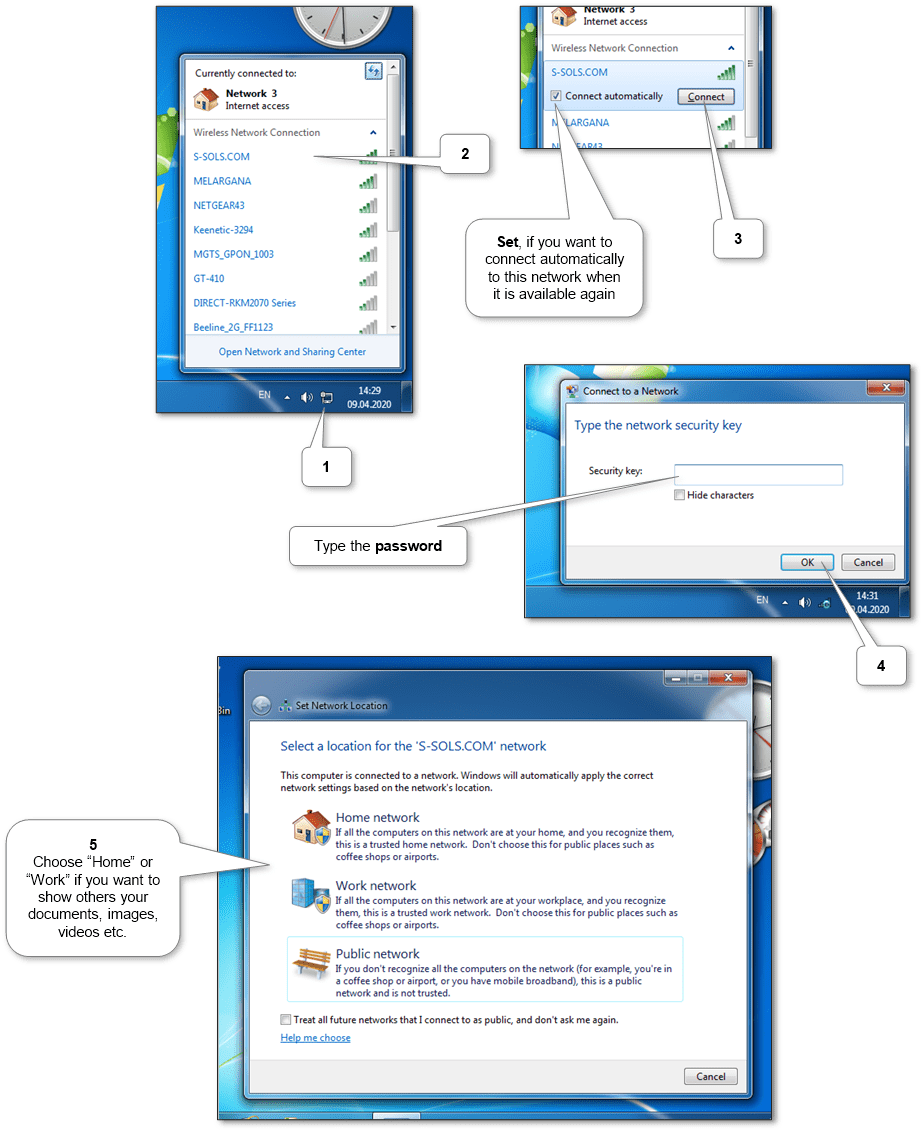
Next, open the list of available networks by clicking the icon in the lower right corner (see screenshots below). In the list select the Wi-Fi network you wish to connect to. Then if necessary enter the password.

A screenshot of a computer screenDescription automatically generated

Windows Vista

Make sure the adapter is enabled in the system. The adapter icon should not be grayed out. If not, click the right mouse button on the adapter and select “Enable”. If there is no adapter icon, then you need to turn Wi-Fi on the device itself.

A screenshot of a cell phoneDescription automatically generated

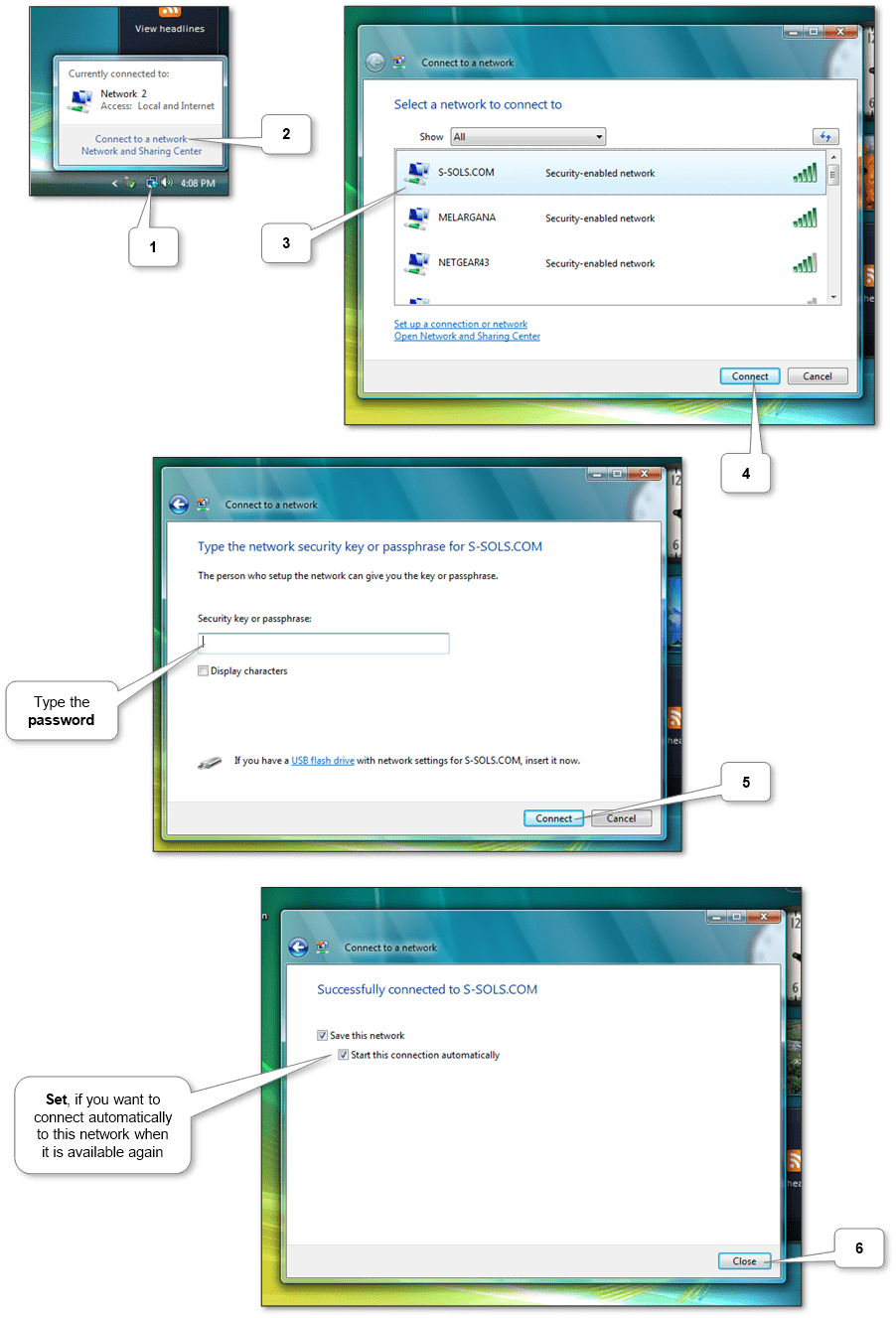
Next, open the list of available networks by clicking the icon in the lower right corner (see screenshots below). In the list select the Wi-Fi network you wish to connect to. Then enter the password if necessary.

A screenshot of a computerDescription automatically generated

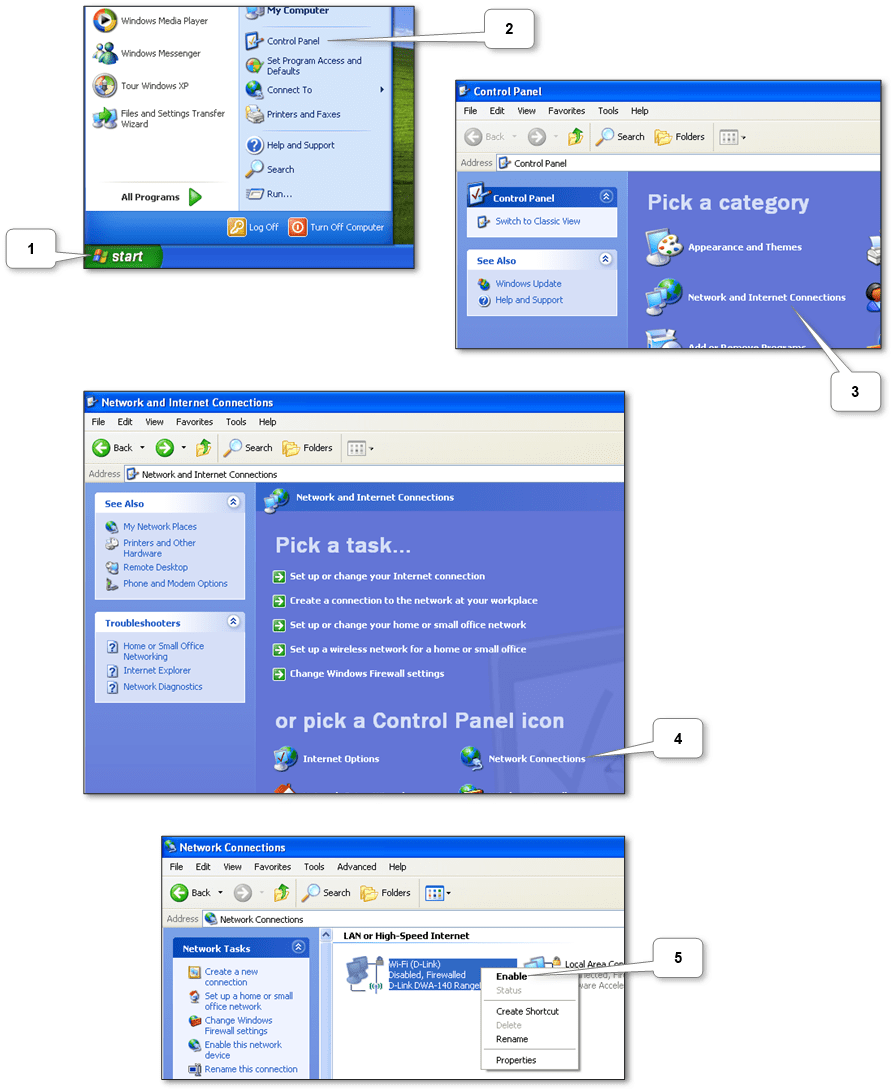
Windows XP

Make sure the adapter is enabled in the system. The adapter icon should not be grayed out. If not, click the right mouse button on the adapter and select “Enable”. If there is no adapter icon, then you need to turn Wi-Fi on the device itself.

A screenshot of a computer screenDescription automatically generated

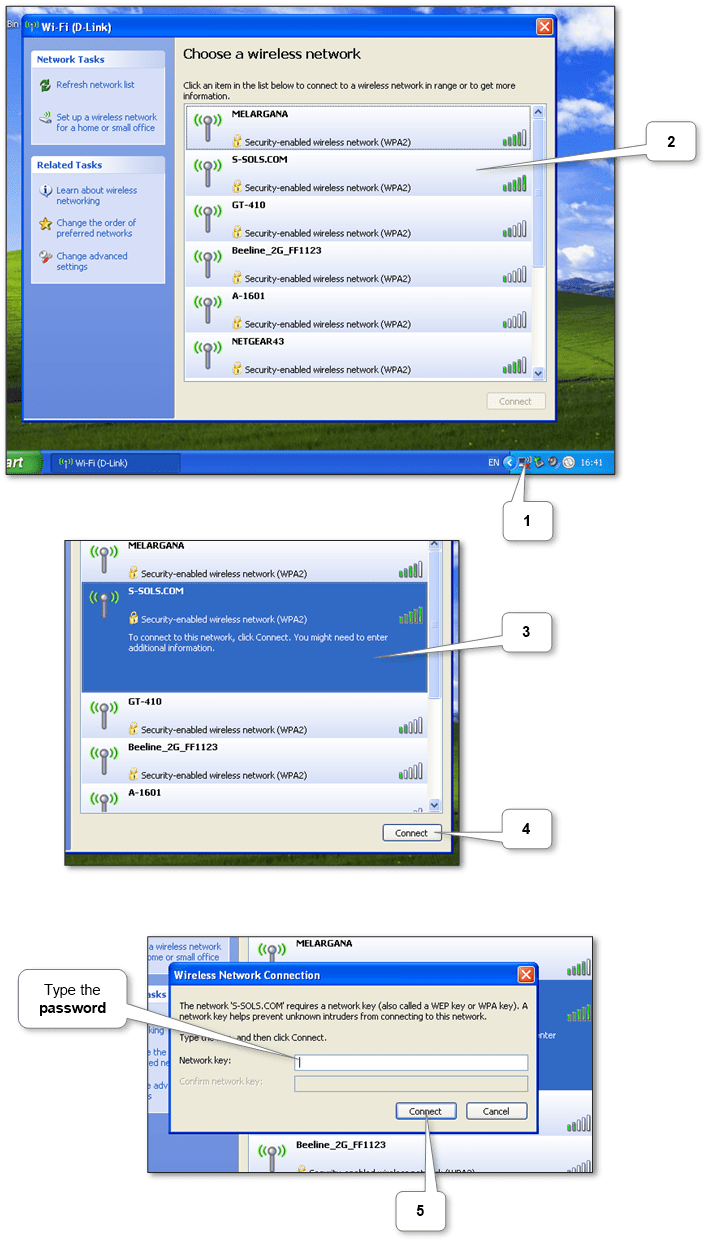
Next, open the list of available networks (see the screenshots below). In the list select the Wi-Fi network you wish to connect to. Then if necessary, enter the password.

A screenshot of a computer screenDescription automatically generated

More information can be discovered in the original post about How to connect laptop, netbook or PC to Wi-Fi in Windows and on the main site.

How to enable hotspot on PC or laptop with Mac or Windows

Your PC, laptop or netbook can be turned into an access point (hotspot) when it has a Wi-Fi adapter to share the Internet with other devices. It may be necessary, for example, in travel or when you need to share the Internet with friends.

It is possible for Mac®, and Windows®.

Configuring Mac

On Apple devices, there is a standard feature that allows you to do this. You need into the “System Preferences” select “Sharing”.
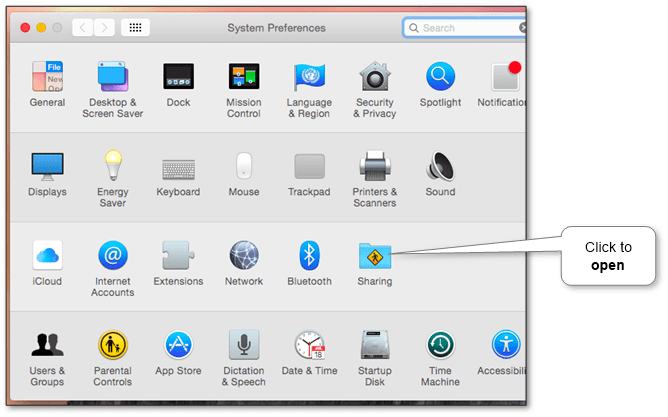
A screenshot of a cell phoneDescription automatically generated

Then select the specific connection (for example, iPhone via USB) and select “Wi-Fi” under “To computers using”.
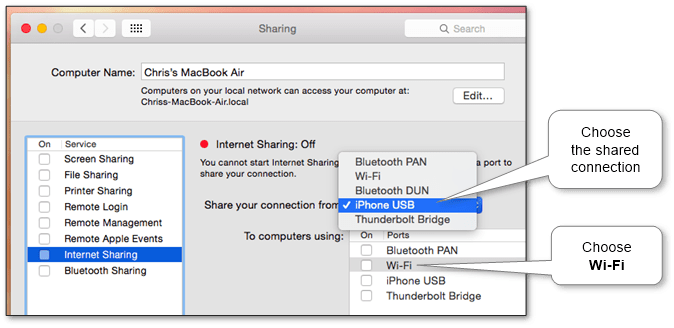
mac-internet-sharing-usb-mobile-to-wifi

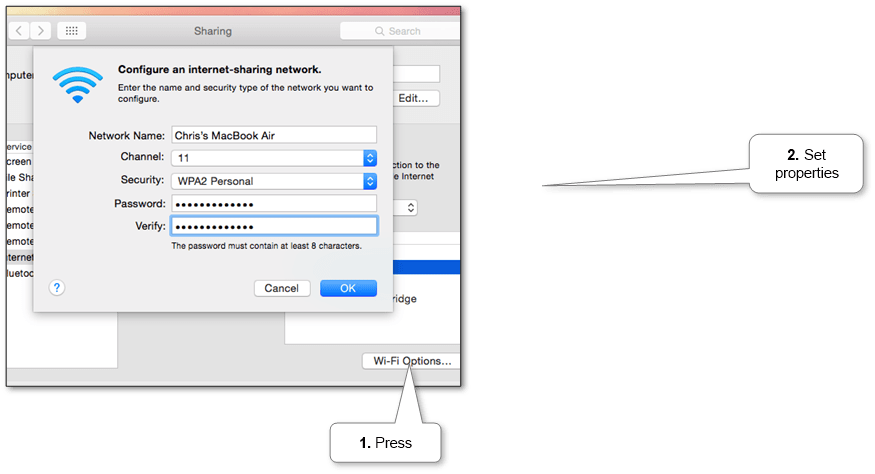
Then click “Wi-Fi Options” at the bottom of the window to configure the Wi-Fi hotspot. Select the network name and the best Wi-Fi channel.

In the “Security” choose “WPA2-Personal” and enter the password. Otherwise, by default, the hotspot will be configured with no password and anyone can connect.
A screenshot of a cell phoneDescription automatically generated

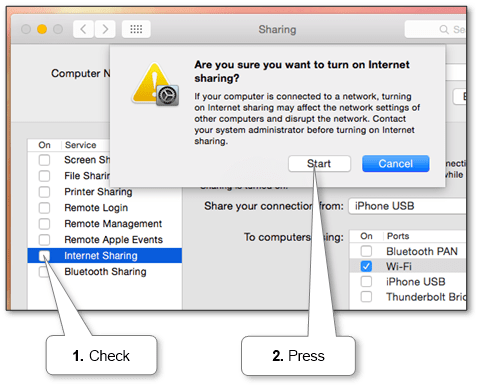
After that, click on the checkbox to the left of “Internet Sharing” and click “Start” to activate the Wi-Fi hotspot.
A screenshot of a cell phoneDescription automatically generated

Configuring Windows

You need to either configure it manually, given the specific version of Windows®or to enroll easier – to install a special program that is set up all automatically. There are many such programs, in particular, you can try our convenient and free UNK_TYPESLUG:product:wifi-hotspot, which will give additional convenience.

Windows 10

In this version, starting with 1607, there is a built-in ability to enable an access point, limited to 8 devices.

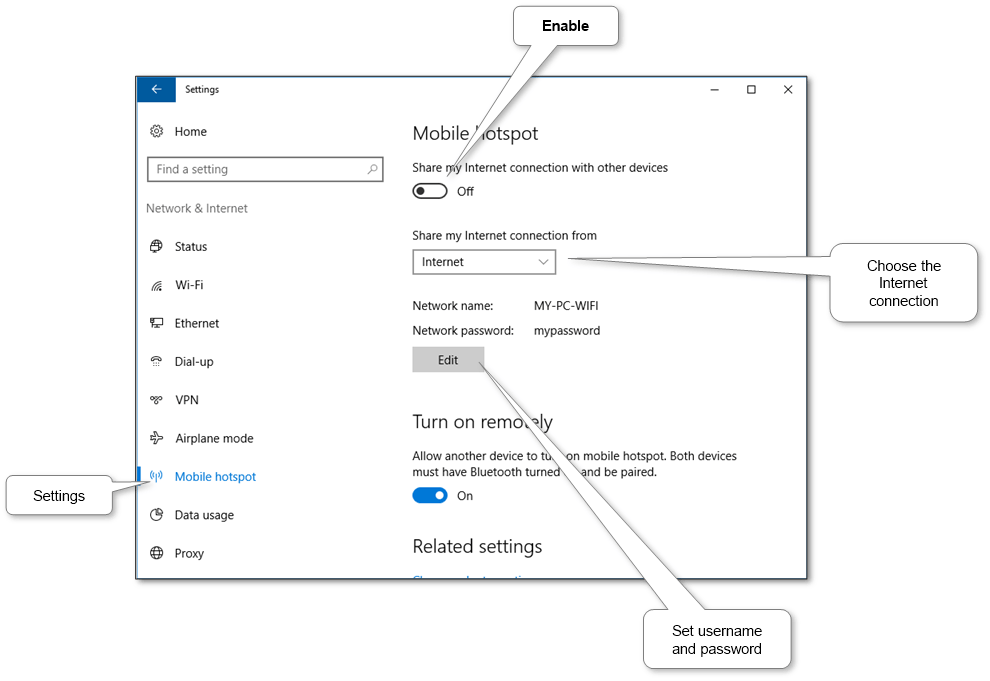
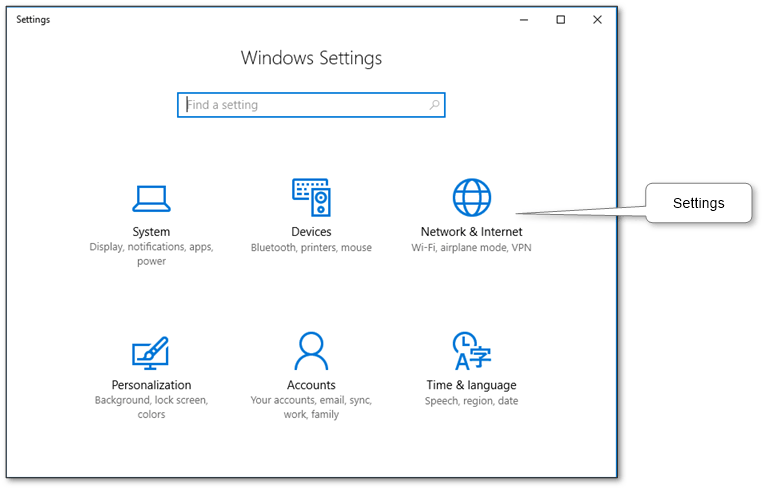
First, make sure that the Wi-Fi is enabled. Next, you need to specify the name, password and Internet connection to share.
A screenshot of a cell phoneDescription automatically generated

A screenshot of a cell phoneDescription automatically generated

For more amenities and facilities you can use our free software UNK_TYPESLUG:product:wifi-hotspot, which has automatic tuning, support sleep mode, convenient to choice username and password, the choice of the method of operation of the access point and selecting the Wi-Fi adapter.

Windows 8.1

First, make sure that the Wi-Fi is enabled. Next, you need to run special commands from a command prompt running with administrator privileges:

netsh wlan set hostednetwork mode=allow ssid=”MY-PC-WIFI” key=”mypassword” keyUsage=persistent
netsh wlan start hostednetwork

To disable you need to run:

netsh wlan stop hostednetwork

Or easier to use our free program UNK_TYPESLUG:product:wifi-hotspot, which automatically set up all and give additional convenience.

Windows 7

First, make sure that the Wi-Fi is enabled. Next, you need to run special commands from a command prompt running with administrator privileges:

netsh wlan set hostednetwork mode=allow ssid=”MY-PC-WIFI” key=”mypassword” keyUsage=persistent
netsh wlan start hostednetwork

To disable you need to run:

netsh wlan stop hostednetwork

Or easier to use our free program UNK_TYPESLUG:product:wifi-hotspot, which automatically set up all and give additional convenience.

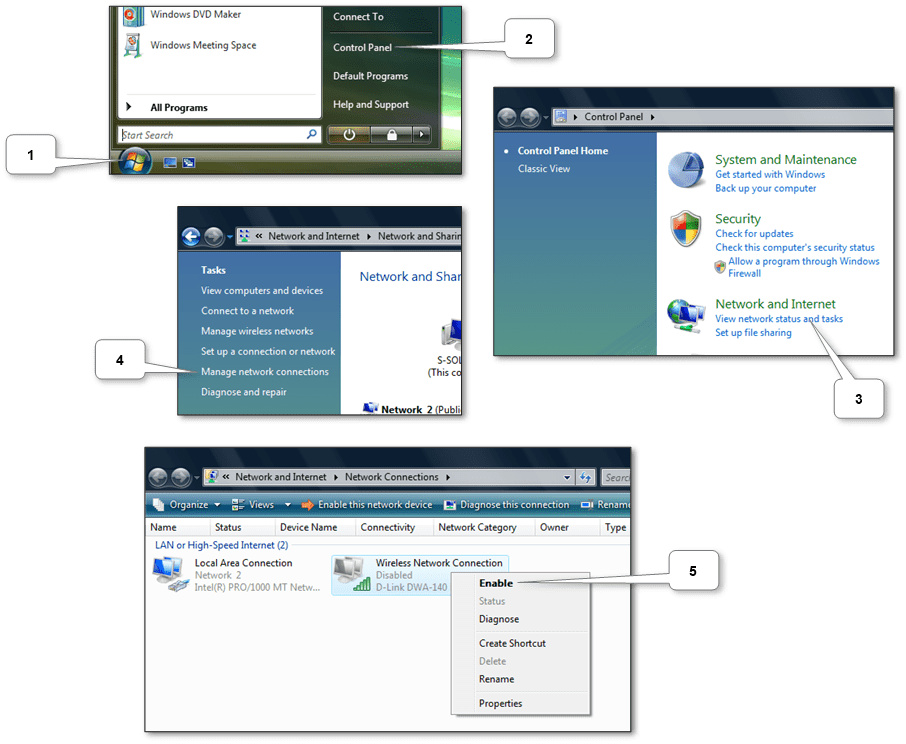
Windows Vista

This version only supports Ad Hoc network mode. You need to create an ad hoc network in the Wi-Fi profiles.

Make sure that the Wi-Fi is enabled. Next, do the steps according to the scheme below.
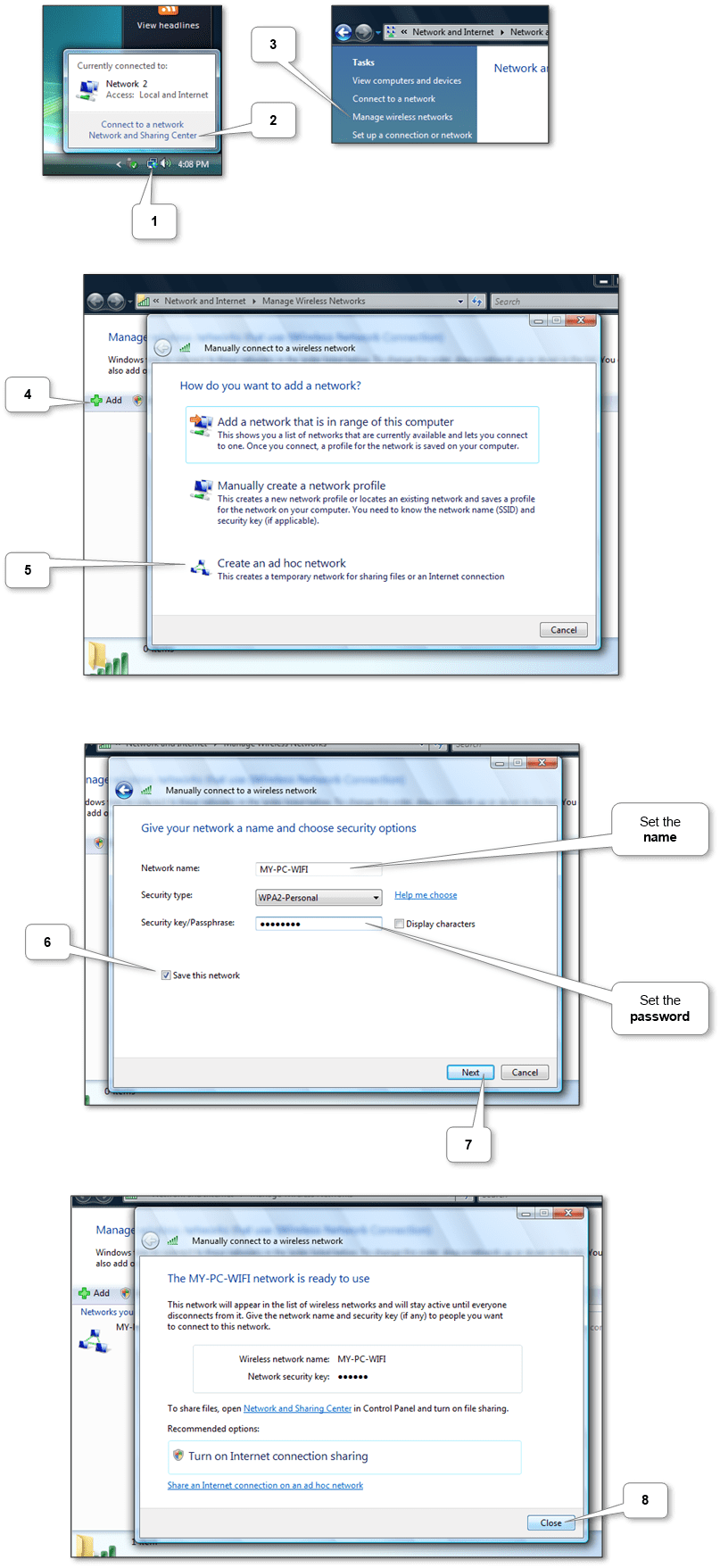
A screenshot of a computer screenDescription automatically generated

You can use our free software UNK_TYPESLUG:product:wifi-hotspot, which automatically set up all and will give additional convenience.

Windows XP

This version only supports Ad Hoc network mode. You need to create an ad hoc network in the Wi-Fi profiles.

Make sure that the Wi-Fi is enabled. Next, do the steps according to the scheme below.
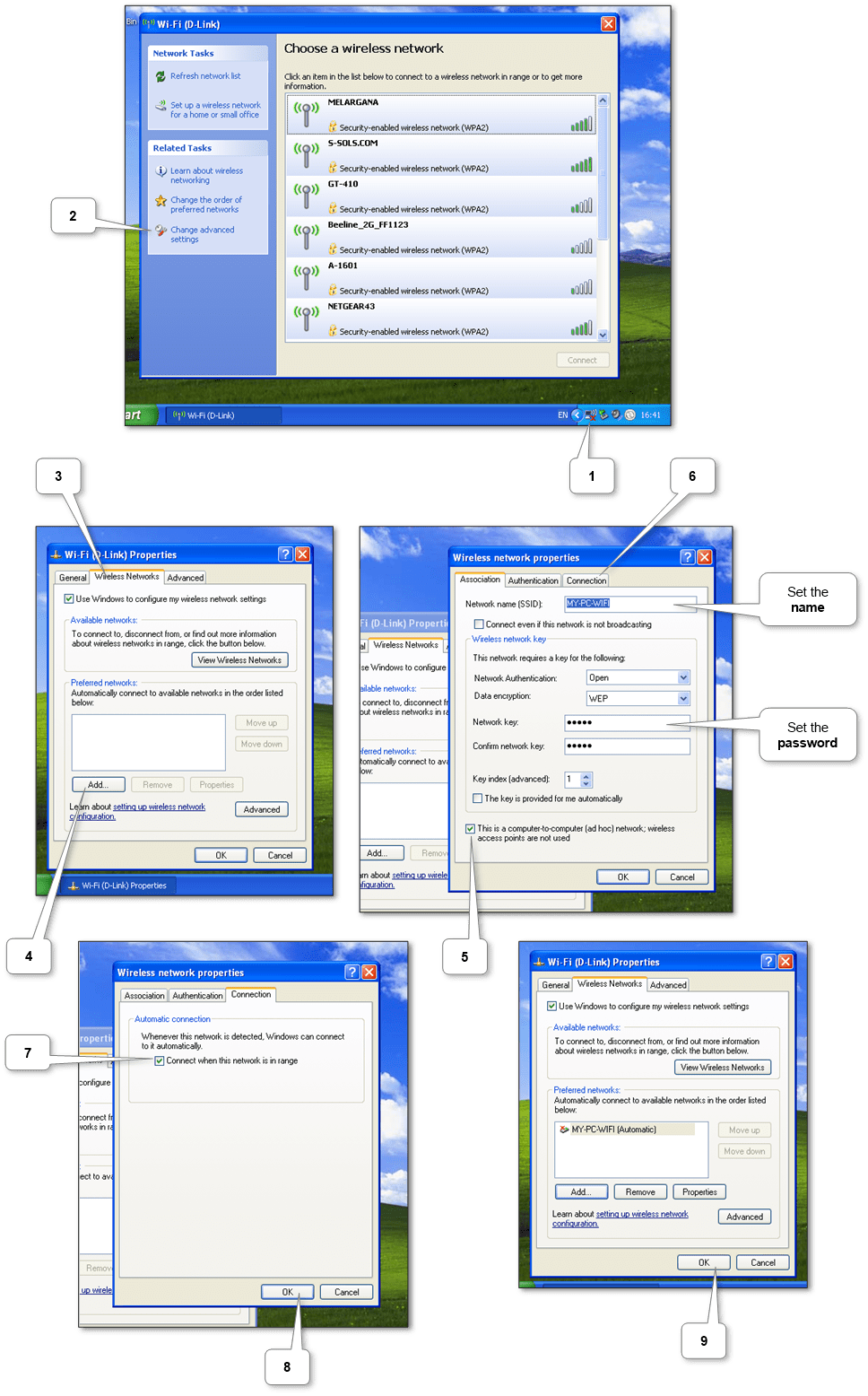
A screenshot of a computerDescription automatically generated

You can use our free software UNK_TYPESLUG:product:wifi-hotspot, which automatically set up all and will give additional convenience.

More information can be discovered in the original post about How to enable hotspot on PC or laptop with Mac or Windows and on the main site.

How to turn on Wi-Fi on laptop

Currently Wi-Fi is a very common method of communication. It can be found anywhere: cafes, airports, shops, our homes. In our lives we must know how to turn on Wi-Fi.

If the module itself Wi-Fi is turned off physically, then we will not be able to connect our Windows or Mac computer to Wi-Fi via the operating system interface. Therefore, it is important to understand how to enable it.

The device’s Wi-Fi can be activated either by a key on the keyboard, or a special button on the case. Rarely there is special enabling software from the vendor of laptops (in our lab we ran into this on models Samsung® – it was a special icon in the system tray).

Enabling via keyboard

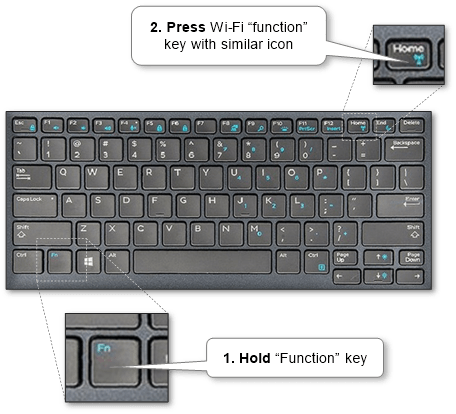
Usually this is done in special ‘function’ keys. Need, hold down the “Fn” key, press the similar function key with the icon of Wi-Fi.

A black computer mouse and keyboardDescription automatically generated

To turn off Wi-Fi, you need to press this key combination again.

Enabling by a special button on the case

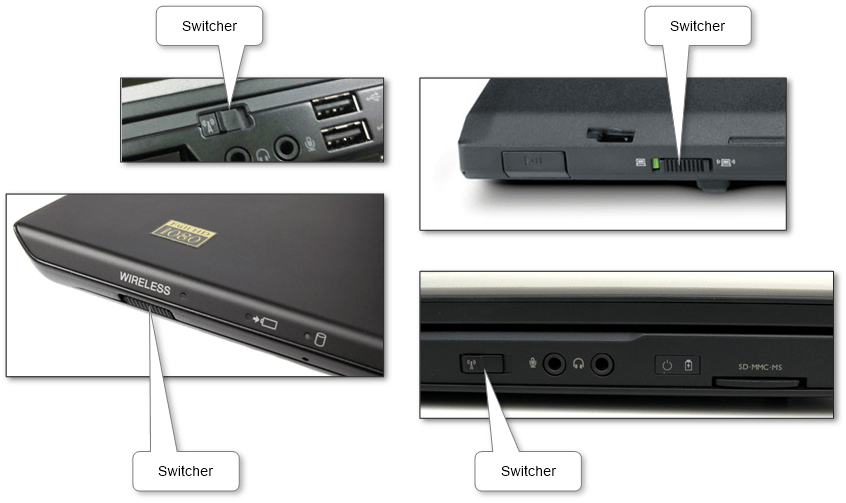
A special button may look different depending on the model. This is usually a switch. See the examples below.

A screen shot of a computerDescription automatically generated

More information can be discovered in the original post about How to turn on Wi-Fi on laptop and on the main site.
How to connect PC internet to mobile phone or tablet

Sometimes we unable to have a direct Internet connection on the mobile phone or tablet due to different reasons. In the last link, we described another way to provide the Internet to mobile. But if we have a laptop, netbook or PC we can use its Internet connection on our mobile devices.

We can connect mobile devices via:

  • Wi-Fi
    • It’s a preferable way because we don’t lose the ability of the mobile phone to be mobile.
    • If the computer doesn’t have a Wi-Fi adapter, we should obtain it. The price for it isn’t a big deal. The cheaper and smaller form-factor is USB. But there are PCMCI (for laptops) and PCI (for PC’s) adapters. So, we may choose what type is more preferable and convenient for us.
  • USB
    • It’s used when we don’t have or can’t use the Wi-Fi adapter on the computer.
    • USB cable is required, and it should be included with our mobile device.
    • We might have to install software on mobile devices.
    • And here we limit our mobility by the length of a cable.
    • Finally, it’s supported on specific configurations.
  • Bluetooth
    • It’s used when we have the same situation with the Wi-Fi adapter in the previous bullet point.
    • It requires having a Bluetooth adapter on the computer.
    • We save mobility but in a very shorter distance rather than Wi-Fi.
    • This way works with a limited number of configurations.

Below are technical descriptions of how to use PC’s Internet on

Android phone and tablet

Use the Internet via Wi-Fi

Use the Internet via USB

  • Some earlier versions of Android have a special option “USB internet” in “Wireless & networks” section. Enable it and just follow the instructions.
  • If the device doesn’t have such option we may use special software like Reverse Tethering or Easy Tether. Notice that they are freemium and have some limitations. E.g. Reverse Tethering has a time limit and Easy Tether doesn’t work with secured (HTTPS) sites.
  • We need to install it on the mobile device and the computer. Follow each application instructions to properly set up the connection. When the application asks for type choose USB if applicable. Special software for computers emulates our android mobile as a separate network adapter. Through this application, we should enable connection to USB and after that share the Internet connection with new installed tether mobile adapter.

Also, we can use phone as a modem.

Use the Internet via Bluetooth

There is no built-in way to do this. Android can be acting as Bluetooth modem to share its connection. But we can use the Easy Tether application from the previous point. It works with Bluetooth too.

iPhone, iPad

Notice that also we can use the iPhone as a modem to share its connection to the computer.

Use the Internet via Wi-Fi

Use the Internet via USB

  • For Mac computers
    • There is a standard feature that enables this only in Apple devices. In “System Preferences” choose “Sharing”.

      mac-internet-sharing

    • Choose a particular connection (e.g. Wi-Fi) as sharing connection and select “iPhone USB” in the “using” section.

      mac-internet-sharing-usb-to-mobile

  • Other PCs

    There is another way to get from not only Mac devices. But it‘s not the legitime way and we don’t recommend doing it. It requires jailbreak our device so it is our own risk.

Use the Internet via Bluetooth

This works only with Mac computers. The steps are similar to connecting via USB.

  • Open the “Sharing” panel in “System Preferences” and choose a particular connection (e.g. Wi-Fi) as a sharing connection and select “Bluetooth PAN” in the “using” section.

    mac-internet-sharing-bluetooth-to-mobile

  • After that just pair via Bluetooth our Mac and the phone.

Notice that the reverse option is also available.

Windows Phone

Use the Internet via Wi-Fi

We should share the Internet on our laptop, netbook or PC through creating a Wi-Fi hotspot. After that we able to join Windows Phone to new Wi-Fi.

Use the Internet via USB

Unfortunately, we haven’t found a clear solution to do this. On Windows Phone 7 this option was available but in later versions, the vendor has removed it. But we might be interested in back operation when we are using a phone as USB modem.

Use the Internet via Bluetooth

Unluckily, we haven’t found any way to do this. But there is Bluetooth tethering to PC.

More information can be discovered in the original post about How to connect PC internet to mobile phone or tablet and on the main site.
New online service! – Online DOCX to HTML converter

High-quality conversion from the DOCX format (MS Word, Google Docs, Libre Office, …) to HTML with a wide range of conversion options.

In result there will be a standalone HTML file that can be saved on the computer. Converter works like plugin Post .DOCX Source for WordPress without WordPress specifics.

Open

More information can be discovered in the original post about New online service! – Online DOCX to HTML converter and on the main site.
Design a site like this with WordPress.com
Get started