Warning! Soon, additional attributes should be marked with a special style – Post .DOCX Source for WordPress

In further versions, additional attributes should be marked with a special style instead of ‘Header 1’. The particular style name will be described in the manual.

This will correct the current behavior of the plug-in, which by default processes additional attributes and unexpected content truncation occurs if the document contains several “Header 1” header blocks.

To convert documents into a new format, you just need to change the style of the additional headers attributes from “Header 1” to a special.

Sorry for any inconvenience.

More information can be discovered in the original post about Warning! Soon, additional attributes should be marked with a special style – Post .DOCX Source for WordPress and on the main site.

New powerful version with translator is coming! – Typing Assistant for Windows

New version will include keyboard layout correction based on hundreds of thousands of words of English, Russian and German languages.

In addition, it will contain build-in translator based on the most famous providers like Google, and Yandex. Furthermore, a custom translation providers can be added.

About product… 

More information can be discovered in the original post about New powerful version with translator is coming! – Typing Assistant for Windows and on the main site.

New version 1.10 released – Post .DOCX Source for WordPress

Now you can import WooCommerce product gallery images and apply compound custom fields. See below. And you can see full change log of Post .DOCX Source for WordPress.

Last changes

Improvements

  • Acting as importer.
  • Compound custom fields.
  • WooCommerce product gallery images support.

Fixes

  • Incorrect final image extensions when image optimization plugins are used.
  • Settings layout is too wide on some themes.
  • Unneeded warnings about unrecognized elements.

Download for free About product… 

More information can be discovered in the original post about New version 1.10 released – Post .DOCX Source for WordPress and on the main site.

Contents list has been added to the products’ documentation

Now useful contents list helps navigating and finding needed information. For instance, see How to use – Post .DOCX Source for WordPress.

More information can be discovered in the original post about Contents list has been added to the products’ documentation and on the main site.

Change Logs has been added to the products’ documentation

Now you can see the difference between all versions. For instance, see Changelog – Post .DOCX Source for WordPress.

More information can be discovered in the original post about Change Logs has been added to the products’ documentation and on the main site.

New version 1.1 released – Alternati­ve Slugs for WordPress

Attachments are supported now and more. See below. And you can see full change log of Alternati­ve Slugs for WordPress.

Last changes

Improvements

  • Attachments are supported.

Fixes

  • PHP 5.4 ’empty’ operator compatibility.

Download for free About product… 

More information can be discovered in the original post about New version 1.1 released – Alternati­ve Slugs for WordPress and on the main site.

WordPress site response time optimization with detailed caching plugin comparison

WordPress is the most popular CMS in the world and consist of a lot of scripts and plugins. It should work fast to be in good positions in the search engines.

Furthermore, Google announced at July 9, 2018 that using page speed in mobile search ranking is now rolling out for all users.

Scripts run optimization

WordPress uses PHP for scripting. So the three main steps should be done:

  • Enable PHP code cache

    PHP caching could increase response time by about 50%. There are detailed steps how to check and configure PHP script caching.

  • Switch to the latest PHP version

    Performance increase and other optimizations are made in 7.x versions of PHP. So, it’s recommended to use 7.2.10 version or later. If some scripts get inappropriate behavior just switch to 7.1.22 version – it’s the most stable.

  • Ensure that PHP debugger is disabled

    Sometimes it’s still enabled. And it really slowdowns the performance. It can be disabled via editing php.ini file. In most cases, find section [xdebug] and inside it put a semicolon (comment) before ‘zend_extension’ key.

INTERESTING!Did you know that you can use familiar MS Word or Google Docs to create site’s content via WordPress’s plugin for importing from .DOCX just by one click?Read More

Content caching and optimization

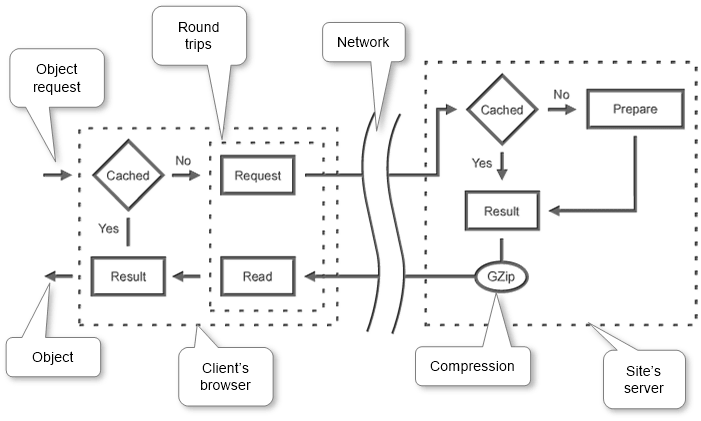
One of the most effective ways to optimize sites’ load time is to cache unchanged (or rarely changing) parts to prevent them from reassembling.
cache-scheme

The easiest way to manage that is to use a special plugin. There are many plugins that cover that needs. Below is shown a comparison of the most popular and free of them and choosing the best for our needs.

Required minimum features to be on top:

  • Server cache
    • Page load time

      It’s the most critical parameter. Less time means better performance. If it’s big so it’s needed to increase hardware speed that cost money instead of choosing a better plugin.

    • Caching method

      Load already prepared HTML, JS, CSS directly instead of generating them again.

  • Client cache
    • Enable client browser’s cache to reduce requests to our site.
  • Optimize
    • Combine

      Decrease requests to each JS, CSS from our site to increase load speed by joining them into a single one of each type.

    • Inline

      It’s recommended to inline CSS into HTML to decrease request count.

    • Postpone

      Load JS in the background to allow the user to see pages faster. One of the important feature according to Google Page Speed Test as it influences on render-blocking round trips count. Fewer round trips result in faster pages.

    • Minify

      Remove unneeded spaces, comments etc. from HTML, JS, and CSS for minimizing size so increase load speed.

    • Compress

      Decrease requested HTML, JS, CSS sizes by compressing them by Zip algorithm (GZip) to be downloaded faster.

  • Manage
    • Refresh

      Drop cache by site modification events and manual mode in any other cases.

    • Exclude

      Manage real dynamic content such login pages and admin area.

Plugins Comparison

A special discovery was made to compare the plugins. Each plugin was installed and tested on the same page with plugin’s maximum performance settings. The results are arranged by the assigned total score.

Plugin Role Full Server Cache Client Cache Optimize Manage
LiteSpeed Cache + Hyper Cache Extended + Autoptimize + Speed Up – Browser Caching
(Bundle)
Full 96% 98% 71% 100% 100%
Breeze
1.0.10
Full 93% 95% 71% 97% 75%
WordPress Cache and CDN Plugin + Autoptimize
(Bundle)
Full 90% 98% 100% 83% 75%
Autoptimize + Cache Enabler + Speed Up – Browser Caching
(Bundle)
Full 88% 98% 71% 83% 100%
W3 Total Cache
0.9.7
Full 84% 55% 100% 100% 100%
WordPress Cache and CDN Plugin
1.5.04
Full 82% 98% 100% 67% 75%
LiteSpeed Cache + WP Fastest Cache
(Bundle)
Full 79% 50% 71% 100% 100%
WP Rocket
3.2.0.1
Full 76% 50% 71% 95% 100%
WP Speed of Light
2.3.2
Full 70% 50% 71% 83% 100%
Yasakani Cache
2.0.4
Full 64% 98% 0% 53% 75%
Hummingbird Page Speed Optimization
1.9.2

Optimize

53% 48% 71% 50% 100%
WP Fastest Cache
0.8.8.6
Full 52% 50% 71% 47% 100%
Cache Enabler
1.3.1
Server Cache 48% 95% 0% 20% 100%
LiteSpeed Cache
2.6.1
Optimize 47% 2% 71% 70% 100%
Autoptimize
2.4.1
Optimize 44% 2% 36% 73% 100%
Powered Cache
1.2.2
Full 44% 50% 71% 30% 100%
Hyper Cache
3.3.7
Server Cache 43% 95% 0% 10% 100%
Hyper Cache Extended
1.6.3
Server Cache 43% 95% 0% 10% 100%
Simple Cache
1.6.4
Server Cache 43% 95% 0% 10% 100%
Super Static Cache
3.3.5
Server Cache 43% 95% 0% 10% 100%
WP Super Cache
1.6.4
Server Cache 43% 95% 0% 10% 100%
Fast Velocity Minify
2.3.5
Optimize 36% 2% 0% 65% 100%
WP Performance Score Booster
1.9.2.1
Client cache 31% 23% 71% 30% 0%
Speed Booster Pack
3.7.1
Optimize 27% 0% 0% 52% 50%
Comet Cache
170220
Full 27% 25% 0% 30% 100%
Speed Up – Browser Caching
1.0.2
Client cache 23% 0% 71% 30% 0%
Gator Cache
2.1.7
Server Cache 20% 48% 0% 0% 100%
Cachify
2.2.4
Full 16% 25% 0% 10% 50%
Cache-Control
2.2.2
Client cache 3% 0% 29% 0% 0%

According to test results, a role was assigned to each plugin. It useful to match plugin target functions.

Download Detailed Dynamic Comparison Table

Using a single plugin

The simplest way is to choose the all-in-one plugin to minimize configuration effort. So the fastest plugins that cover almost all requirements are Breeze, W3 Total Cache, and WordPress Cache and CDN Plugin.

And the most effective way is to use bundles (several plugins combinations). As there is no unique free plugin that covers all requirements and has high page load speed. There were tested several combinations that introduced below.

Using bundle: LiteSpeed Cache + Hyper Cache Extended + Autoptimize + Speed Up – Browser Caching

This bundle uses the optimization power of LiteSpeed Cache, one of the best caching speed from Hyper Cache Extended, brilliant CSS optimization from Autoptimize and ‘Speed Up – Browser Caching’ for client’s cache control and compressing. So, the resulting score is 94%. It’s the fastest and optimized combination.

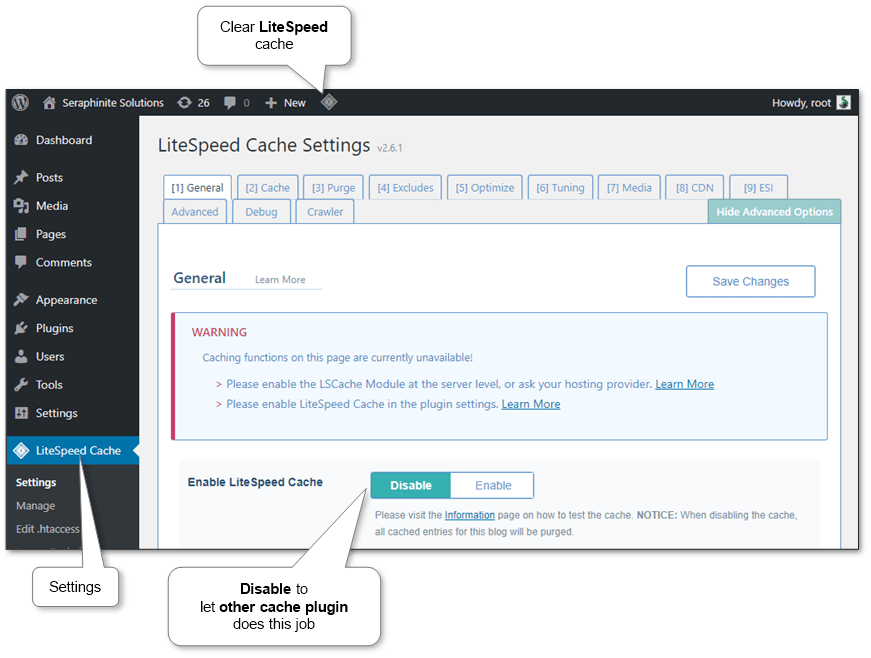
LiteSpeed Cache’s related settings:

  • General
    • Enable LiteSpeed Cache: Disable
  • Optimize
    • CSS Minify: Off
    • CSS Combine: Off
    • JS Minify: On
    • JS Combine: On
    • HTML Minify: On
    • Inline CSS Minify: On
    • Inline JS Minify: On
    • Load CSS Asynchronously: Off
    • Generate Critical CSS: Off
    • Generate Critical CSS In Background: Off
    • Inline CSS Async Lib: Off
    • Load JS Deferred: On
    • Exclude JQuery: On
    • Remove Comments: On
  • Tuning
    • Combined CSS Priority: Off
    • Combined JS Priority: Off
  • Advanced
    • Browser Cache: Off
    • Check Advanced Cache: Off

litespeed-cache-plugin-combined-settings-general

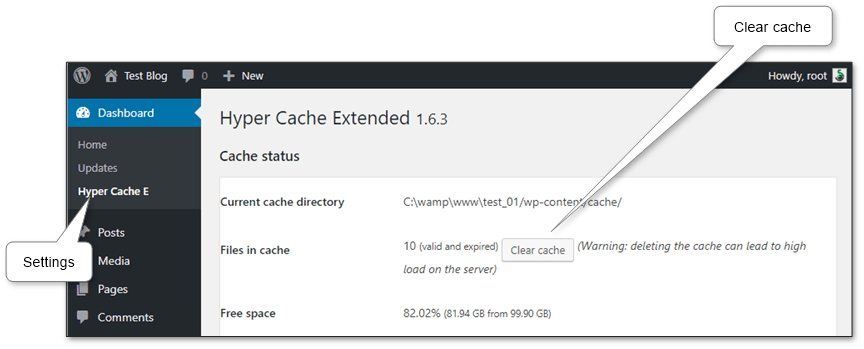
Hyper Cache Extended’s related settings:

  • Compression
    • Enable compression: On
    • Disk space usage: On

hyper-cache-extended-plugin-combined-settings

Autoptimize’s related settings:

  • HTML Options
    • Optimize HTML Code: Off
  • JavaScript Options
    • Optimize JavaScript Code: Off
  • CSS Options
    • Optimize CSS Code: On
    • Aggregate CSS-files: On
    • Also aggregate inline CSS: On
    • Generate data – URIs for images: On
    • Inline all CSS: On
  • Misc Options
    • Save aggregated script/css as static files: On
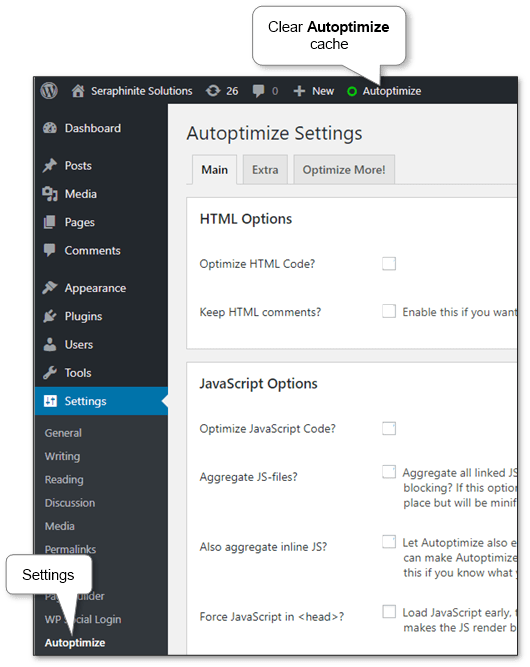
autoptimize-plugin-settings-location

And Speed Up – Browser Caching has no settings – it does all by default.

Using bundle: WordPress Cache and CDN Plugin + Autoptimize

This combination eliminates the disadvantage of ‘WordPress Cache and CDN Plugin’ in JS postponing and uses the power of client cache and compression features. Finally, the resulting score is 90%. So it’s a very fast and handy set.

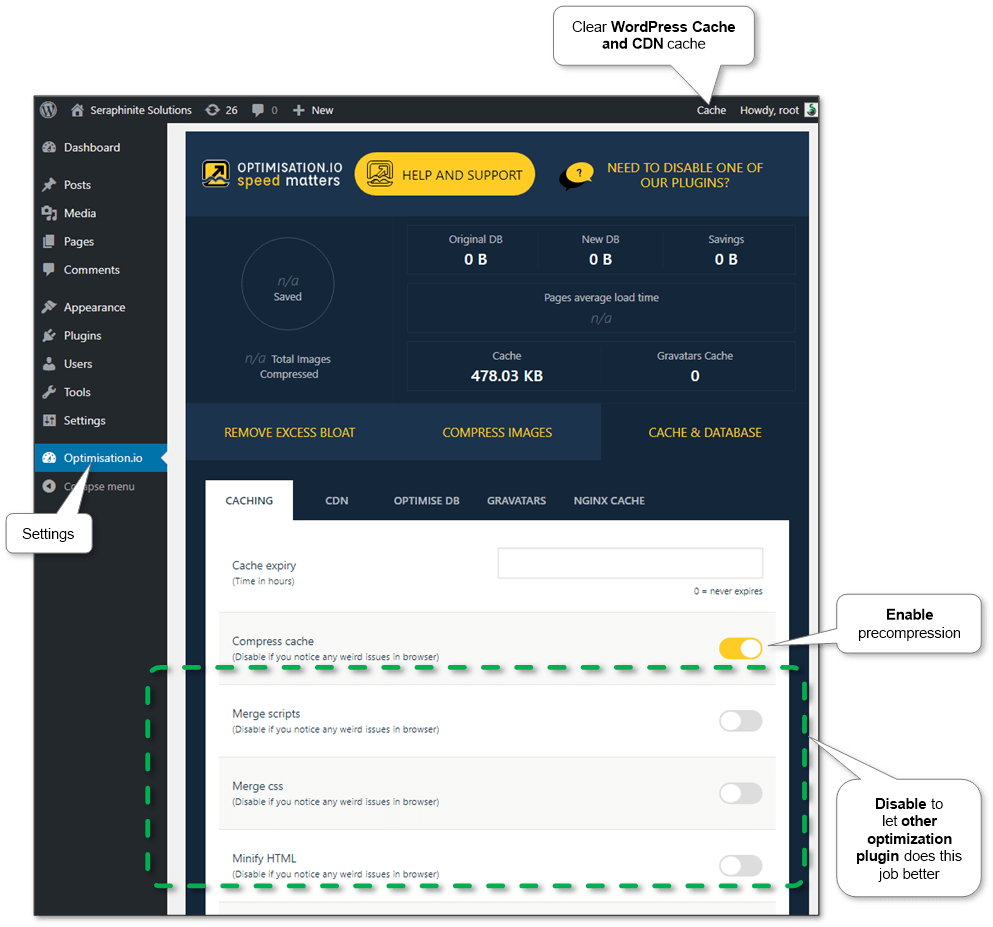
To use Autoptimize power, all related settings in WordPress Cache and CDN Plugin are disabled:

  • Cache & Database\Caching
    • Compress cache: On
    • Merge scripts: Off
    • Merge css: Off
    • Minify HTML: Off
    • Enable Gzip Compression: On
    • Leverage browser caching: On

wordpress-cache-cdn-plugin-combined-settings

And the settings of Autoptimize are:

  • HTML Options
    • Optimize HTML Code: On
  • JavaScript Options
    • Optimize JavaScript Code: On
  • CSS Options
    • Optimize CSS Code: On
    • Aggregate CSS-files: On
    • Also aggregate inline CSS: On
    • Generate data – URIs for images: On
    • Inline all CSS: On
  • Misc Options
    • Save aggregated script/css as static files: On
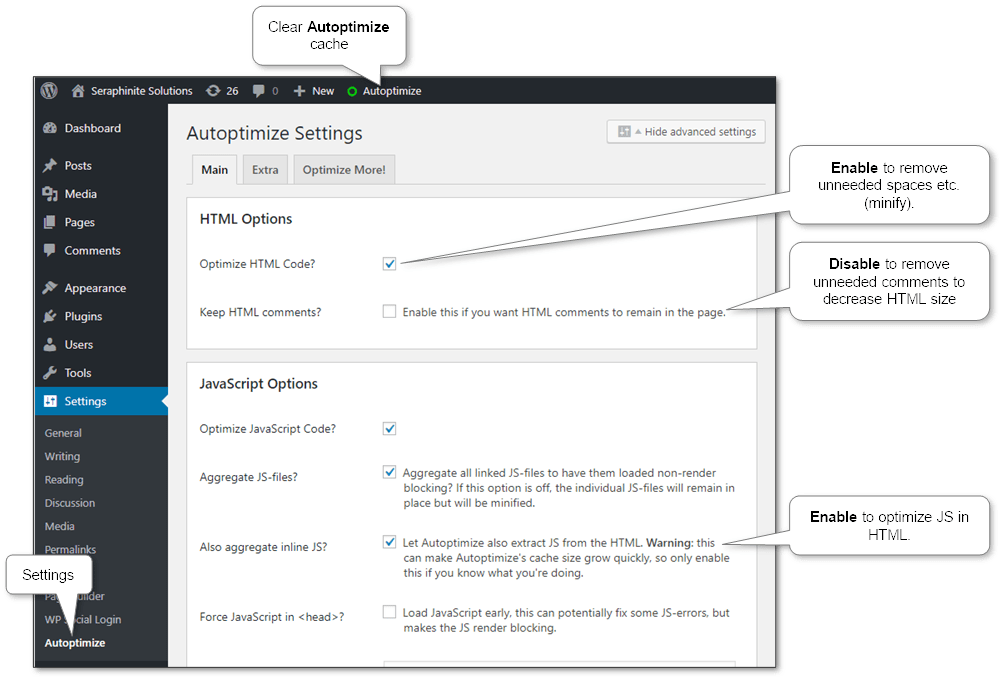
autoptimize-plugin-settings

Using bundle: Autoptimize + Cache Enabler + Speed Up – Browser Caching

That combination has achieved 88% score in testing results that higher than any other single plugin. As a result, we have high speed, simple and powerful solution.

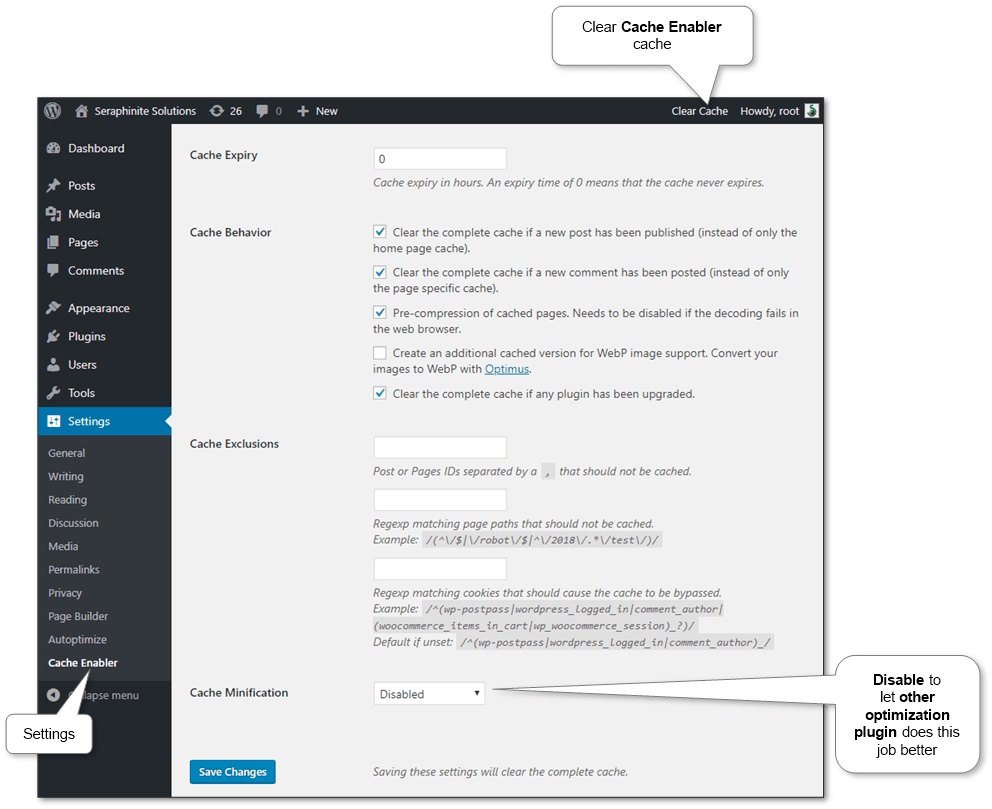
The settings of Cache Enabler are:

  • Cache Behavior
    • Pre-compression of cached pages: On
  • Cache Minification: Disabled

cache-enabler-plugin-combined-settings

The settings of Autoptimize are the same as in the previous bundle.

And Speed Up – Browser Caching has no settings – it does all by default.

Using bundle: LiteSpeed Cache + WP Fastest Cache

This combination has achieved only 79% score because of having not so good page load time instead of above bundles. But it still better by page load time that W3 Total Cache.

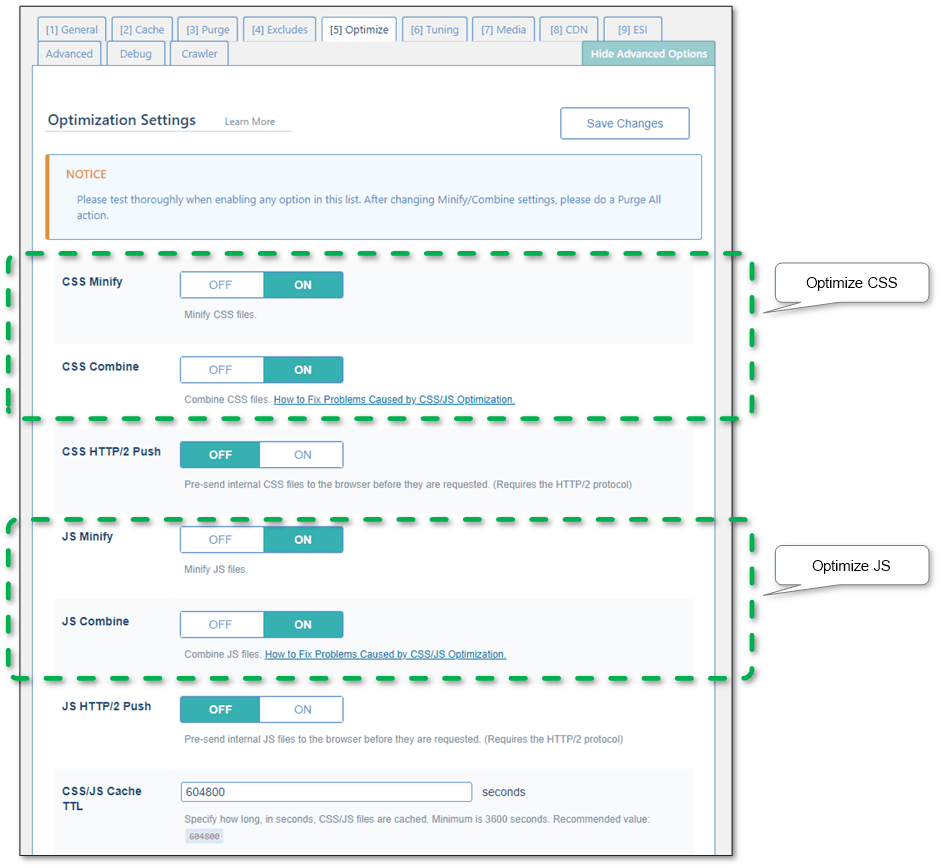
Settings were tuned in such way that LiteSpeed Cache was used as content optimizer:

  • General
    • Enable LiteSpeed Cache: Disable
  • Optimize
    • CSS Minify: On
    • CSS Combine: On
    • JS Minify: On
    • JS Combine: On
    • HTML Minify: On
    • Inline CSS Minify: On
    • Inline JS Minify: On
    • Load CSS Asynchronously: Off
    • Generate Critical CSS: Off
    • Generate Critical CSS In Background: Off
    • Inline CSS Async Lib: Off
    • Load JS Deferred: On
    • Exclude JQuery: On
    • Remove Comments: On
  • Tuning
    • Combined CSS Priority: Off
    • Combined JS Priority: Off
  • Advanced
    • Browser Cache: Off
    • Check Advanced Cache: Off

litespeed-cache-plugin-combined-settings-optimize

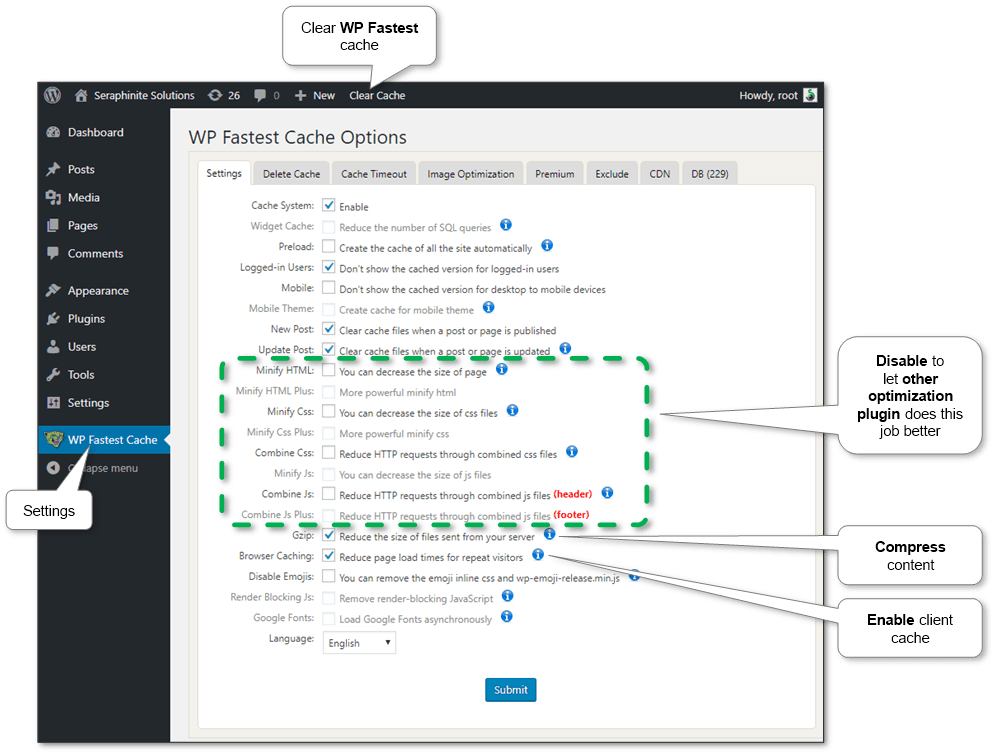
And WP Fastest Cache options are set only as a cache provider:

  • Settings
    • Cache System: On
    • Minify HTML: Off
    • Minify HTML Plus: Off
    • Minify Css: Off
    • Minify Css Plus: Off
    • Combine Css: Off
    • Minify Js: Off
    • Combine Js: Off
    • Combine Js Plus: Off
    • Gzip: On
    • Browser Caching: On
    • Render Blocking Js: Off

wp-fastest-cache-plugin-combined-settings

Using other potential bundles

The result detailed dynamic table helps to choose and compare plugins according to needs. Tested plugin combinations (bundles) are listed there as well.

Note: Some plugins may be incompatible with each other.

Note: Always check JS correct working of postponing optimization options – some plugins might be tuned up and some might not work properly. Such plugins are commented in the results table.

Image compression

Images should be as smaller as possible to reduce response time.

Options above can be used in any combination.

  • Use image optimization plugin

    It’s the easiest way. And most of such plugins are very simple instead of caching plugins. For instance, EWWW Image Optimizer, Imagify Image Optimizer, and Smush Image Compression and Optimization.

  • Use image optimization online services

    There are a lot of such services. Just type ‘optimize image’ or ‘compress image’ in the browser and choose any from the top. E.g. Optimizilla, ShortPixel, OptimizePNG. They get any images and return optimized. Just replace it on the site.

  • Get optimized images from Google Page Speed Test

    Finally, Google Page Speed Test provides optimized images after measure so it can be replaced in our sites. As sometimes, special services’ optimized images are still too large for Google.

Measuring

The result optimizations easily can be checked at Google Page Speed Test that shows any disadvantage in simple view and provides recommendation and explanation.

Furthermore, site’s speed can be directly measured by Google Chrome browser. Press F12, go to Network tab and press Ctrl+F5 to refresh page and track information. Here it’s possible to catch the response time of each page, content organization and media files.

More information can be discovered in the original post about WordPress site response time optimization with detailed caching plugin comparison and on the main site.

Increase site’s speed by enable PHP code caching

PHP cache incredible increases the speed of a site. For instance, if request preparation takes 1.2 seconds, after cache enabling it will take 0.6 seconds (increase by about 50%). Particularly, it influences on WordPress significantly as well because it contains a lot of PHP code.

On some sites based on e.g. WAMP (Apache, MySQL and PHP bundle for Windows) PHP code cache is turned off by default so it’s better for us to check the settings.

The most popular way to do that is to use OpCache – a special PHP module that does code caching. In PHP 5.5 and above this module already integrated into.

How it works

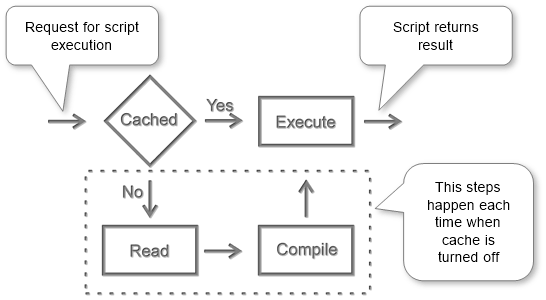
OpCache provides faster PHP execution through compiled code caching and optimization. It improves PHP performance by storing precompiled script bytecode in the shared memory. Every time a PHP script is requested, the PHP script will be parsed and compiled into opcode, which then is executed in the engine. When an opcode cache is introduced, after a PHP script is interpreted and turned into opcode (compiled), it’s saved in shared memory, and subsequent requests will skip the parsing and compilation phases and leverage the opcode stored in memory, reducing the script’s execution time.

script-cache-scheme

Configure

Configuration mainly is done by editing a special file named php.ini.

Locate configuration file

The location is depend on a system and can be like /etc/php5/apache2/php.ini or /etc/php5/fpm/php.ini, /usr/local/lib/php.ini on Unix-similar systems and C:\wamp\bin\php\php5.5.12\php.ini on Windows.

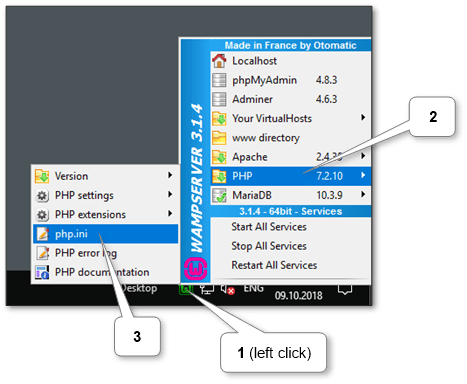
In WAMP there is a special menu item that opens it.

wamp-php-ini

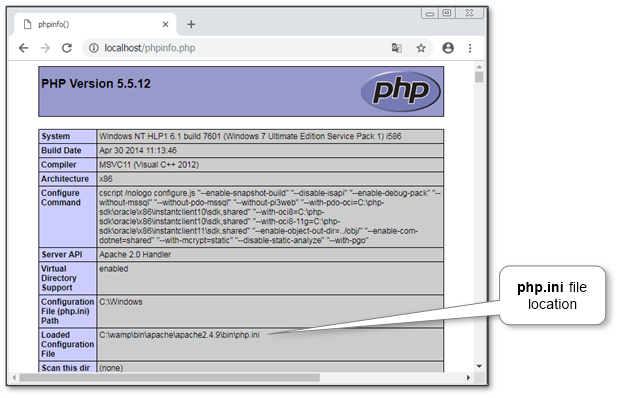
Also, a file’s location can always be discovered from PHP info. Just create phpinfo.php file with content <?php phpinfo(); ?>, copy it to the web server’s root directory and run it by http://localhost/phpinfo.php. The location is in the Configuration File (php.ini) Path section of the first block (look at the picture below).

phpinfo-php-ini-location

Set settings

All settings are located in [opcache] section of php.ini.

Ensure that the main settings exist there:

[opcache]
zend_extension=<correct_path_to_php_opcache_module>
opcache.enable=1

Other additional settings can be left untouched with default values. But sometimes it’s required to tune them. So here is a short description of each important one with recommended values.

  • opcache.enable = 1

    Enables or disables the cache. The main setting.

  • opcache.use_cwd = 1

    Eliminates possible collisions between files with the same base name.

  • opcache.validate_timestamps = 1

    Enables runtime validation of script files changes. It’s recommended for use if the site is being changed with different PHP scripts. E.g. plugins installation in WordPress. But if there is insurance that all set of scripts is stable, this setting can be turned off to increase a little bit of runtime execution.

  • opcache.revalidate_freq = 2

    How often to check script changes, in seconds. 0 will result in checking on every request. It doesn’t work if opcache.validate_timestamps is disabled.

  • opcache.max_accelerated_files = 10000

    The maximum number of cached files. Bigger values recommended for bigger sites with a huge amount of scripts and installed memory.

The actual parameters can always be checked at the OPcache source configuration page and in the list of all parameters.

Restart web service

Just restart Web service (e.g. Apache) and PHP will be restarted too.

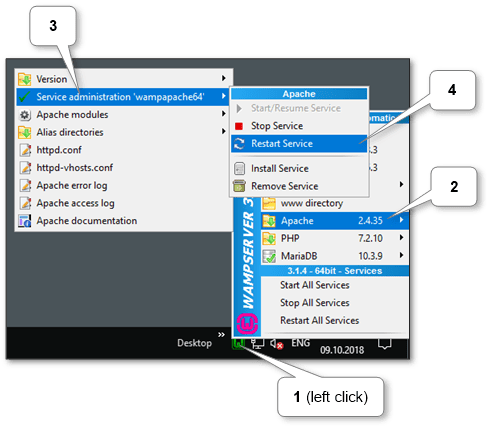
In WAMP it can be done by restart Apache.

wamp-restart-apache

Check

The obvious way to check it is to compare server response before and after turning on a cache. E.g. we can do that by Google Chrome browser.

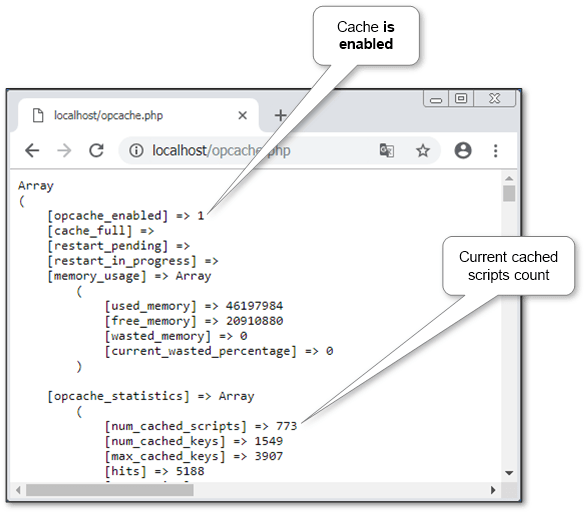
Another way to check that OpCache is working is to create a file opcache.php with content <pre><?php print_r(opcache_get_status());?></pre>, copy it to the web server’s root directory and run it by http://localhost/opcache.php. The sample result in the picture below.

opcache-configuration-check

The value of opcache_enabled should be 1. And lower there is PHP scripts statistics can be viewed like total count and detailed info for each one.

If the site’s performance is not enough it’s possible to tune up WordPress by cache plugins.

More information can be discovered in the original post about Increase site’s speed by enable PHP code caching and on the main site.

Using Microsoft Word to manage WordPress SEO content

WordPress is the most popular Content Management System in the world. This simple yet robust CMS is used to organize much of the world wide web today including personal blogs, online shops and company brand sites etc.

Currently, we should create high attractive site content to correspond modern standards for SEO (Search Engine Optimization) promotion. It should be unique, quality, interesting and optimized for the search keywords. Time has gone when we only used and paid for external links and advertisements.

  • Unique is needed to prevent blocks from the search engines.
  • Quality (grammar, theme, design, structure and etc.) is measured as by people as by the search engines.
  • Interest directly influences on the length of human visit time. Search engines interpret this time as content profitability.
  • Particular keywords optimization also is needed to stay in top 10 in the search results. It’s not possible to be on such place without it instead of realizing all above points.

seo-content

The most important and valuable thing on our site is a content. We can write it by ourselves or order it from other companies.

Why Microsoft Word

We can type texts in WordPress editor but it’s better to use standard tool MS Word. It’s one of the world standards of documents along with PDF.

ms-word-source

Advantages

  • Comments and highlights

    The color tagging of keywords allows you to see the semantic core in action, and the comments are very useful when reviewing by other people and don’t forget something in the future.

  • Word and keyword counting

    We should count it to achieve best results in search output.

  • Independence from network

    We can edit post anywhere at any time. We get independence from browser freeze, network troubles, hosting harms and unwanted signout that can lead to data loss.

  • Sharing and review

    We can share our documents with others trough Sky Drive®, Google Drive® or similar to make corrections and review. MS Word has handy review and difference comparison ability.

  • Spell correction and other tools

    There are spell and grammar correction on board. And there are huge amount extensions that provide extended functionality include useful macros. Our CMS has a lot of different plugins too but it may increase the load on the system.

  • Version control

    We can put documents into any versioning repository (include clouds e.g. Sky Drive®) to save our work. WP also has version control, but it leads WP degradation after it got a huge amount of post versions.

Automatic conversion from Word to WordPress

Why standard publish ways aren’t enough:

  • We have to make manually some correction like remove nonexistent links and helping markups, set categories, title and other post attributes.
  • WordPress supports simple copy\paste from MS Word but sometimes it could lose some parts of the document.
  • MS Word also supports only general publishing to WordPress and e.g. we don’t have the option to skip SEO markups.

We have developed special free plugin named Post .DOCX Source that takes care of automatic conversion from MS Word to WordPress post, page or product. It checks and corrects links to other documents, sets all attributes, corrects media and other pages URL’s to site format and compatible with most popular plugins. List of all features is available in above link.

See the documentation how to use all plugin features.

Conclusion

Eventually, we have developed WordPress document management system approach that includes a powerful way to store, edit and automatic publish our content to site. In particular, there is ability to publish to WordPress a set of documents in one click.

We will glad if you contact us about any new relevant features.

More information can be discovered in the original post about Using Microsoft Word to manage WordPress SEO content and on the main site.

Design a site like this with WordPress.com
Get started